Working with Databases
What you can do once a connection is set up (see Database Connections): browse the server, open tables, run SQL on the server or locally, edit and write back, copy tables between servers and export them to files. The same actions from a script are on Databases from the CLI.
Browsing
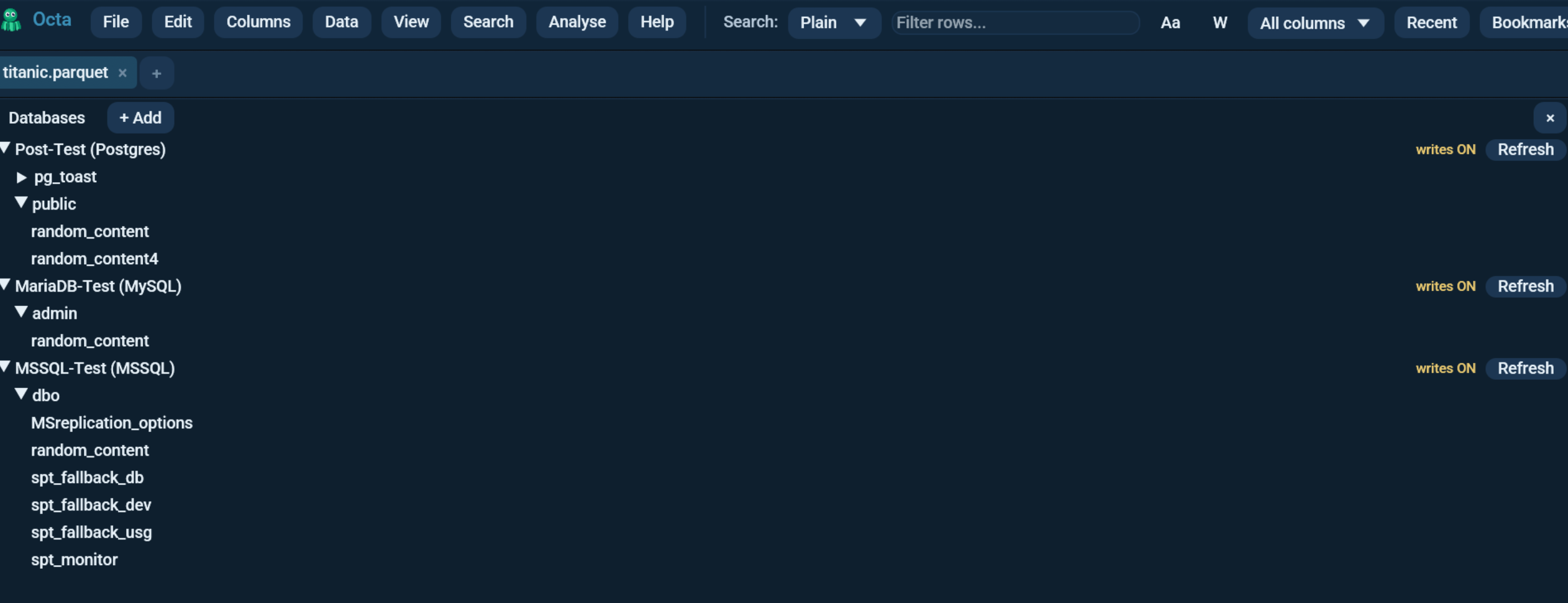
File > Databases toggles a sidebar tree of your connections. Expand a connection to list its schemas, expand a schema to list its tables, and click a table to open its first rows in a tab.
The search box under the header narrows the tree to matching names as you type, and Search all (or Enter) looks through every schema of the expanded connections, including the ones you have not opened. See Sidebar Search. To read an open table again, right-click its tab and choose Refresh (see Refresh a Tab).
A table opens one page at a time: Octa reads
Settings > Performance > Live database page size
rows (100,000 by default), and fetches the next page in the background
as you scroll towards the bottom, exactly as a large Parquet file does.
The status bar shows the count it has so far with a +, and says
"Loaded all N rows" once the table runs out. Lower the page size if
opening a table feels slow.
This is a separate setting from the initial-load row cap, which sizes a local file read. The same number of rows over a database connection is megabytes of JSON crossing the network, and Databricks refuses any single result larger than 25 MiB. The CLI and the MCP server cannot scroll, so they ignore the page size and use the initial-load cap.
Right-click a table for Copy to another connection... and
Show metadata.... "Show metadata" opens a read-only tab with the
table's columns; on Databricks it runs DESCRIBE TABLE EXTENDED, so the
tab also carries the detailed table information (location, format, owner,
properties). Other engines return their column schema
(information_schema.columns or the engine's DESCRIBE).
Trino, Snowflake, Databricks and BigQuery have a three-level namespace, so
their tree has an extra top level: catalog > schema > table (a
Snowflake database, a Databricks catalog, or a BigQuery project). Each
level loads when you expand it. Browsing every BigQuery project needs
the resourcemanager.projects.list permission; the connection's token
uses the cloud-platform scope, which covers it. The other engines stay
two-level: MySQL/MariaDB, ClickHouse and Exasol are genuinely
two-level, and a PostgreSQL / Redshift / SQL Server / Oracle connection
browses the one database it is connected to (for Oracle, the schemas of
the service it connected to, minus the ones Oracle ships).
Octa keeps one live connection per saved connection and reuses it across sidebar listings, table opens, and server queries (a dead connection reconnects automatically), so browsing several servers side by side stays snappy. Editing a connection in Settings drops its cached connection.
A database tab is read-only unless its connection has Allow
writes on and Octa can discover a row key for the table (a primary
key, or a NOT NULL unique constraint) - see
Editing and write-back. Read-only tabs show
the usual [Read-only] pill, which stays for as long as the tab is
open, and a status message explaining why, which fades after the time
set in Settings > Appearance like every other message.
ClickHouse and BigQuery tables have no discoverable primary key,
so their tabs always open read-only; query and copy them, and write with
Run on the server or Write result to DB....
Editing and write-back
When a connection has Allow writes on and the opened table has a primary key, its tab opens fully editable: edit cells, insert and delete rows, add columns - the same tools as any file tab, undo included. Nothing reaches the server until you save.
Ctrl+S (Save) diffs your edits against the loaded baseline and
shows a confirmation dialog listing exactly what would change on the
server: how many updates, inserts, and deletes, plus any added columns,
and the target schema.table @ connection. Confirm and Octa applies
the whole diff in one transaction, keyed by the primary key
(ALTER TABLE ADD for new columns, DELETE / full-row UPDATE /
INSERT per row). If anything fails the transaction rolls back and
your edits stay in the tab, so you can fix the problem and save again.
The confirmation dialog is on by default. Turn it off under Settings > Databases > Confirm database write-back if you write back constantly and the prompt is in the way; Save then applies the diff immediately. Both paths use a single transaction and both roll back on failure, so the setting changes whether you are asked, not how safely the write happens.
Things to know:
- No row key, no editing. Saving builds an
UPDATE ... WHERE key =per changed row, so Octa needs something that addresses exactly one server row. A primary key is used when there is one. Failing that, a UNIQUE constraint whose columns are all NOT NULL is taken instead - that is the same one-row guarantee, enforced by the server, and plenty of tables have one without ever declaring a primary key. The narrowest such constraint wins, so the choice is the same at save as it was at load. A nullable unique column is not enough:WHERE col = NULLmatches nothing, so the save would quietly touch no rows. -
No key at all? Rows are matched on all their values. On Postgres, MySQL, SQL Server, Oracle, Redshift and Exasol, a table with neither a primary key nor a usable unique constraint is still editable: the save builds
WHERE col1 = old1 AND col2 = old2 AND ...from the whole baseline row, withIS NULLwhere the original value was NULL. A message says this is what is happening when the tab opens, and fades like any other status message.What makes that safe is that every such statement is checked to have touched exactly one row, inside the transaction. Two rows matched (the table holds duplicates the values cannot tell apart) or none matched (someone changed the row on the server since you loaded it) both abort the whole save and roll back. It refuses rather than guesses, so it cannot quietly rewrite the wrong rows - but it does mean a table with genuinely identical rows cannot be edited this way.
ClickHouse and the three catalog warehouses are excluded: their DML is not a plain single-row
UPDATE, so they stay read-only without a key. - Only the loaded rows are compared. The tab holds the initial-load window; rows beyond it are never touched by a save. Inserts always append. - Someone else's changes are not overwritten. See When someone else changed the table. - Local SQL mutations lose row identity. Running a local DuckDB mutation on the tab rewrites the snapshot; a later save refuses with a "row identity lost" message. Reload the table, or use Run on the server for mutations. - Save as detaches. Saving the tab to a file exports it and turns it into an ordinary file tab; it no longer writes back to the server.
When someone else changed the table
Between opening a table and saving it, a colleague or a scheduled job may have changed the same rows. Octa does not simply overwrite their work. When you save, it first reads every row you changed or deleted again, inside the same transaction, and compares three versions of each: the row as it was when you opened the table, as it is on the server now, and as it is in your tab.
- Their change and yours in different cells of one row are both kept. The save writes the combined row, the tab shows their values afterwards, and the status line says how many rows also took someone else's changes.
- A row they deleted that you never edited (it only joined the save because you added a column) simply leaves your tab.
- The same cell changed to different values, a row you edited but they deleted, or a row you deleted but they changed stops the save. Nothing is written. A dialog lists each of these rows with the value from when you opened the table, the value on the server now, and yours, and asks what to keep:
| Situation | Your side | Their side |
|---|---|---|
| Both changed the same cells | Keep mine | Take theirs |
| They deleted the row | Add it back with my values | Let it go |
| You deleted, they changed it | Delete anyway | Keep theirs |
All mine and All theirs set every row at once. Save with these choices applies them and saves straight away; Octa checks the server once more, so a change made in the meantime is caught too. Cancel closes the dialog and keeps your edits in the tab, unsaved. Applying the choices clears the tab's undo history, because the rows now start from the server's version.
Postgres, MySQL, Oracle and SQL Server lock the rows they read again until the
save commits, so nobody can change them between the check and the write.
Redshift and Exasol read without a lock, which leaves a gap of milliseconds.
MySQL, MariaDB and Oracle commit an ALTER TABLE on their own: when a save
adds a column and the conflict only turns up after the column was added, the
column stays on the server and the dialog says so.
A table without a key is not merged: its save matches each row on all of its values and refuses when one of them has changed on the server, as before.
Exporting the changes as SQL instead
Some teams cannot let a tool write to production directly: the change
has to be reviewed as a script first. File > Save SQL... writes
exactly the statements a save would run to a .sql file and sends
nothing to the server. The tab stays modified, so you can still save
normally afterwards.
The script is the same one Confirm would execute, produced by the same code, so a reviewed script and an applied write-back cannot drift apart. It is wrapped in a transaction and ordered the way the save applies it: added columns, deletes, updates, inserts.
Save SQL has no keyboard shortcut by default. Assign one under Settings > Shortcuts if you use it often.
Generating the change as SQL instead of applying it
The command line can also produce that script without the GUI: it compares
a file with a server table and prints the SQL that would make the table match.
See --sync-sql.
Copying a table between servers
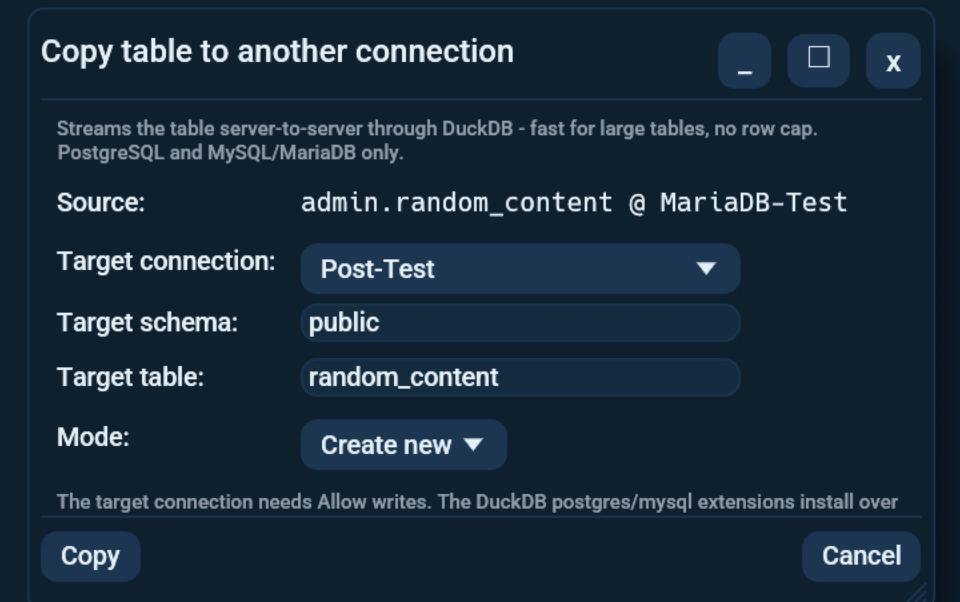
Right-click a table in the sidebar tree and pick Copy to another connection... to copy it into a different server (for example MySQL to Snowflake). Pick the target connection, schema, and table name, and a mode: Create new (error if the table exists), Append, or Replace (drop and recreate). Copy works between any two of the twelve engines, in either direction; the dialog annotates which lane a given pair uses.
There are two lanes, chosen automatically:
- Fast lane - when both engines are DuckDB-attachable
(PostgreSQL, MySQL/MariaDB, Redshift). DuckDB attaches the source
read-only and the target writable and runs one
INSERT INTO ... SELECT. The data never passes through Octa's table model, so there is no row cap and no memory blow-up, and writes to PostgreSQL use the binary COPY protocol - far faster than row-by-row INSERTs. The DuckDBpostgres/mysqlextensions install over the network on first use (then cached). - Universal lane - any other pair (a warehouse, ClickHouse, Exasol, Oracle, SQL Server on either side). Octa pulls the source in batches and writes each batch to the target. It is slower because the data passes through Octa, but it works for every engine combination.
Either way, the target connection needs Allow writes. Agents can do
the same via the copy_db_table MCP / Assistant tool.
Exporting tables to files
Right-click a schema in the sidebar tree and pick Export tables... to write its tables into a folder, one file per table, named after the table. A table's right-click menu has Export to file..., which opens the same dialog with just that table ticked.
In the dialog:
- Tables: every table of the schema, all ticked to start with. All and None tick or untick them, and the find field narrows a long list.
- Folder: where the files go. It is created if it does not exist.
- Format: Parquet (small, and it keeps the column types), CSV, TSV or JSON Lines. CSV takes its separator, quoting, decimal mark and byte order mark from Settings > Files > Write options.
- Replace files that are already there: off by default, so a table whose file is already in the folder is skipped rather than overwritten.
Export shows which table it is on and how many rows it has written. Each table is read from the server page by page and written as the pages arrive, so a table with tens of millions of rows never has to fit in memory. A file only appears under its real name once it is complete, and one table that fails (no permission, a dropped connection) does not stop the others: the summary names each failure and why. Stop, or closing the dialog, ends the run after the current page; the table being written is left out and the finished files stay.
The export only reads, so the connection needs no Allow writes. With a database table open, the Export database tables... shortcut (unbound by default, see Shortcuts) opens the dialog for that table's schema.
SQL: server or local
The SQL panel has a Run on picker, on every tab. A database tab starts on its own connection; any other tab can pick any saved connection to query that server directly, no attach needed:
- A connection name (default on a database tab): the query runs on the server, in the engine's native SQL dialect, on a background thread. A Cancel button appears while it runs, and it works on every engine (see Cancelling a running query).
- local DuckDB: the query runs against the loaded snapshot as
data, exactly like any other tab.
Mutations run on the server report rows affected; they are refused unless the connection allows writes.
Query results are streamed and capped at the initial-load row limit
(Settings > Performance, default 2,000,000), so a SELECT * on a huge
table cannot exhaust memory; the row counter notes when the cap was
reached. The CLI lifts it with --rows N|all, agents with
unlimited: true.
Joining server tables with local files
The SQL workspace's Attach connection menu attaches a saved database read-only, so its tables join against local files:
- PostgreSQL, MySQL/MariaDB and Redshift attach natively through
DuckDB's
postgres/mysqlextensions (installed over the network on first use); address tables asalias.schema.table. The alias is the connection name lowercased with spaces and punctuation as_("Post-Test" becomespost_test); you never have to guess it - the Attached connections box next to the Inspector lists each alias with a one-click example query, and clicking any attached table in the workspace tree offers Copy / Insert / Run for its qualified name. - The other engines (SQL Server, Oracle, Snowflake, Databricks,
BigQuery, ClickHouse, Exasol) have no native DuckDB extension, so their tables
are imported as plain workspace tables named after themselves
(
orders), which you can rename by double-clicking the name. Their menu entry therefore opens into the server's tree: pick a single table, a schema, or Attach everything here for the level you are on. The import is row-capped at the initial-load limit and a level with very many tables is refused - drill in one further, or query it with Run on instead.
You do not even need a table open: the SQL panel opens on an empty tab
too (Analyse > SQL), attach your connections and query the servers
directly - cross-server JOINs and UNIONs included. Without a table
there is simply no data in the workspace. Every result shows a row
counter directly above the grid.
The Write result to DB... dialog also lists your connections as targets, writing the current result rows into a server table.
Saving an open table as a new database table
You do not have to go through SQL. File > Save to database... takes the table in the active tab - a CSV, a Parquet file, an Excel sheet, anything Octa can open - and writes it into a database as a new table. The dialog is the one the SQL panel uses, so the targets are the same: one of your saved connections, or a DuckDB or SQLite file.
Pick a target, a schema and a table name, and a mode:
- Create - make a new table, and fail if that name is taken.
- Replace - drop any existing table of that name first.
- Append - add the rows to a table that already exists. The column
names have to match, but not their case: a header
idfills a column the server stores asID(Oracle and Snowflake store unquoted names in upper case), and the table name is found the same way. When both spellings exist, the exact one wins.
The table name is pre-filled from the file name. Column names are
written exactly as they appear in Octa, capitals included, so a CSV
with an FL_DATE header gets a column called FL_DATE and not
fl_date. Pending cell edits are included; the file on disk is not
touched.
Two cases are refused rather than half-done. A tab with nothing open has no table to write. And a tab in large-file mode is showing one page of a much bigger file, so writing it would put a partial table in your database and report success - use the SQL panel on that tab instead, which reads the whole file.
Writing to a connection still needs Allow writes switched on for it, exactly as below.
Names the server wants quoted
Databricks refuses a column or table name such as my-col written
without quotes ("The unquoted identifier my-col is invalid"). Octa
reads the name from that error, puts it in backquotes wherever it
appears bare in your query (string literals, comments and names you
already quoted are left alone) and runs the query again. The editor
then shows the adjusted query and the status bar says what happened.
The same happens for query_db over MCP and --db-query on the
command line.
Cancelling a running query
The SQL panel's Cancel button stops a running statement on every engine but Oracle:
| Engine | How it cancels |
|---|---|
| PostgreSQL, Redshift | Protocol-level cancel request |
| Snowflake, Databricks, BigQuery | The vendor's cancel API, so the warehouse stops billing |
| ClickHouse | KILL QUERY by query id |
| MySQL/MariaDB | KILL QUERY from a second connection |
| Exasol | KILL STATEMENT IN SESSION from a second connection |
| SQL Server | KILL from a second connection |
| Oracle | Not supported: the statement runs to completion |
Oracle is the exception: killing a session there needs ALTER SYSTEM,
a DBA privilege an ordinary connection has no business holding, so the
Cancel button is not offered.
The same Cancel is offered for a sidebar table read: while a table is opening, or while it is fetching the next page as you scroll, the status bar shows a spinner, what it is doing, and a Cancel button. It uses the engine's own cancel from the table above, so the warehouse stops working (and billing) too. The button appears once the statement is actually running rather than with the spinner, and not at all on Oracle, so it is never there without something behind it. A cancelled read leaves the tab as it is, with the rows already in it; reopen the table from the sidebar to try again.
SQL Server's KILL ends the whole session rather than the single
statement and needs the ALTER ANY CONNECTION permission, so Octa
reconnects afterwards. Copying a table between servers still runs to
completion.
Query timeout
Settings > Databases, per connection: how many seconds Octa waits on a query that is making no progress before giving up. Default 60.
The field appears only for Trino, Athena, Snowflake, Databricks and BigQuery, and that is not an oversight. Those five submit a statement over HTTP and then ask the server, over and over, whether it has finished, so where to stop asking is Octa's decision to make. The wire protocols block on a socket inside their driver instead, and hand that decision to the driver and the server.
It belongs to the connection rather than to one global number because the right answer differs per server: a warehouse that cold-starts needs minutes where a Trino cluster answers in seconds. Athena used to allow a fixed five minutes; if you query Athena over large scans, raise its connection to match. The server may hold the very first request open for up to 30 seconds on top of the timeout, which is time Octa spends waiting rather than polling.
Timing out is never silent: the message names the number of seconds and points at this setting.
The CLI can set it too, as query_timeout= in an
--add-connection spec.
MCP and the assistant
Agents get eight tools:
list_db_connections,
list_db_tables,
db_relationships (the foreign keys
the server declares, read from its catalog without touching a row),
query_db (native-dialect SQL; mutations gated on
Allow writes), sync_sql (the SQL that would make
a table match a file, written nowhere),
write_db_table,
copy_db_table and
export_db_tables (the last three dropped
entirely under --mcp-read-only). The in-app Assistant has the
same tools against your saved connections.
On Trino, Snowflake, Databricks and BigQuery the catalog level is a parameter:
list_db_tables and write_db_table take catalog, and
copy_db_table takes source_catalog and target_catalog. Calling
list_db_tables on one of those engines without catalog returns
kind: "catalogs" and the catalog list, so the agent calls it again
with one of them to drill down. Passing a catalog to any other engine
is an error.