Conditional Formatting
Where colour marking is something you apply by hand, conditional formatting colours cells automatically based on their value, exactly like the spreadsheet feature of the same name. Flag every error row red, every overdue date orange, every empty cell yellow, and the colouring updates itself as you edit.
Open it via Columns -> Conditional formatting....
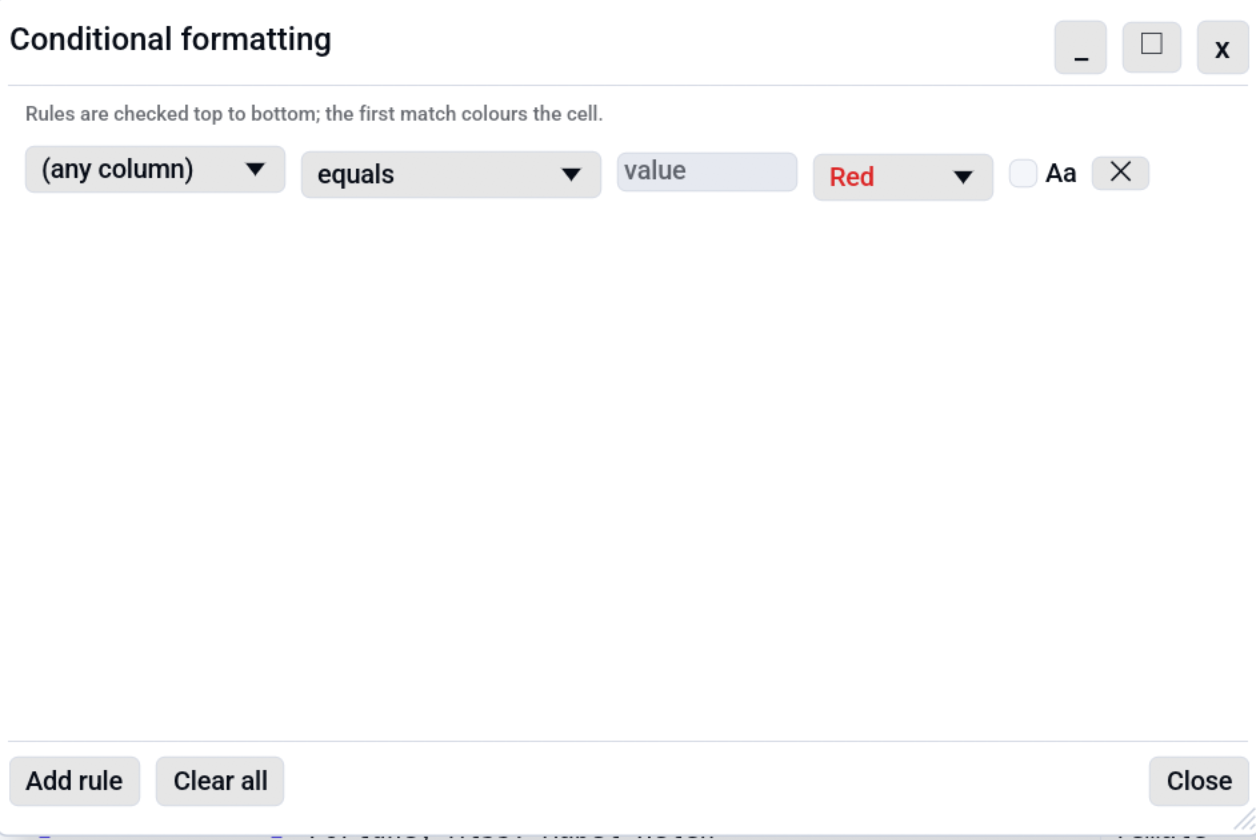
Rules
The dialog holds a list of rules. Each rule has four parts:
| Part | Meaning |
|---|---|
| Column | A specific column, or (any column) to test every cell in the table. |
| Operator | How to compare the cell against the value (see below). |
| Value | The text or number to compare against. Ignored by the two empty ops. |
| Colour | Which of the six mark colours to paint matching cells. |
Operators
equals/does not equalcontains/does not containgreater than/less than/greater or equal/less or equalis empty/is not empty
The comparison is numeric when both the cell and the value look
like numbers, so greater than 100 orders 9 before 100 correctly.
Otherwise it compares as text. Tick Aa on a rule to make its text
comparison case-sensitive (off by default).
How rules combine
Rules are checked from top to bottom, and the first rule that matches a cell decides its colour, like an if / else-if / else chain. Put your most specific rules first, and use the ^ / v buttons on each rule to move it up or down into the order you want.
A manual colour mark on a cell always wins over a conditional rule, so you can pin an exception by hand without removing the rule.
Set a value, not just a colour
Conditional formatting colours matching cells. To compute a new cell value from the same kind of if / else-if / else conditions, use Conditional column.
Live and session-only
- Rules apply live: the table re-colours as soon as you add, edit, or remove a rule, and whenever a cell value changes.
- Rules are per tab and session-only. They are not saved with the file and never change the data, only how it is displayed (the same as colour marks and number formatting).
Use Add rule to append a new row, the x button to remove a single rule, and Clear all to remove them all.
See also
- Colour Marking for applying colours by hand.
- Column Filter to hide non-matching rows rather than colour them.