Transform Column
Transform Column reshapes your data with a single click, the way you would clean up a messy spreadsheet by hand. Open it via Data -> Transform column..., pick an operation, fill in its options, and press Apply.
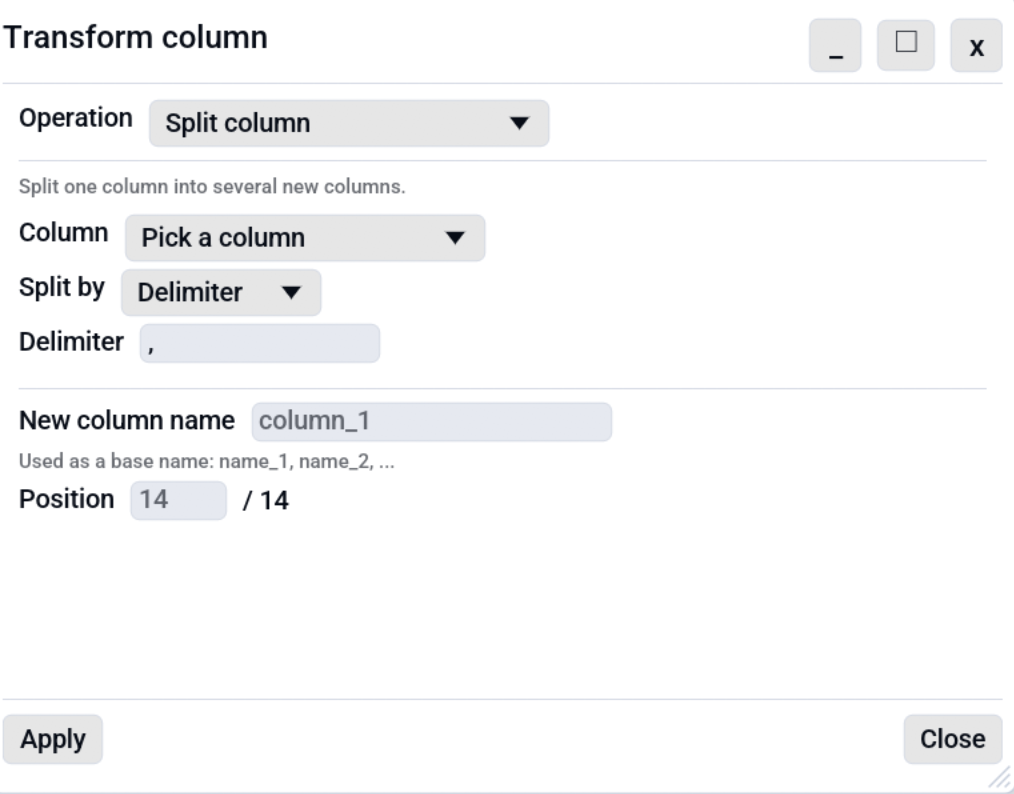
Operations
| Operation | What it does |
|---|---|
| Split column | Break one column into several, by a delimiter, a regular expression, or a fixed width (every N characters). New columns are named <source>_1, <source>_2, ...; rows with fewer parts get empty cells. |
| Merge columns | Join two or more columns into one new column with a separator you choose (for example join First and Last name with a space). |
| Fill down | Copy the nearest non-empty value downwards into the empty cells below it. |
| Fill up | The same, but upwards. Useful for exports that only show a group label on the first row. |
| Extract pattern | Pull the first regular-expression match out of each cell into a new column (for example #(\d+) to grab an order number). Non-matching cells are left empty. |
| Replace in column | Find and replace within a single column's cells, using Plain, Wildcard, or Regex matching (the same modes as the search bar). |
| Repair garbled characters | Fix text read with the wrong character set and saved that way, so Müller becomes Müller. Only cells whose repair can be proven are changed; anything else is left untouched. |
| Tidy ID format | Write every valid IBAN, card number, barcode, VAT number or email address one standard way. Values that are not valid stay untouched. See Data Validation. |
Repair garbled characters
When a file is read with the wrong character set and then saved, the
damage becomes part of the data: Müller turns into Müller, an
apostrophe into ’. The result is valid UTF-8, so nothing detects it
on load.
This operation reverses that, but only where it can prove the reversal. It encodes the text back into the single-byte form it must have come from, decodes those bytes as UTF-8, and keeps the result only if it decodes cleanly and no corruption signature survives. Every other cell keeps its current value. A confident wrong repair would corrupt good data, which is worse than the problem being fixed.
The Clean-up suggestions panel runs the same check across the whole table, so use that to find affected columns and this to fix one deliberately.
How it behaves
- Split, Merge, and Extract create new columns (Split and Extract insert them next to the source; Merge appends one at the end). Fill, Replace, Repair garbled characters and Tidy ID format rewrite the chosen column in place.
- For the column-creating operations you can set the new column name and
the insert position (1-based, like the Insert-column dialog). Leave
either blank to accept the default shown as the field's hint. For Split
the name acts as a base, so the parts become
name_1,name_2, ... A name that already exists gets a_2,_3, ... suffix so columns never clash. - Every transform is undoable with Ctrl+Z and is applied to the table in memory only - nothing is written to disk until you Save.
- Transforms are disabled while read-only mode is on.
- New cells are produced as text; column types are otherwise unchanged.
Conditional column (if / else-if / else)
Columns -> Conditional column... builds a new column whose value depends
on conditions, like a spreadsheet IF/IFS or a SQL CASE. You add an
ordered list of rules:
- Each condition tests one column with an operator (equals, contains, greater than, is empty, ...). A rule writes its Then value when it matches.
- A rule can hold several conditions: click Add condition, then choose and (every condition must hold) or or (one of them is enough).
- A condition can compare against several values, one per line. Click
+ for another line, or open the drop-down under the values to pick them
from the values that occur in that column, most common first, each with how
often it appears (up to 1,000 are listed; click one again to take it out).
The condition holds when the cell matches any of the values, so
region equals west / eastcatches both. For does not equal and does not contain it holds when the cell matches none of them. - Rules are checked top to bottom; the first one that matches wins (that is the "else if" behaviour). Reorder them with the up/down arrows.
- If no rule matches, the Else value is used.
- Column type sets the new column's type. On Automatic, outputs that look like numbers become numeric cells (so the new column can be summed or sorted as numbers) and everything else is text. Pick Text, Whole number, Decimal number, Boolean, Date or Date and time to choose it yourself; this works exactly like Change column type, so values that do not fit keep their text and are flagged for F10.
- The result is a brand-new column (name and position configurable) and is undoable with Ctrl+Z. Shortcut: Ctrl+Shift+J.
This reuses the same comparison operators as Conditional formatting; the difference is that conditional formatting colours matching cells, while a conditional column sets a value.
See also
- Formulas add a computed column from an arithmetic expression.
- Search & Filter finds and replaces across the whole table rather than within one column.
- Editing covers manual cell edits, undo/redo, and column tools.