Formulas
Octa supports a small subset of Excel-like formulas in two places:
- Inline in a cell: type
=A1+B1into any cell and the evaluated result replaces the formula on Enter. - In the Insert Column dialog: a formula entered there is treated as a row-1 template and applied to every row when the column is created.
The formula engine is intentionally simple: it covers arithmetic on numeric cell references and literals, not the hundreds of Excel built-in functions. For anything more complex, use the SQL panel.
Syntax
| Element | Example | Notes |
|---|---|---|
| Cell reference | A1, B2, AA17 |
Column letter (A, B, … Z, AA, AB, …) + 1-based row number. Column letters appear in each header. |
| Operators | +, -, *, / |
Standard precedence; multiplication/division before addition/subtraction. |
| Parentheses | (A1 + B1) * 2 |
Override precedence. |
| Numeric literal | 42, 3.14, 1e6 |
Both integers and floats; scientific notation accepted. |
| Whitespace | = A1 + B1 |
Ignored everywhere. |
Formulas must start with = in cell entry; the leading = is
optional in the Insert Column dialog.
Examples
=A1+B1              # add two columns
=(A1-B1)/B1*100     # percentage change from B1 to A1
=A1*1.05            # add 5%
=(A1+A2+A3)/3       # average of three cells
For Insert Column, the formula is applied per-row:
| Formula | On row 1 | On row 5 |
|---|---|---|
=A1+B1 |
A1+B1 |
A5+B5 |
=A1*1.5 |
A1*1.5 |
A5*1.5 |
=B1-C1 |
B1-C1 |
B5-C5 |
What gets evaluated
The engine tries to resolve each referenced cell to an f64:
- Numeric columns (Int, Float) are used directly.
- String columns are parsed via
parse::<f64>(). The cell is flagged as non-numeric if parsing fails. - Null cells are coerced to
0.0. - Boolean / Date / DateTime / Binary / Nested are non-numeric; surfaced as errors (see below).
The result is rendered as a number with Display precision.
Division by zero yields no value (the cell is left empty).
When a formula can't be evaluated
If any referenced cell is non-numeric (a string that doesn't parse, a date, a binary blob), the formula short-circuits and the row's output is empty. For the Insert Column path, a banner appears above the table:
Formula skipped N of M rows; first non-numeric reference: cell (row, column) → "...".
This makes it obvious that some rows didn't get a value, and points at the first problematic cell so you can fix the column type or clean the data.
The error short-circuits at the first bad cell per row, not per formula, so fix that one and re-evaluate to see the next one.
Insert Column with a formula
From Columns → Insert column…:
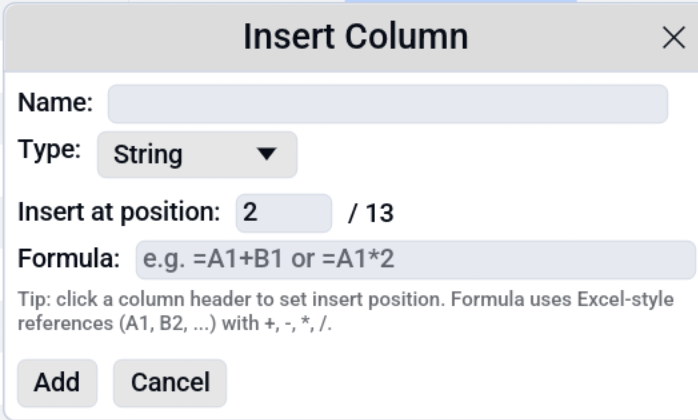
- Name: the new column's name.
- Type: pick a numeric type (Int64 / Float64) when the formula produces numbers.
- Insert at position: 0-based index. Blank = append.
- Formula: your expression. Leading
=optional.
Click OK and the new column appears with every row's result.
Limitations
- No functions. No
SUM(A1:A10),AVG,IF,VLOOKUP, etc. For aggregates and conditional logic, use SQL. - No range references.
A1:A10isn't recognised; reference cells individually. - No cross-sheet references. Single table only.
- No string operations. Formulas are numeric-only.
- No row references like
$A1orA$1. Insert Column always shifts both row and column on row evaluation, so write the formula for row 1 and it'll be applied to every row.
If your use case bumps against these, the SQL panel is almost always the right tool: DuckDB has the full spectrum of analytical functions plus joins, group-by, window functions, and more.
See also
- SQL panel runs DuckDB queries against the loaded table.
- Date / Time calculation derives a new column from date, datetime, or duration values.
- Editing covers how Insert Column dialogs work.