Markdown view
For .md (and .markdown, .mdown, .mkd) files Octa renders a
proper CommonMark preview with bold / italic / strong / headings /
lists / code blocks / blockquotes, plus a live-editing layout so
you can author Markdown right in Octa.
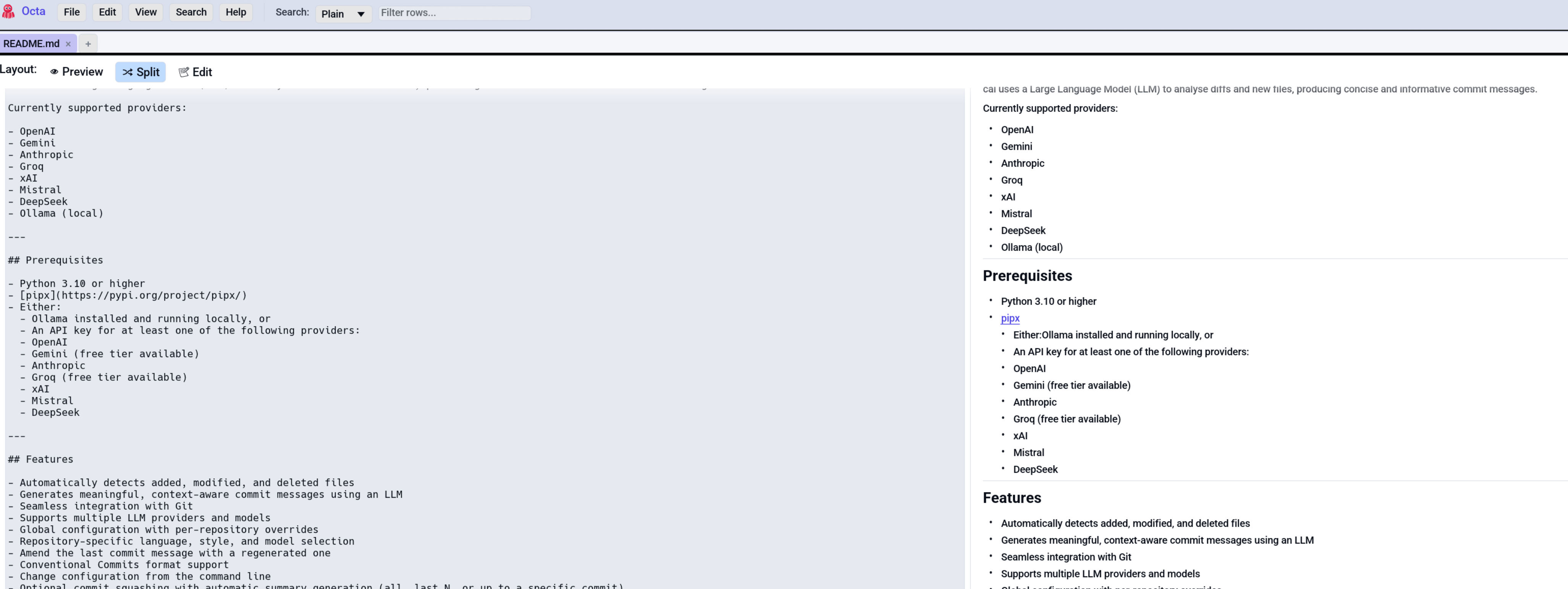
Layout: Preview / Split / Edit
A segmented toggle at the top of the Markdown view picks the layout. Each option carries a small icon next to the label:
- 👁 Preview (default) shows rendered output only. Read-mode. Links in the preview open in your system browser when clicked.
- 🔀 Split shows the TextEdit on the left, live preview on the right. Edits update the preview every keystroke.
- 📝 Edit shows the TextEdit only, full window width. Useful for distraction-free writing.
The default is Preview so Markdown files open as a rendered document straight away. Switch to Split or Edit whenever you need to write or edit the content.
Reading width cap
The preview column caps at clamp(200.0, 900.0) pixels wide, so on
wide monitors the text doesn't sprawl across the screen. This is
the same line-length cap most online readers apply to long-form
content.
Text size
The preview follows the app's body text size, so both the Font size setting and Ctrl+Plus / Ctrl+Minus zoom scale the rendered document along with everything else. Headings, code and list markers scale with it.
Saving edits
Edits to the buffer are tracked just like Raw view
content: the tab shows * when modified, and Ctrl+S
(SaveFile) saves
back to the original .md file. The preview is for display only;
the disk content matches the editor pane.
Pressing Tab in the editor inserts spaces (it indents in place rather than jumping to the next control), using the Tab size setting, the same as the Raw text editor. Only the tab you type is converted: tabs the file already contained stay as they are.
Limitations
- No images yet.
![]()references aren't rendered as actual images in the preview (they fall through silently). - No footnotes / definition lists. Plain CommonMark only.
- No syntect on code blocks. Code blocks render in monospace with a background but without language-specific colours.
For a richer Markdown preview with all these features, open the file in your text editor of choice and use a dedicated previewer. Octa's Markdown view is intentionally light.
See also
- Notebook view for
.ipynb, which also uses the same Markdown renderer for text cells. - EPUB reader reuses
render_pulldownfor chapter rendering after converting XHTML to Markdown.