Notebook view
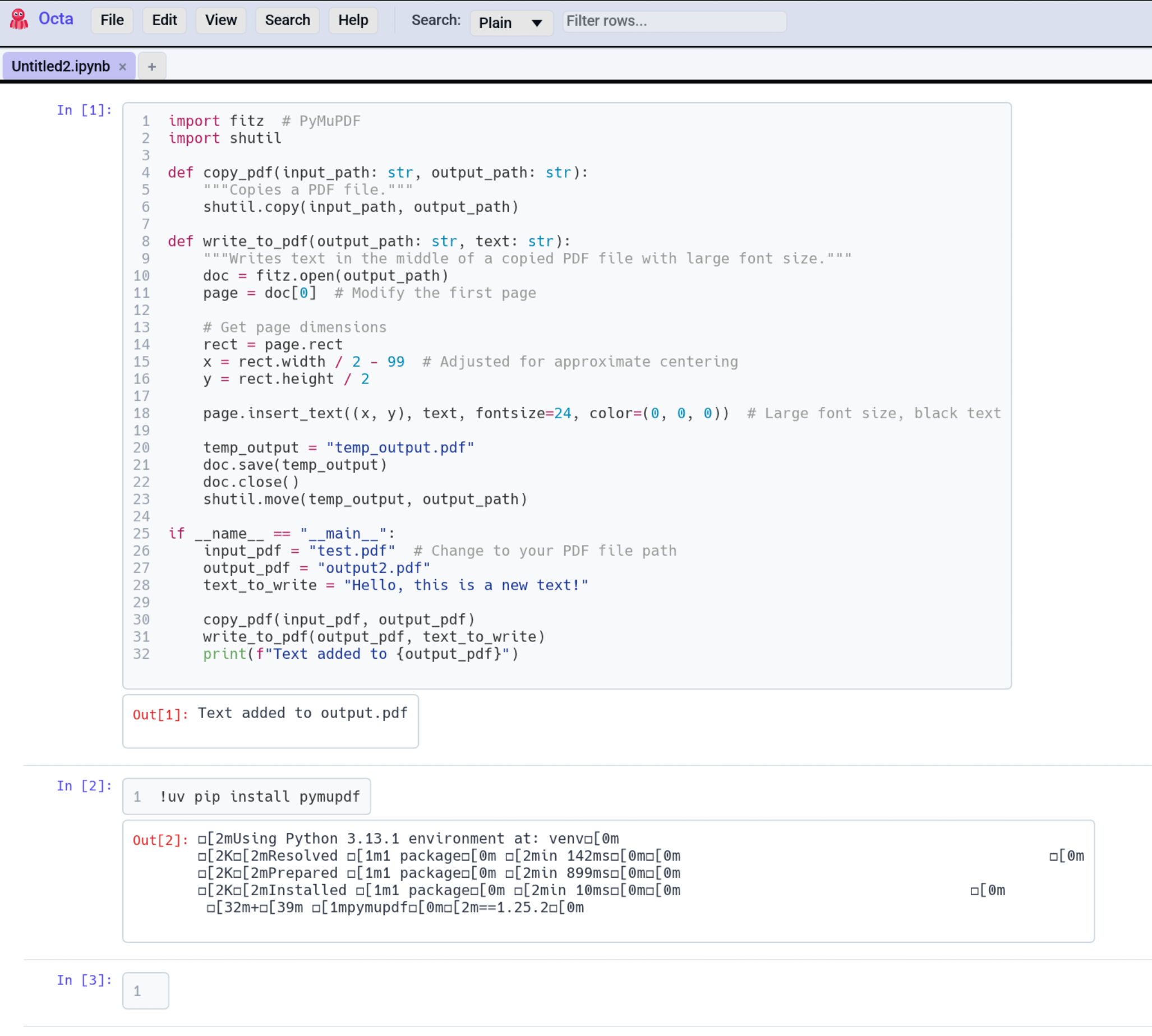
For .ipynb files Octa shows the notebook cell by cell, the way Jupyter
lays it out: each code cell with its outputs, text and pictures, beneath
or beside it.
What gets rendered
| Cell type | Shown as |
|---|---|
code |
Editable source, highlighted as Python |
markdown |
Editable source text, not rendered |
raw |
Editable plain text |
Each code cell shows its position in the notebook (In [1]:,
In [2]:) in the left margin, and its outputs under Out[1]:.
Output rendering
Outputs appear in the order the notebook stores them:
- Text (
stdout,stderr, the plain text of a result): monospace, no truncation. - Pictures (PNG, JPEG, GIF, WebP, SVG): drawn at their own size, or
shrunk to fit the space, on a white background as in Jupyter, so a
transparent plot stays readable in a dark theme. Hover a picture to see
the text the notebook keeps with it (
<Figure size 640x480 with 1 Axes>for a matplotlib plot). Click it to open it in the binary viewer, which shows it full size and can save it or open it in another program. When an output holds several formats, the first of PNG, JPEG, GIF, WebP and SVG is shown. Text in an SVG is drawn with your system fonts; a file or web address the SVG points to is never loaded. - HTML (a pandas DataFrame, for example): shown as its plain-text version. Octa has no HTML renderer.
- Errors: the error name and message, such as
ValueError: bad input. The traceback is not shown.
A picture that cannot be decoded shows the reason in its place.
In the Table view, the Output column holds only text.
A picture that comes with no text reads as a placeholder such as
[image/png 640x480], and the command line and MCP tools see the same.
Layout
The notebook view shows cells in document order from top to bottom in a vertical scroll area. Each cell is rendered in its own bordered block.
The Output layout under Settings → File-Specific → Notebook output layout picks between:
- Beneath (default) shows outputs directly under their source cell.
- Beside shows outputs to the right of the source cell: a cell with output gives its source half the width and the output the other half. Better use of a wide screen, but long lines wrap sooner.
Editing cell source
Cell source is editable. Click into any code or Markdown cell and type; code cells keep their syntax highlighting while you edit. The output blocks below each cell stay read-only.
- Edits flow through the normal table machinery, so the modified
marker, undo / redo (
Ctrl+Z/Ctrl+Y), and Save all work exactly as in the table view. - Read-only mode (
F8) disables editing, as it does everywhere else in Octa.
Saving preserves outputs
When you save an edited notebook, Octa reuses the original .ipynb as
a template and rewrites only the cell source (and cell type),
leaving each cell's outputs, execution count, and per-cell
metadata intact, along with the notebook's top-level metadata
(kernelspec, nbformat, etc.). Earlier versions rebuilt the file from
scratch and dropped all outputs on save; that no longer happens.
As in Jupyter, editing a cell does not re-run it, so an edited code cell keeps its previous (now possibly stale) output until you run it again in a kernel.
What you can't do
The notebook view still can't:
- Run cells (Octa has no kernel; use Jupyter / VS Code to execute).
- Add or delete cells from the Notebook view itself.
If you need to inspect the notebook's table-of-values structure
(e.g. to filter all cells matching a pattern), or to add / delete
cells, switch to Table view. Each cell becomes
a row with the columns Cell, Type, Source and Output. From
there the search bar or
SQL panel can filter the cells, and the usual row
insert / delete operations apply.
Syntax highlighting
Code cells are highlighted as Python, which is what nearly every notebook holds. A cell in another language still opens and edits normally; only its colours may be off.
Limitations
- No interactive widgets. ipywidgets, interactive Plotly charts and other HTML or JavaScript outputs show as their plain text.
- Markdown cells are not rendered. They show their source.
- No cell execution. Editing source does not run the cell or refresh its output.
- No diffing, though the Compare view handles
text-diffing two
.ipynbfiles via the Table representation.
See also
- Markdown view shares the renderer that powers notebook Markdown cells.
- Settings → File-Specific is where you change the output layout.