Raw text View
The Raw text view shows the file's content as plain text, useful when you want to inspect bytes, peek at a parser's view of a file, or work with formats Octa doesn't have a richer view for (source code, log files, custom config formats, etc.).
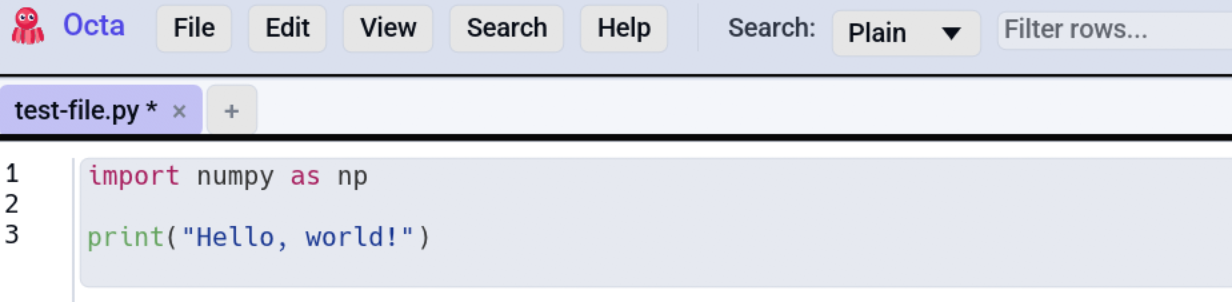
When the Raw view appears
- Files Octa doesn't natively recognise open in Raw view by default.
- Any file can be switched to Raw via View → Raw text (or pressing F4 until you cycle to it).
- When a text-format reader (CSV, JSON, YAML, …) fails to parse a file, Octa falls back to Raw view automatically and shows a dismissible orange banner above the editor with the parser error.
Editor basics
The Raw view is a multi-line text editor:
- Line numbers in the left gutter, monospace.
- Word wrap off by default; horizontal scrolling enabled.
- Standard editing: type, paste, select with the keyboard, etc.
- Selecting past the edge: drag a selection to the bottom (or top, or either side) of the view and the view keeps scrolling on its own, so a selection can run well past the lines that happen to be on screen. It speeds up the further out you drag. The same applies to the Markdown editor and the SQL editor.
- Ctrl+F / Ctrl+H focus the toolbar's search box (no in-editor search yet; the toolbar search applies to the buffer).
- Right-click opens the context menu with Copy (greyed when nothing is selected) and Copy All.
Edits show up in the Table view, and every other view, as soon as you
switch to it, without saving first (see
Unsaved changes in every view).
The status bar shows the unsaved flag (*) when the raw content
differs from the on-disk content.
Syntax highlighting
Source files in supported languages render with full syntax highlighting. JSON, YAML, XML and TOML files are also highlighted in the Raw view, even though they each have a dedicated view mode as well. CSV and TSV are excluded because their column-colouring toolbar replaces per-token highlighting.
| Highlighted | Not highlighted |
|---|---|
| Python, Rust, Go, JS / TS, JVM (Java/Kotlin/Scala), C/C++, Shell (bash/zsh/sh), R, Julia, HTML, CSS, Terraform / HCL, JSON, YAML, XML, TOML, plus the rest of syntect's default set | CSV, TSV (column-colouring toolbar instead) |
The Terraform / HCL bundle ships with Octa
(assets/Terraform.sublime-syntax, MIT, hand-written) since syntect's
default set doesn't include it.
Size guard: files larger than AppSettings.syntax_highlight_max_bytes
(default 1 MB) fall back to plain monospace, because per-frame
syntect tokenisation gets laggy on multi-megabyte files.
Configurable under
Settings → Performance → Syntax-highlight size cap.
Set to 0 to disable highlighting entirely.
The theme picks InspiredGitHub for light UI mode and
base16-mocha.dark for dark.
CSV / TSV: alignment + column colouring
When the file is a .csv or .tsv, the toolbar exposes extra
controls:
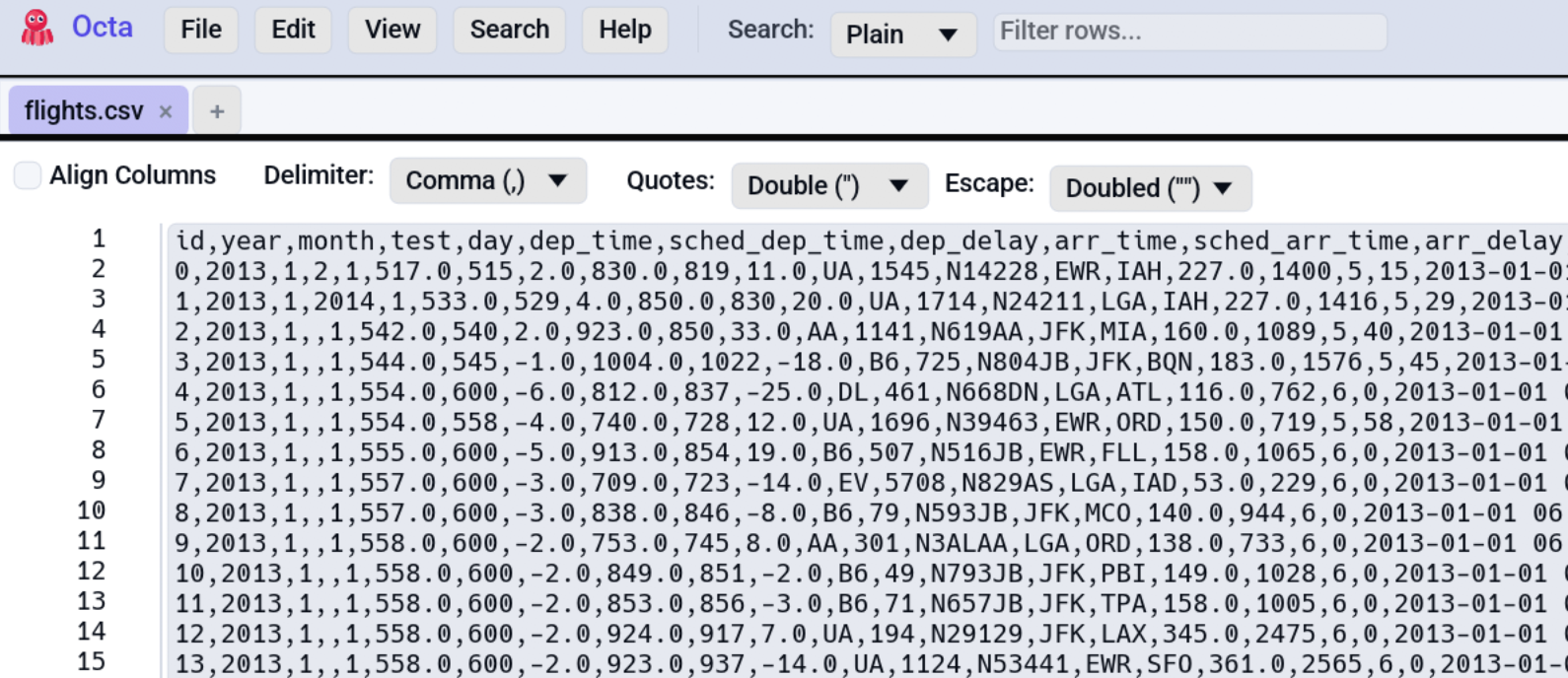
- Delimiter dropdown picks Comma / Semicolon / Pipe / Tab. The value Octa detected on open is pre-selected; changing it re-formats the buffer on the fly.
- Quote dropdown picks Double (RFC 4180
") / Single (') / Either (whichever opens it must close it) / None. - Escape dropdown picks Doubled (
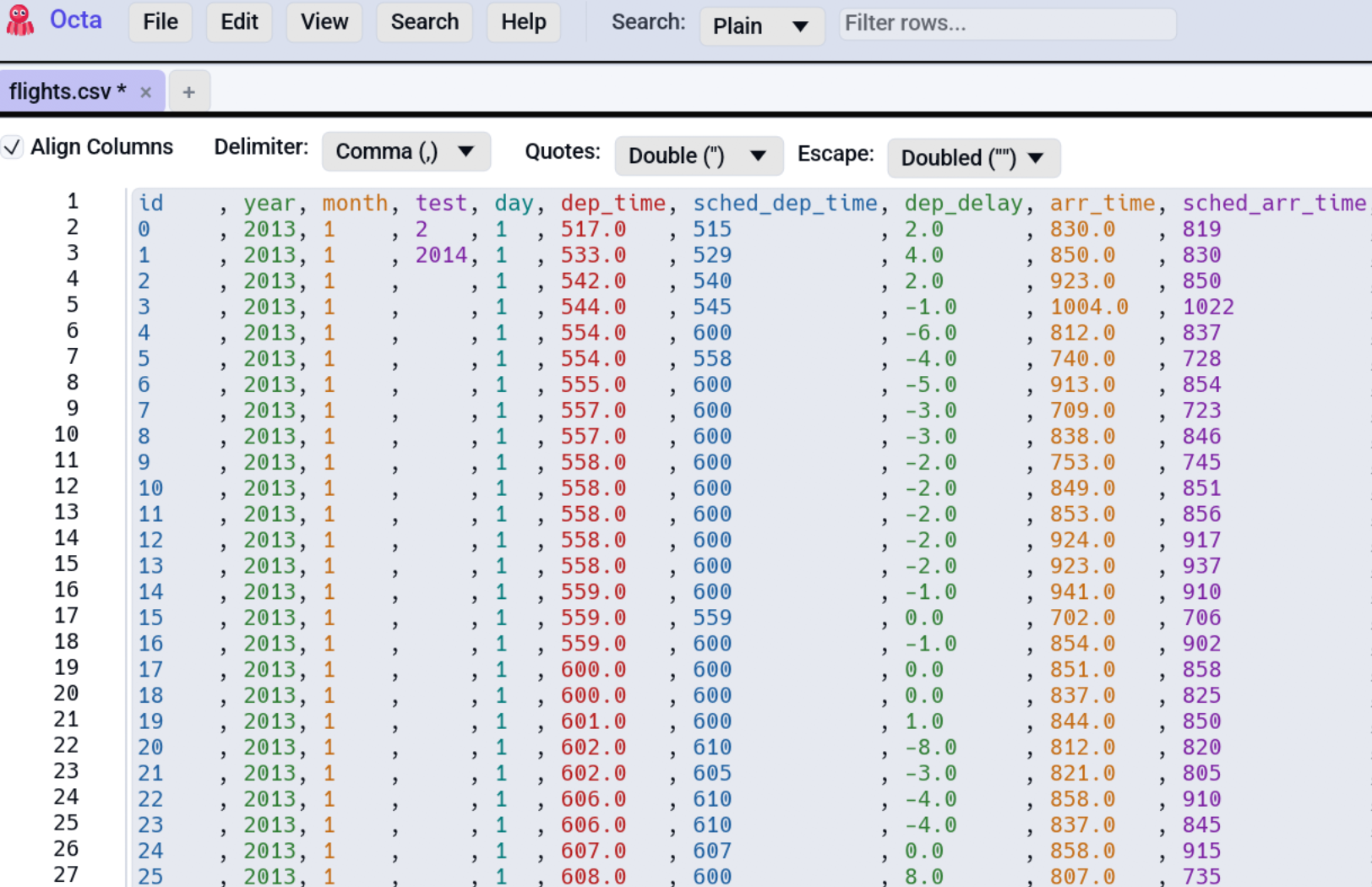
""→") / Backslash (\"→") / None. - Align columns toggle pads fields with spaces so every column visually lines up. Reads better than raw CSV; turn off to see what's actually on disk. The padding is part of the text while it is on: Save writes it, and the Table view shows it once you switch.
The defaults are RFC 4180: Double + Doubled. Changing the combination while alignment is on re-formats the buffer immediately from a cached snapshot of the on-disk content, with no disk re-read.
Column colouring
When alignment is on, each column gets its own subtle background tint so you can eyeball which value belongs to which column at a glance. Toggle under Settings → File-Specific → Colour aligned columns (on by default).
Large-CSV slow-file prompt
After loading a CSV/TSV larger than 10 MB, Octa pops a one-shot
prompt asking whether to disable alignment + colouring for this
tab only (those features tokenize on every keystroke and get
laggy on very large files). The choice is transient and never
persisted to AppSettings.
JSON: format a minified file
A JSON file written without whitespace is one endless line here, which the
Raw view will happily scroll sideways forever and nobody can read. For a
.json file the toolbar carries a Format JSON tick box that breaks it
into indented lines.
- Only the whitespace between tokens changes. Numbers keep their exact
digits (
1.50stays1.50, not1.5), text keeps its exact escapes, and the keys stay in file order. Nothing is re-typed on the way through, so a formatted buffer you save is the same data you opened. - Formatting is a way of reading the file, not an edit of it: ticking the box does not mark the tab as changed, and un-ticking puts the on-disk text back. Once you edit the formatted text yourself, that counts as an edit like any other and saving keeps your indentation.
- If you have edited the formatted buffer, un-ticking asks first, because it reloads the file from disk. Turn the question off under Settings → File-Specific.
Formatting roughly doubles the size of a minified file (measured: 31 KB to 59 KB), so a large one can cross the syntax-highlight size cap and drop to plain monospace. That is the cap doing its job, not a fault.
The JSON tree view is the other way to read the same file, with collapsible nodes instead of text.
Wrap lines
The Raw view lays text out unwrapped and scrolls sideways to long lines, because the view exists to show a file as it is. Wrap lines in the toolbar folds them at the edge of the pane instead. It is off by default and remembered per tab for the session.
It folds anywhere, not only at spaces, which is the point: a minified line has no spaces to fold at, and neither does a field holding a whole stringified JSON blob. Format JSON cannot break such a value either, and must not: a real newline inside a JSON string would corrupt the document. Wrapping is the only thing that reaches it.
The box is unavailable while Align Columns is on for a CSV or TSV, and says why on hover: folding a padded row destroys the alignment that setting exists to produce.
Parse-error fallback banner
When opening a file with a known text-format extension fails (a malformed JSON, a broken YAML, etc.), Octa:
- Loads the file via
TextReaderinstead. - Switches the active tab into Raw view.
- Shows a dismissible orange banner above the editor reading "Failed to parse as JSON: …"
This applies to: CSV, TSV, JSON, JSONL, XML, YAML, TOML, Markdown, Jupyter, Text. Binary formats (Parquet, Excel, SQLite, …) never fall back, since raw bytes would render as garbage.
Files larger than the raw view size cap (default 50 MB) skip the fallback and surface the error in the status message instead, to avoid pulling a very large file into the editor. This refers to the raw text editor only: you can still load larger files in the table view. Raise the cap (or set it to unlimited) under Settings → Performance.
See also
- Search & Filter: the toolbar search applies to the Raw buffer too.
- Settings → Performance covers the size cap for syntect and text-mode extensions.
- CSV Quote / Escape modes is the reference for the dropdown combinations.