View Modes
A "view mode" is the way Octa displays the file's content. The Table view is the default for almost every format, but some files are better viewed in their native shape: Markdown as rendered HTML, Jupyter notebooks with cell outputs, EPUB as flowing text, GeoJSON on a map.
Switch view modes via the View menu in the toolbar. Only modes applicable to the current file are enabled. Hovering an entry shows a one-line description of what that mode does.
A few file types open in a non-Table view that suits them better: a
.json file opens in the JSON tree, and a
.yml / .yaml file opens in Raw text. You can always
switch from the View menu; this just picks a sensible starting point.
JSONL and every other format still open in Table view.
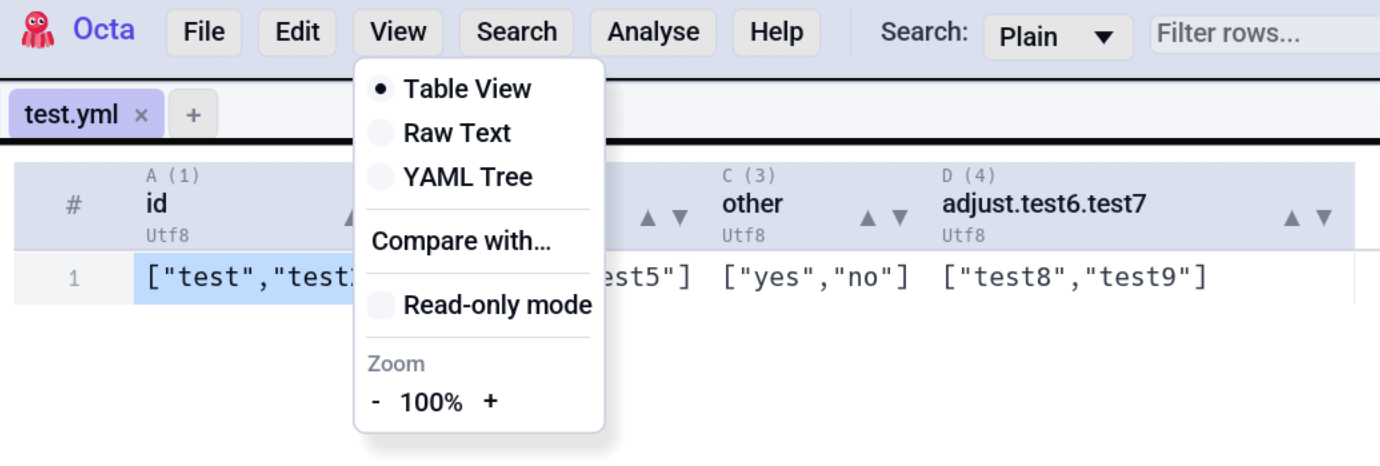
All view modes at a glance
| View mode | Available for | Read-only? |
|---|---|---|
| Table | Every format | No (editing fully supported) |
| Raw text | Anything Octa can read as UTF-8 text | No |
| Markdown | .md, .markdown, .mdown, .mkd |
No (edit + preview) |
| Notebook | .ipynb |
Yes |
| JSON tree | .json, .jsonl |
Edit keys + values in place |
| YAML tree | .yaml, .yml |
Same as JSON tree |
| EPUB reader | .epub |
Yes |
| Map | .geojson |
Yes (geometry rendering only) |
| Record | Any table with columns | No (click a value to edit) |
| Timeline | Any table with a date column | Yes |
| Compare | Any file (compared against another) | Yes (it's a diff viewer) |
Unsaved changes in every view
Switching views never needs a save. Change a cell in the Table view, then switch to Raw text, the JSON or YAML tree, Markdown or the Compare text diff: the text shows the table the way Save would write it. Change the text instead and switch back: Table, Record, Chart, Timeline and Map all read the edited text. Closing the tab without saving still drops the changes, as it always did.
Save writes whichever side you changed last: the text exactly as you typed it, or the table through the format's writer. Because the text view shows the table the way Save writes it, it can differ from your file in more places than your change, for example JSON indentation or YAML comments. A save would change those too, so this is your chance to see it before it happens.
Two cases stop a switch, with the reason in a banner, rather than show something that is not your file:
- The text no longer reads as the file's format, such as JSON with a missing bracket. You stay in the text view to fix it or undo the change.
- The file is only partly loaded as a table because it has more rows than the initial load limit. The text holds the whole file and the table only its first rows, so neither can stand in for the other. Save first, then switch.
Open as... (files with a misleading extension)
Which view modes a file offers depends on how it was parsed, and Octa
parses by extension. A .log file that actually holds JSON is read as
plain text, so the JSON tree never appears in the View menu.
Two menu entries fix that, depending on whether the file is open yet:
- File → Open as... for a file you have not opened. Pick the format, then pick one or more files in the file dialog. The dialog is deliberately unfiltered (it shows every file), because the files worth opening this way are exactly the ones whose extension Octa would otherwise route somewhere unhelpful. Each file opens in its own tab.
- View → Reopen as for the file already in the current tab. It re-reads that one file in place.
Both offer the same formats:
| Choose | Reads the file as |
|---|---|
| JSON | A single JSON document (tree view available) |
| JSON Lines | One JSON object per line (the usual log shape) |
| CSV / TSV | Delimited text, into a table |
| YAML | A YAML document |
| TOML | A TOML document |
| XML | An XML document |
| Markdown | CommonMark, with the rendered preview |
| Plain text | Raw text, no parsing |
Pick JSON for that .log and it parses as JSON, tree view and all,
exactly as though the file had been named .json. Log files that hold one
JSON object per line want JSON Lines instead.
This changes only how Octa reads the file. Nothing on disk is renamed or rewritten. Reopening re-reads from disk, so any unsaved edits in that tab are discarded, and if the content does not parse as the chosen format the tab is left exactly as it was, with the error shown in the status bar.
Cycling view modes
F4
(CycleViewMode) advances through the modes available for the current tab in this order:
Table → Raw → Markdown → Notebook → EpubReader → Map → Record → Timeline → JsonTree → YamlTree → Compare
Note: Neither Chart nor the SQL panel are view modes. Chart opens in its own tab via Analyse → Chart... or F5; the SQL panel docks alongside the table via Analyse → SQL or Ctrl+J. The cycling list above only walks true view modes, and cycling inside a chart tab is a no-op.
Modes that don't apply to the current file are skipped silently, so for a CSV, F4 cycles between Table and Raw only.
Read-only mode
F8 makes every view read-only, whichever one is showing; see Read-only mode.
Per-mode references
- Raw text shows the file contents as plain text, with syntax highlighting for source languages and column alignment for CSV/TSV.
- Markdown renders CommonMark with a Preview / Split / Edit toggle.
- JSON & YAML tree is a collapsible tree view with in-place key + value editing.
- Notebook renders Jupyter notebooks with cell outputs.
- EPUB reader is a chapter-by-chapter reading view with embedded images.
- Map is a slippy-map view for GeoJSON feature geometries.
- Record shows one row at a time as a vertical field list, for tables too wide to read in the grid.
- Timeline draws rows with a start and an end as bars on a time axis, with overlaps outlined.
- Compare is a side-by-side diff of two files (text or row hash).
The Table view itself is covered under Usage → Table view. The SQL panel and the Chart tab live under the Analyse menu and are documented on their own pages.
See also
- Table view is the default view for almost every tabular file.
- Supported formats lists which formats default to which view mode.
- Settings → Appearance covers the default theme, font size, and view-mode defaults.
- Keyboard shortcuts lists F4 (cycle view modes) and F8 (toggle read-only) among others.