Settings Reference
Open the Settings dialog via Help → Settings (default shortcut F3). Settings are grouped into collapsible sections.
Settings persist to a TOML file:
| Platform | Path |
|---|---|
| Linux | $XDG_CONFIG_HOME/octa/settings.toml (defaults to ~/.config/octa/settings.toml) |
| macOS | ~/Library/Application Support/Octa/settings.toml |
| Windows | %APPDATA%\Octa\settings.toml |
The TOML file is created on first launch with defaults. You can edit it by hand if you prefer; Octa picks up changes on next launch. Unknown / removed fields are tolerated (new versions add defaults for missing keys; old versions ignore unknown keys).
OCTA_CONFIG_DIR overrides the table above on every platform and is used
verbatim (no octa subdirectory appended). It is what a container needs: a
distroless image sets none of HOME, XDG_CONFIG_HOME or APPDATA, so
without it Octa reports that it has no config directory rather than running
settings-less. OCTA_NO_KEYRING=1 additionally skips the OS keyring, sending
secrets to (and reading them from) this file. See
Cloud storage from the CLI.
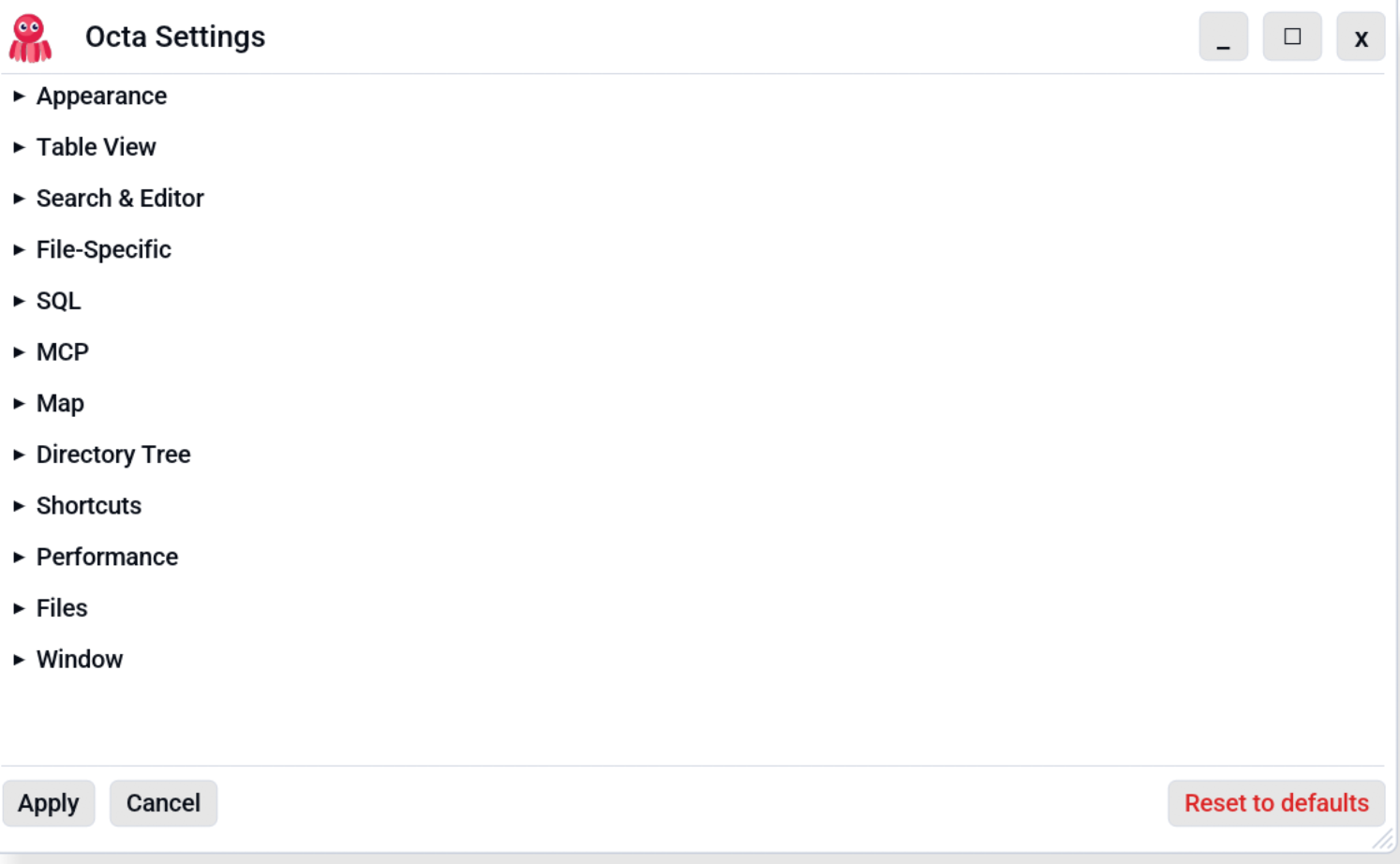
The sections below are listed in the same order as the dialog.
Appearance
| Setting | Default | Notes |
|---|---|---|
| Language | English | UI language for menus and dialogs. 32 languages; switches live, no restart. See Languages. TOML key: language. |
| Font size | 13 pt | Base font size. Applied to body / button / monospace text. |
| Default theme | Light | One of the themes below. Applied when you press Apply, and at startup. |
| Body font | Proportional | Proportional or Monospace. |
| Custom font path | (empty) | Optional path to a TTF/OTF font. Overrides Body font for proportional text. |
| Icon variant | Rose | Window icon colour. Several options. |
| Custom title bar | on | Replaces the OS window frame with Octa's own slim title bar (min/max/close in the toolbar), with drag-to-move and edge/corner resize. Frees the vertical space a system title bar takes. Turn off for native window decorations. Takes effect after restart. |
| Message timeout | 10 s | Time a status message stays before fading; same span for every message. Hovering pauses the countdown, so an error you are copying stays put, and each message has an x to close it. Cannot be disabled. TOML key: status_message_secs. |
Themes
Seventeen themes, five light and twelve dark. A theme changes colours only: the layout, fonts and data look the same in every one.
| Theme | Background | What it looks like |
|---|---|---|
| Light (default) | Light | White background, near-black text, indigo accent. |
| Warm | Light | Cream and blush backgrounds, soft rose and mauve accents, dark plum text. |
| Manga | Light | Cream paper, ink-black text, a sakura-pink accent with sky-blue hovers: a comic-page feel that stays readable. |
| Frost | Light | A near-white snowfield with pale ice-blue accents and dark slate text. The light counterpart to Deep Sea. |
| Solarized Light | Light | The low-glare Solarized colours: warm paper, teal-grey text, easy on the eyes through long daylight sessions. |
| Dark | Dark | Neutral charcoal greys, near-white text, indigo accent. |
| Forest | Dark | Deep forest green with mossy accents, warm bark tones for edited cells and pale parchment text. |
| North | Dark | Cool arctic blue-grey with frost-blue accents. |
| Dracula | Dark | Dark purple-grey with off-white text and a lavender accent. |
| Gruvbox Dark | Dark | Warm retro browns with cream text and an amber accent. |
| High Contrast | Dark | Pure black, white text and a yellow accent: as much contrast between text and background as a screen can give. |
| Gentleman | Dark | Deep walnut and burgundy, parchment text and champagne-gold accents, like a library after dark. |
| Deep Sea | Dark | Abyssal navy, lagoon-blue accents and near-white text. |
| Deep Sea Contrast | Dark | Deep Sea, but dialogs rise off the window behind them with a bright rim and a deep shadow, and hints read more clearly. |
| Phosphor | Dark | An old amber terminal screen: near-black glass, glowing amber text and phosphor green for success. |
| Colour-blind Safe | Dark | Neutral greys with colours chosen to stay apart for the common kinds of colour blindness (see below). |
| Tokyo Night | Dark | A deep indigo night with neon blue highlights and soft pastel status colours. |
Colour-blind Safe builds on the Okabe-Ito palette: success is bluish green and errors vermilion, so the two are never told apart by red against green alone; a selection is sky blue and an edited cell orange. Pick it if red and green are hard to tell apart for you.
Deep Sea Contrast is the one to try when a dialog seems to vanish into the window behind it in Deep Sea or another dark theme.
Files
| Setting | Default | Notes |
|---|---|---|
| Max recent files | 10 | How many entries to show in File → Recent files. |
| Open as text | (empty) | Comma- or space-separated list of file extensions that should always open as plain text (no leading dot, lowercase), overriding whatever reader would normally claim them. Useful for unusual config or log extensions Octa doesn't ship a dedicated reader for. Applies to later opens. TOML key: text_mode_extensions. |
| On refresh | Ask each time | What Ctrl+R and the tab menu's Refresh do: ask each time, refresh the same tab, or open a new tab. A tab with unsaved changes always asks. The refresh dialog's Don't ask again sets this. See Refresh a Tab. TOML key: refresh_behaviour. |
| Auto-save | off | Periodically save open tabs that have unsaved changes and already exist as a file on disk. Skips never-saved tabs, cloud tabs while cloud writing is off, and saves that would prompt (rounding / DB schema). See Auto-save. TOML key: auto_save_enabled. |
| Auto-save every (minutes) | 5 | Minutes between auto-saves (minimum 1). Only shown when Auto-save is on. TOML key: auto_save_interval_minutes. |
| Recipe folder | recipes |
Where recipes are saved automatically, one .ocp file per tab named after the data file. Default: recipes in Octa's settings folder, created on first use. See Recipes. TOML key: recipe_autosave_dir. |
| Reopen last session | off | When Octa starts, open the files again that were open when you closed it. Files that are gone are skipped. See Reopen last session. TOML key: restore_session. |
| Also reopen cloud objects | off | Needs Reopen last session. Downloads every cloud object again at each start, which takes time and can cost money for data transfer. TOML key: restore_session_cloud. |
| Also reopen database and API tabs | off | Needs Reopen last session. Every database table and API endpoint queries its server again at each start: a warehouse may wake up and cost money, and an expired sign-in asks you to log in. TOML key: restore_session_connections. |
| Save recipes automatically | off | Rewrite the tab's recipe into the recipe folder after every recorded step. Off: recipes are saved only with Save recipe.... TOML key: recipe_autosave. |
| Save as while a filter is on | Ask every time, all rows | When a search or filter hides rows, Save as asks whether to write all rows or only the visible ones. Untick Ask every time to always use the answer picked beside it, which is also where the question starts. See Save as: the questions. TOML keys: save_as_ask_rows, save_as_filtered_rows. |
| Open the new file after Save as | Ask every time, open it | After Save as, carry on in the new file: the tab moves to it, or a new tab opens it when only the visible rows were saved. Untick Ask every time to always use the answer picked beside it. TOML keys: save_as_ask_open, save_as_open_new_file. |
| Keep earlier versions | off | Before a save overwrites a file, keep the version it replaces in the versions folder inside Octa's settings folder, for File > Earlier versions.... See Earlier versions. TOML key: keep_versions. |
| Versions per file | 10 | How many earlier versions to keep of each file; the oldest goes first. Unlimited keeps them all. Needs Keep earlier versions. TOML keys: versions_per_file, versions_per_file_unlimited. |
| Space for all versions | 1024 MB | How much disk space all earlier versions may use together; the oldest go first, the newest of each file always stays. Unlimited sets no limit. Needs Keep earlier versions. TOML keys: versions_total_mb, versions_total_unlimited. |
| Write options | (see below) | How files are written, in one expander per format. Parquet: compression, rows per row group, dictionary encoding, column statistics. CSV / TSV: delimiter, quoting, line endings, header row, decimal mark, byte order mark. Excel: include formatting, keep formulas, document properties, write as an Excel table. Parquet is written with zstd unless you change it; the other defaults reproduce Octa's previous behaviour. Also used by command-line conversions that do not pass --compression / --row-group-size. Batch convert can override them per run. TOML key: write_options. |
File-Specific
| Setting | Default | Notes |
|---|---|---|
| Colour aligned columns | on | In Raw view of CSV/TSV files, tint each column with a subtle background. |
| Warn on un-format reload | on | Confirmation dialog when toggling Align Columns or Format JSON off in the raw view (the buffer is re-loaded from disk). |
| Detect dates on load | off | Turn a text column holding only dates into a date column when a file opens, and when Use as header retypes the columns. See Date inference. Off by default. On large files it makes opening slower: it runs in the background with the read, so the window keeps responding, but at five million rows each date column adds about three seconds. Ticking it warns first; see Big files opened the ordinary way. Columns > Detect dates runs the same check on demand. TOML key: detect_dates_on_load. |
| Warn on date format change | on | One-shot banner when date inference promotes a non-ISO column. Greyed out while Detect dates on load is off. |
| Ask about URL redirects | on | Confirm before opening a web address that redirected somewhere else. The file you get is the one at the end of the chain, and this dialog is the only place that change is visible. See Cloud storage. TOML key: confirm_url_redirects. |
| Trim whitespace on load | off | Strip leading/trailing whitespace from string cells and column titles when a file is opened (interior spaces kept). Off by default, so loaded values match what is stored. TOML key: trim_whitespace_on_load. |
| Warn on whitespace trim | on | Banner listing which columns had whitespace trimmed on load. Independent of the trim setting. TOML key: warn_on_whitespace_trim. |
| Clean headers on load | off | Normalise column titles to lower snake_case identifiers when a file is opened (trim, lowercase, punctuation and spaces become underscores, repeats get a numeric suffix). TOML key: clean_headers_on_load. |
| Offer repair on malformed files | off | Prompt to repair a CSV/TSV that reads but looks malformed (bad encoding, BOM, control chars, delimiter mismatch, ragged rows). The file on disk is never changed. See Supported formats. TOML key: offer_repair_on_malformed. |
| Read-only mode notice | on | Show the read-only intro modal on F8 the first time per session. |
| Notebook output layout | Beneath | Where notebook output cells render: Beneath or Beside. |
Table View
| Setting | Default | Notes |
|---|---|---|
| Show row numbers | on | Hide the grey row-number gutter on the left. |
| Show sequential numbers | on | While a filter is active, add a second gutter column numbering the visible rows from 1 (the first column keeps the original data row numbers). Only appears when filtered, off it would just duplicate the originals. TOML key: show_sequential_row_numbers. |
| Alternating row colours | on | Subtle zebra striping. |
| Sort text | Letter by letter | Natural puts numbers inside text in numeric order (file2 before file10, v1.9 before v1.10); the default compares letter by letter. A database tab sorted on the server and a large file keep letter order. |
| Clickable web links | on | Show cells that hold an http/https address as underlined links; Ctrl+click opens them in your browser. See Clickable links. TOML key: clickable_links. |
| Negative numbers in red | on | Colour negative numeric cells red. |
| Filter to marked: cells | Keep rows | How Filter to marked treats a marked cell: Keep rows keeps its row, Keep columns keeps its column, Keep rows and columns keeps both. Marked rows and columns are unaffected. TOML key: mark_filter_cell_mode. |
| Thousand separators | on | Render numeric cells with thousand separators (e.g. 1,234,567.89). Display only, saved data is unchanged. TOML key: thousands_separators_in_cells. |
| Number style | English | Grouping + decimal marks for numeric cells: English (1,234.56) or European (1.234,56). The decimal mark follows this even with separators off. TOML key: number_separator_style. |
| Highlight edited cells | off | Background colour for cells with unsaved edits. |
| Cell line breaks | off | Render \n inside cells as actual line breaks. Rows have variable height when on. A row is measured when it first comes into view and counts as one line until then, so on a long table the scrollbar settles as you scroll. Switched on automatically by Edit > Auto-fit all rows and by double-clicking a row seam, since fitting a row means wrapping it; the status bar then says so. |
| Binary display mode | Binary | How Binary columns render: Binary (010101…), Hex (0xab), or Text (UTF-8 if printable, fallback to hex). |
| Default mark colour | Green | Colour used by the Mark shortcut (Ctrl+M). |
Panels
Where each dockable panel docks. Split off from Table View, which had collected them because they were the newest settings rather than because a panel position says anything about how the grid renders.
| Setting | Default | Notes |
|---|---|---|
| Column Navigator position | Left | Which window edge the Column Navigator docks to: Left, Right, Top or Bottom. The panel stays resizable wherever it docks. TOML key: column_navigator_position. |
| Edit audit trail position | Bottom | Which window edge the Edit audit trail docks to. Same four choices. TOML key: edit_audit_position. |
| Cloud connections position | Left | Which window edge the cloud connections browser docks to. Browsers on the same edge (cloud, databases, folder) share one panel. TOML key: cloud_sidebar_position. |
| Database connections position | Left | Which window edge the database connections browser docks to. Same four choices. TOML key: db_sidebar_position. |
Summary
The Analyse -> Summary tab shows one row of statistics per column.
Each statistic below has a checkbox; turn any off to drop that column.
Column and Type are always shown. TOML key: summary_stats.
| Statistic | Notes |
|---|---|
| Min / Max | Smallest and largest value. |
| Mean / Median | Average and middle value (numeric columns). |
| Std dev | Standard deviation (numeric columns). |
| Q25 / Q75 | Lower and upper quartiles (numeric columns). |
| Not null | Count of present (non-null) values. |
| Nulls / Null % | Count and share of missing values. |
| Unique | Exact count of distinct values (nulls excluded). |
| Distinct ratio | Unique values divided by total rows. |
| Total rows | Row count of the whole table. |
Search & Editor
| Setting | Default | Notes |
|---|---|---|
| Default search mode | Plain | Initial mode for the toolbar search: Plain / Wildcard / Regex. |
| Search result display | Filter | How search results show in the table: Filter hides non-matching rows; Highlight keeps every row and highlights matches in place (with a count and next/previous navigation). The search-bar toggle overrides this per session. Text and tree views always highlight. |
| Search history size | 5 | How many recent search queries to remember across sessions (the Recent dropdown beside the search box). 0 disables the history. Stored in search_history.json. TOML key: search_history_limit. |
| Tab size | 4 | Number of spaces inserted when pressing Tab inside text editors (the Raw text editor, the Markdown Edit/Split editor and the left pane of the Compare view's Text Diff; Tab indents in place rather than moving focus). Only the tab you type is converted: tabs the file already contained are left as they are. |
SQL
The section is split into groups, closed until you open them: Panel, Editor, Results, Other open tabs, Query history and Format SQL. Under each "keep short" width, Settings says what it counts and gives an example.
| Setting | Default | Notes |
|---|---|---|
| Open SQL panel by default | off | Auto-open the SQL panel when opening a tabular file. |
| Keep the SQL editor open | on | Closing a tab or opening a file into it keeps the open SQL editor open, with your queries. Off: the editor closes with its tab. TOML key: sql_keep_open. |
| Panel position | Bottom | Where the SQL panel docks: Bottom / Top / Left / Right. |
| Default row limit | 100 | Placeholder query is SELECT * FROM data LIMIT N. |
| Result rows per page | 1000 | How many result rows are fetched at a time; more arrive as you scroll. The row counter and Export always cover the whole result. 0 loads everything at once. TOML key: sql_result_page_rows. |
| Query other open tabs | on | Make every other open tab queryable under its own name, so joining two open files needs no attach step. TOML key: sql_auto_register_open_tabs. |
| Max rows to register | 200,000 | Tabs bigger than this are not copied into DuckDB, so they cannot be queried from another tab. TOML key: sql_auto_register_max_rows. |
| Autocomplete | on | Show keyword + column-name suggestion chips under the editor. |
| Editor font | JetBrains Mono | JetBrainsMono (bundled), MatchUiFont, or SystemMonospace. |
| Highlight SQL changes | on | After an INSERT/UPDATE/DELETE, briefly mark the changed cells and new rows green. TOML key: sql_row_diff_highlight_enabled. |
| Highlight duration | 4 s | How long the mutation highlight stays before clearing. TOML key: sql_row_diff_highlight_secs. |
| Keep the queries I run | on | Record every query run in any SQL editor, with where it ran, its timing and row count, for the History menu. Turning it off also deletes what was kept. TOML key: sql_history_enabled. |
| Queries to keep | 20 | How many history entries to keep in total, most recent first; 0 keeps all. TOML key: sql_history_limit. |
| A picked query replaces the editor text | off | Off: a query picked from the SQL panel's History menu or inserted from Snippets is added below the editor text and marked, so Run runs just that query. On: it replaces the editor text. TOML key: sql_pick_replaces_editor. |
| Format SQL: Keywords | UPPER CASE | How the Format button writes keywords such as SELECT: upper case, lower case, or as you typed them. TOML key: sql_format.keyword_case. |
| Format SQL: Indent | 4 spaces | One level of indentation: 2 spaces, 4 spaces or a tab. TOML key: sql_format.indent. |
| Format SQL: Commas | At the end of the line | Where the comma between list items goes. At the start of the next line (, b) makes a missing comma easy to spot. TOML key: sql_format.commas. |
| Format SQL: JOIN on its own level | off | Start each JOIN on a new line level with FROM instead of indented under it. TOML key: sql_format.joins_top_level. |
| Format SQL: Keep short lists on one line up to | 0 | A list shorter than this many characters stays on one line (SELECT a, b, c). 0 puts every item on a line of its own. TOML key: sql_format.inline_width. |
| Format SQL: Blank lines between statements | 1 | Empty lines between two statements. TOML key: sql_format.blank_lines_between. |
| Format SQL: Whole query on one line | off | Only tidies spacing and keyword case; each statement stays on one line. The layout settings are off while it is on. TOML key: sql_format.one_line. |
| Format SQL: Keep short clauses on one line up to | the list width | A clause shorter than this stays on its keyword's line (GROUP BY c.name), and a short subquery inside its brackets. Leave the field empty to use the list width. Needs a list width above 0. TOML key: sql_format.clause_width. |
| Format SQL: Keep short brackets on one line up to | 50 | Brackets shorter than this stay on one line (coalesce(a, 0), IN (1, 2, 3)); longer ones get one item per line. TOML key: sql_format.bracket_width. |
| Format SQL: End with a semicolon | off | Adds ; after the last statement when it has none. TOML key: sql_format.final_semicolon. |
The formatting section of the dialog shows a sample query laid out with the current choices, so every setting can be tried before it is saved.
The panel's Ask box has no setting of its own: it uses whichever chat profile is active under Chat / Assistant, and is greyed out until one exists. It sends the active table's column names, types and row count, never the data. See Ask.
MCP
For the octa --mcp server. Both settings are read once at server
startup, so changes require restarting the MCP server (octa --mcp
process).
| Setting | Default | Notes |
|---|---|---|
| Default row limit | 1000 | Maximum rows returned by read_table / run_sql when the caller omits limit. TOML key: mcp_default_row_limit. |
| Unlimited | off | When checked, the server returns every row by default (greys out the row-limit input). Written as mcp_default_row_limit = 0. |
| Cell byte cap | 65,536 (64 KiB) | Per-cell on-wire size cap. Cells larger than this are replaced with a [truncated: ...] marker. 0 disables the cap. TOML key: mcp_default_cell_bytes. |
See Limits & truncation for the
full semantics, and for how to change these without a GUI (headless
server, Docker) by editing settings.toml directly.
Chat / Assistant
Settings for the in-GUI Assistant panel. All live in the main Settings dialog under the Chat / Assistant section.
| Setting | Default | Notes |
|---|---|---|
| Provider | Anthropic | LLM backend: Anthropic, OpenAI, OpenAI-compatible, Gemini, or Ollama (local). TOML key: chat_provider. |
| Model | per-provider default | Model id for the active provider. A dropdown of presets (from models.toml) plus a free-text field for any model. Stored per provider. TOML key: chat_models. |
| Base URL | (empty) | Endpoint override for the OpenAI-compatible provider. TOML key: chat_base_url. |
| Ollama URL | http://localhost:11434 |
Base URL of the local Ollama server. TOML key: chat_ollama_url. |
| Panel position | Right | Where the chat panel docks: Right / Left / Bottom. TOML key: chat_panel_position. |
| Temperature | 0.0 | Sampling temperature passed to the model. Per profile, an empty field means the parameter is left out of the request entirely, which is what models that reject it (Claude Opus 4.7 and later) need. TOML keys: chat_profiles[].temperature (absent = not sent), legacy chat_temperature. |
| Assistant tools | (all on) | Which tools the assistant may use, grouped, with the approximate tokens each adds to a request. The core group is sent with every message; the rest are named for the assistant, which loads a group when a job needs one. A tool switched off here is not sent, not offered and refused if called anyway. TOML key: chat_disabled_tools (the list of switched-off names). |
| Max tool iterations | 3 | How many tool-call rounds the agent runs per turn before stopping. TOML key: chat_max_tool_iterations. |
| Max tokens | 16,384 | Cap on the model's response length. Unlimited omits the field; Anthropic requires one, so there it becomes the ceiling the Models API reports for that model (128k on the Claude 5 generation), falling back to 16,384 if that cannot be read. TOML keys: chat_max_tokens, chat_max_tokens_unlimited. |
| Result row limit | 200 | How many rows a tool result (e.g. a SQL query) puts into the assistant's context. The query still runs over every row; this only caps what the model sees so a big result can't flood the chat. When it bites, the assistant offers to write the full result to a file or a tab. Unlimited removes the cap. TOML keys: chat_result_row_limit, chat_result_row_limit_unlimited. |
| Export directory | ~/Downloads |
Where the assistant writes files (charts, exports, write_text). TOML key: chat_export_dir. |
| Write protection | On | When on (the default), the assistant cannot modify existing files, its live-edit tool (edit_open_tab) is disabled, and schema-changing DuckDB / SQLite / GeoPackage saves are refused. Turn off to let the assistant and database saves change your files. Manual GUI edits and saves are never blocked. The MCP server reads this once at startup. TOML key: write_protection. |
| Back up before modifying | On | When on (the default), Octa copies a file to a timestamped .bak-* sidecar before the assistant (or a schema-changing database save) overwrites it. Routine manual saves are not backed up. TOML key: backup_before_modify. |
| Tool-call audit log | off | Record every assistant tool call (name, arg/result byte counts, duration) to chat_audit/<session>.jsonl in the config dir. TOML key: chat_audit_log_enabled. See Assistant → audit log. |
| Render Markdown in replies | on | Draw headings, lists, tables, code blocks and links in the assistant's replies as formatting. Off shows the raw Markdown source. Your own messages, tool arguments and tool results are never reformatted. TOML key: chat_render_markdown. |
| Warn when logs exceed | 10 MB (on) | Show a one-time startup warning when the audit logs grow past this size. TOML keys: chat_audit_log_warn_enabled, chat_audit_log_warn_bytes. |
| API key | (none) | Per-provider key. Resolved env → OS keyring → plaintext settings.toml. Clear API key needs a second click to confirm. TOML key: chat_api_keys (plaintext fallback only). |
See Assistant for the full workflow, tool list, and the filesystem sandbox.
Cloud storage
| Setting | Default | Description |
|---|---|---|
| Connections | (none) | Saved S3 / Azure / GCS / SFTP / WebDAV connections (name, provider, bucket or host, endpoint, credentials). TOML keys: cloud_connections, cloud_secrets (plaintext fallback; keyring preferred). |
See Cloud storage for adding connections, sign-in, public buckets, and saving back.
Databases
Live connections to Postgres, MySQL, SQL Server, Oracle, Redshift, ClickHouse, Exasol, Trino, Athena, Snowflake, Databricks and BigQuery. The list, the add/edit form and the Test connection button all live in the Settings dialog under Databases; the sidebar's + Add button opens the same place.
| Setting | Default | Notes |
|---|---|---|
| Connections | (none) | Saved connections. Each has a name, engine, host, port, database, user and auth method. TOML key: db_connections. |
| Engine | Postgres | One of the twelve supported engines. It decides the default port, the identifier quoting, and whether the connection can be ATTACHed to DuckDB directly (Postgres / MySQL / Redshift) or is imported table by table. |
| Authentication | Password | Password, AWS IAM (incl. IAM Identity Center), Azure AD, GCP IAM, token, key-pair JWT, OAuth client credentials, or browser sign-in. The picker only offers what the chosen engine supports. |
| Allow writes | Off | Per connection. Off makes every tab opened from it read-only and refuses SQL that would mutate, regardless of what the database itself permits. Both this and a primary key are needed for an editable tab. |
| Query timeout | 60 s | Per connection, whole seconds: how long Octa waits on a query making no progress before giving up. Offered only for Trino, Athena, Snowflake, Databricks and BigQuery, which poll over HTTP. TOML key: query_timeout_secs. |
| Confirm write-back | On | Ask before writing a database tab's edits back to the server, listing the deletes, updates and inserts first. Turning it off makes Save apply the diff straight away; it is one transaction either way. TOML key: confirm_db_write_back. |
| Secret | (keyring) | Password / token, stored in the OS keyring as db.<id>.secret, falling back to settings.toml when no keyring is available. TOML key (fallback only): db_secrets. |
| Test connection | — | Opens a throwaway connection and runs SELECT 1, deliberately not reusing the cached connector: a fresh handshake is the point of the button. |
Allow writes is off by default
A new connection is read-only until you tick Allow writes, and that
switch also gates the MCP write_db_table / copy_db_table tools and the
CLI --db-write-table. Turning it on does not bypass the database's own
permissions; it stops Octa from trying.
See Database connections for browsing, editing rows, write-back, and the server-to-server table copy.
API endpoints
Saved REST and JSON endpoints that open as tables, from the sidebar, octa --api
NAME or the assistant's query_api tool.
| Setting | Default | Notes |
|---|---|---|
| Connections | (none) | Saved endpoints: name, base URL, default path, authentication, extra headers, records path, pagination, page size and timeout. TOML key: api_connections. |
| Credential | (keyring) | Token, key or password, stored in the OS keyring, falling back to settings.toml when no keyring is available. TOML key (fallback only): api_secrets. |
| Test | - | Fetches the first page and reports the rows and columns it made, plus every array of objects it found, without saving anything. |
See API endpoints for pagination and what the assistant may and may not reach.
Map
| Setting | Default | Notes |
|---|---|---|
| Default mode | Tiles | Initial Map mode for new GeoJSON tabs: Tiles (slippy map) or Geometry only (no tile fetch). |
| Fallback to geometry | on | If tile fetch fails, switch to geometry-only rendering automatically. Currently advisory; see notes on the Map view. |
| Tile URL template | https://tile.openstreetmap.org/{z}/{x}/{y}.png |
XYZ-style template. {z}, {x}, {y} are substituted with zoom and tile coordinates. |
Directory Tree
| Setting | Default | Notes |
|---|---|---|
| Sidebar position | Left | Edge the folder browser docks on (Left, Right, Top or Bottom). Left/right resize by width, top/bottom by height. The cloud and database browsers are placed under Panels. |
| Show only openable files | On | List only sub-folders and files Octa can open (by extension). Files without an extension are hidden while on. Turn off to list every file. TOML key: directory_tree_filter_enabled. |
| Mark uncommitted changes | On | Colour files and folders with uncommitted git changes (modified, added, deleted, renamed, untracked). See Git marks. TOML key: git_marks_uncommitted. |
| Mark changes on this branch | On | Colour files and folders changed on the current branch since it forked from the base branch. TOML key: git_marks_branch. |
| Base branch | master |
Branch the branch mark compares against; main is tried when the name is missing. TOML key: git_marks_base_branch. |
| Refresh every (seconds) | 10 | How often the sidebar re-asks git while visible. 0 turns the timer off; marks then refresh only on opening a folder and on saving a file. TOML key: git_marks_refresh_secs. |
Shortcuts
Every action is rebindable. Click Record next to an action, press the new key combination (with Ctrl / Shift / Alt as needed), and Octa saves the binding. Escape cancels recording. Clear leaves an action unbound.
The dialog flags conflicting bindings (two actions on the same combo) so you can resolve them before saving.
The full list of actions lives on the Keyboard shortcuts page.
Performance
| Setting | Default | Notes |
|---|---|---|
| Initial-load row cap | 2,000,000 | Max rows loaded into memory on first open for streaming readers (Parquet, CSV, TSV). Additional rows stream in the background. Numeric input accepts comma separators (2,000,000). |
| Live database page size | 100,000 | Rows fetched per request when the sidebar opens a table from a live database connection. Its own knob because the cap above sizes a local file read, while this one is megabytes of JSON over the network (Databricks refuses any result over 25 MiB). Not a ceiling: the next page loads as you scroll. CLI and MCP use the initial-load cap instead. TOML key: db_page_rows. |
| Syntax-highlight size cap | 1 MB | Files larger than this fall back to plain monospace in the Raw view (syntect tokenisation gets laggy on huge files). Unit picker: Bytes / KB / MB. 0 disables highlighting entirely. |
| Large-file threshold | 2 GB | Files at least this big open in large-file mode, which leaves the rows on disk and pages them in instead of loading them. A file also qualifies when its stated row count reaches the initial-load cap, so an unlimited cap leaves size the only test. Unit picker: Bytes / KB / MB / GB. TOML key: large_file_min_bytes. |
| Explain large-file mode | on | Show the notice that says what large-file mode can and cannot do, and ask, before opening such a file. Untick it (or use the dialog's own checkbox) to open straight away. TOML key: show_large_file_notice. |
| Raw view size cap (MB) | 50 | Largest file (in MB) whose full text is read into the Raw view editor. Also gates the parse-error raw fallback and the Compare view's raw side. Bigger files still open in the table view, just without raw text. Tick Unlimited to remove the ceiling (reads any file fully into memory). TOML keys: raw_view_max_bytes, raw_view_max_bytes_unlimited. |
| Decompression size cap (MB) | 4,295 (4 GB) | Largest decompressed size accepted when transparently opening a .gz or .zst file. A small archive can inflate enormously (a decompression bomb); past this cap the open is refused. A companion checkbox removes the cap entirely, for archives you trust. TOML keys: max_decompressed_bytes, max_decompressed_unlimited. |
| Folder union file cap | 500 | How many files a cloud folder union downloads and merges. Every file is read fully into memory, so a folder with tens of thousands of parts could exhaust RAM; files past the cap are skipped and counted in the status bar. Tick Unlimited to take the whole folder however large it is. The cap bounds memory, not wall clock: see Simultaneous downloads below for the speed. TOML keys: folder_union_max_files, folder_union_max_files_unlimited. |
| Simultaneous downloads | 8 | How many cloud objects a union downloads at the same time, minimum 1. Fetching from an object store is mostly waiting for the round trip rather than moving bytes, so downloading one after another leaves the link idle in between; eight is about what a browser allows per host. Raise it on a fast link with high latency. Lower it to 1 if a provider or a corporate proxy starts refusing requests. There is no upper limit, but a very high value spawns that many threads at once and is the quickest way to earn an HTTP 429. TOML key: cloud_download_concurrency. |
| Multi-search file cap (MB) | 50 | Per-file size cap for the directory scope of the Multi-search panel. Files larger than this are skipped silently during the scan. Tick Unlimited to scan every file whatever its size. TOML keys: grep_max_file_size_mb, grep_max_file_size_unlimited. |
| Compare folders: files per folder | 100,000 | How many files Compare folders lists per folder before it stops and marks the result as incomplete with a banner naming the folder. Higher numbers take longer and use more memory on big cloud folders. Tick Unlimited to list every file. TOML keys: folder_compare_max_files, folder_compare_max_files_unlimited. |
| Chart max points | 25,000 | Maximum rows the Chart tab will plot before evenly-spaced downsampling kicks in (Histogram, Line, Scatter). Bar always aggregates the full input; Box computes the 5-number summary over the full input. 0 disables sampling. TOML key: chart_max_points. |
| Chart max categories | 200 | Maximum distinct X categories a Bar chart will accept before refusing to draw. Filter or aggregate the table before charting if you exceed this. TOML key: chart_max_categories. |
| Tables visible in picker | 10 | How many table rows the multi-table picker dialog (SQLite, DuckDB, …) fits vertically at its default size. The dialog stays user-resizable, so drag the corner to grow it when a database has more tables. Minimum 1. TOML key: table_picker_visible_rows. |
| Excel sheets to auto-open | 5 | How many sheets of a multi-sheet Excel workbook open automatically (each in its own tab). Workbooks with more sheets show a picker so you choose which to open. Minimum 1. TOML key: excel_max_auto_sheets. |
| Date layout sample | 10,000 | How many values Change type reads when deciding which of the seven date layouts a text column is written in. The vote costs seven date parses per sampled value, in one go on the interface thread, so raising it trades responsiveness for accuracy: at 2,000,000 values that is 35,000,000 parses and the window stops responding for seconds on a single menu click. Raising it only helps when a column's first values are not representative of the rest, such as a file sorted so every ISO-formatted row comes first. It never changes a reported count, because every loaded row is still converted under whichever layout wins the vote. Tick Unlimited to read the whole column. TOML keys: retype_layout_sample, retype_layout_sample_unlimited. |
Window
| Setting | Default | Notes |
|---|---|---|
| Initial window size | (auto-detect) | Pixel size of the window when it is not maximised, also used as the restore-from-maximise size. Ranges from 400 x 300 up to 7680 x 4320. |
| Start maximized | on | Launch with the window maximised. |
| Open files in the running Octa | on | Double-clicking a file, or octa file.csv, adds a tab to the Octa already open. A start without a file still opens a new one. Takes effect at the next start. TOML key: open_in_running_instance. |
| Notify me when a long task finishes | on | A system notification when a task that ran at least Notify after finishes while Octa is not the window in front. See Notifications. TOML key: notify_on_finish. |
| Notify after (seconds) | 5 | Whole number, 1 or more. TOML key: notify_after_secs. |
| Also when Octa is in front | off | Notify even while Octa is the window in front. Needs the switch above. TOML key: notify_when_focused. |
Why every window size can look the same
A maximised window always fills the whole screen, so the Initial window size has no visible effect while the window is maximised (on a 4K screen it stays 4K whichever size you pick). The setting only takes effect on the restored (non-maximised) window: turn Start maximized off, or click the un-maximise button, to see it applied.
Making the window small
Octa can be dragged down to 400 x 300, small enough to park beside another window. Dragging is not remembered between launches, so if you want to start that small, pick the size here as well.
Everything stays reachable at that size. The toolbar, the tab bar and the status bar scroll sideways under the mouse wheel when their contents no longer fit, docked panels (SQL, Assistant, Multi-search, Clean-up) never take more than two thirds of the window so the table keeps its share, and dialogs are kept inside the window instead of opening partly off-screen.
Updates
| Setting | Default | Notes |
|---|---|---|
| Check for updates at start | on | One GitHub request per launch. Downloads and installs nothing; silent when up to date or offline. Greyed out in a Microsoft Store copy, which the Store updates itself. |
| Show what a new release brings | on | Opens the notes for the version you are running, at every start until you tick them away. No request; the notes ship inside Octa. |
See Updates for the whole flow, including Microsoft Store copies.
Diagnostics
| Setting | Default | Notes |
|---|---|---|
| Debug mode | off | Write a rotating debug log, install a panic handler, and turn on egui's widget-hit overlays. See Diagnostics. OCTA_DEBUG=1 forces it on for one run without writing the setting. TOML key: debug_mode. |
| Open log folder | - | Button. Opens the directory the debug log is written to. |
Status messages
Octa reports what it just did on a line under the toolbar: a file saved, a connection refused, a query that came back empty. Message timeout under Appearance sets how long that line stays before it fades, ten seconds by default.
One span applies to every message. Confirmations and failures used to differ, so that an error stayed on screen long enough to read and copy; two rules handle that better:
- Hovering pauses the countdown. An error you are reading, or selecting in order to copy, stays put until you move the pointer off it. Messages are selectable and carry a right-click Copy, so this is the case that matters.
- Every message carries an
x. Click it to clear the line immediately instead of waiting out the timer.
The timeout has no off switch, and any value below three seconds is treated as three. A message that never expired would cover the status bar until Octa was restarted, with no way to dismiss it.
Settings with no dialog control
A few preferences are set from the feature that uses them rather than from
the Settings dialog. They live in the same settings.toml.
| Key | Default | Set from |
|---|---|---|
rel_map_export_format |
Pdf |
The format picker beside Export... in the Relationship Map dialog. |
pinned_tabs |
(empty) | Pinning a tab. Restored on the next launch. |
show_sql_auto_register_notice |
true |
Dismiss on the SQL panel's note that open tabs are registered as tables automatically. |
Reset to defaults
The Settings dialog footer has a Reset to defaults button (red, in the right corner). It replaces every value with its default in the draft; nothing is written to disk until you click Apply, so Cancel still reverts.
Your content is kept: saved database and cloud connections, the keys stored for them, your chat profiles and your pinned tabs all survive a reset. Only the settings themselves go back to default. That includes custom keyboard shortcuts, which do go back to their defaults.
A confirmation dialog protects against misfires.
See also
- Updates covers the start-up check and the release-notes window.
- Keyboard shortcuts is the full table of remappable actions.
- CSV Quote / Escape modes is the visual guide to the Raw CSV/TSV view's quote/escape combos.
- Date inference explains what the inference pass detects and when the ambiguity dialog appears.
- Assistant is the full guide to the in-GUI chat panel whose settings are listed above.