Database Connections
Connect Octa to twelve live database engines: browse schemas and tables in the sidebar, open a table read-only, query the server in its own SQL dialect, join server tables against local files, copy tables between servers, and (only when you opt in) write data back.
Supported engines:
- PostgreSQL
- MySQL / MariaDB
- Microsoft SQL Server
- Oracle Database (12.1 and later)
- Amazon Redshift (speaks the PostgreSQL wire protocol)
- ClickHouse (HTTP interface)
- Exasol
- Trino (HTTP statement API)
- Amazon Athena (JSON API, requests signed with SigV4)
- Snowflake (SQL API)
- Databricks (SQL warehouse Statement Execution API)
- Google BigQuery (REST
jobs.query)
Any managed or self-hosted service that speaks one of these wire protocols works too, through the matching engine. In particular the PostgreSQL and MySQL / MariaDB engines cover Amazon RDS and Aurora (PostgreSQL- or MySQL-flavoured), Azure Database for PostgreSQL / MySQL, Google Cloud SQL, and plain self-hosted servers - pick PostgreSQL or MySQL and point the host at the managed endpoint. These managed services also unlock their cloud IAM sign-in options (AWS IAM, Microsoft Entra, Google Cloud SQL IAM) in the authentication picker.
Setting up a connection
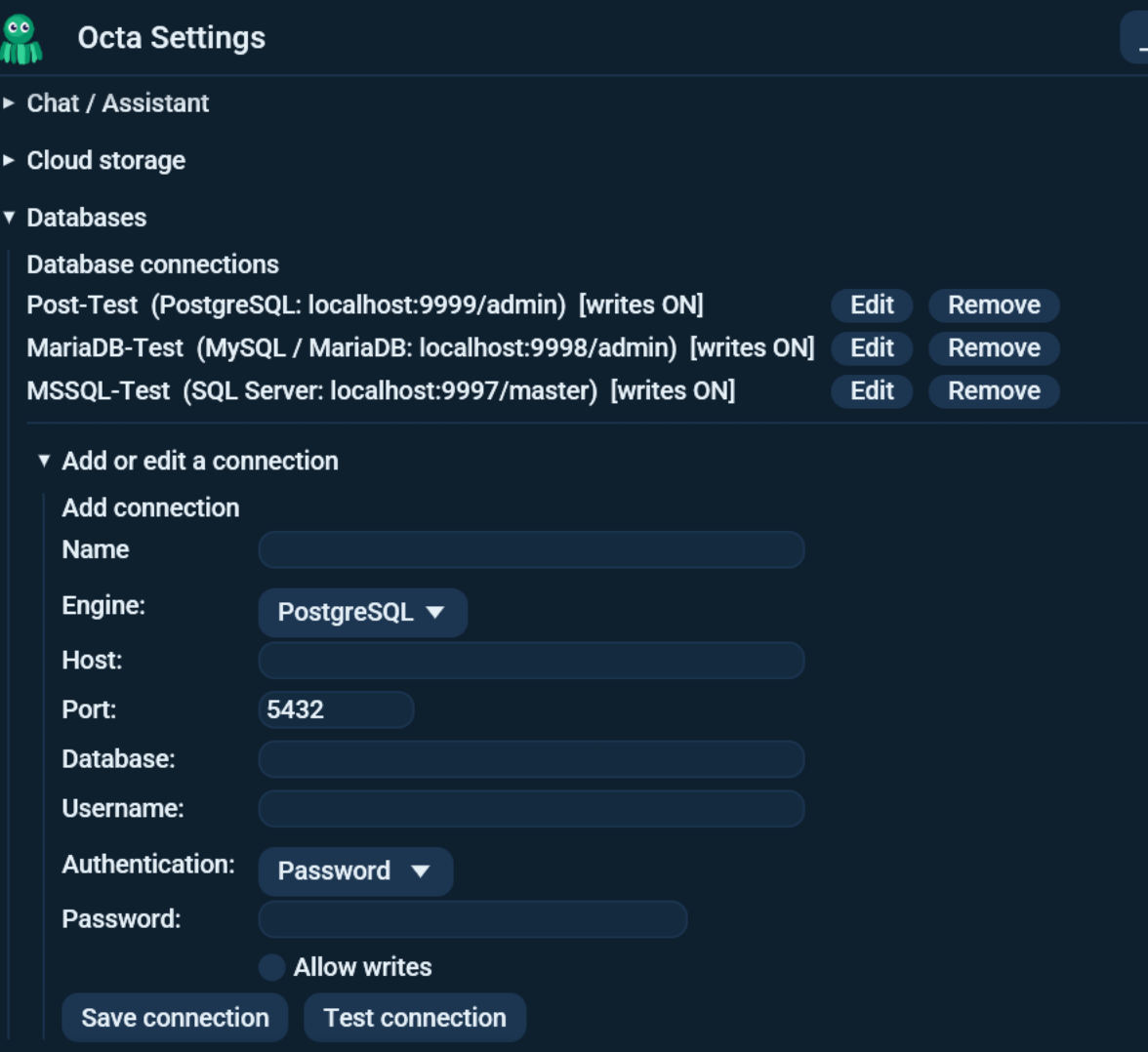
Connections live under Settings > Databases. Each one stores:
- Engine - one of the twelve above. The authentication picker below only offers the methods that engine supports.
- Host / Port / Database / Username - the port pre-fills the engine's default (5432 PostgreSQL, 3306 MySQL, 1433 SQL Server, 1521 Oracle, 5439 Redshift, 8123 ClickHouse, 8563 Exasol, 8443 Trino, 443 for Athena / Snowflake / Databricks / BigQuery). For Oracle, Trino and the warehouse engines the Database field does double duty:
- Oracle: put the service name there (
FREEPDB1,ORCLPDB1), not a database name. A listener that only accepts an old-style SID is not reachable. - Trino: the default catalog (
hive,iceberg,tpch), used when nothing else names one. The sidebar browses every catalog regardless. - Athena: the Glue database. Athena also needs a workgroup and, unless the workgroup sets one, an S3 result location; both have their own fields in the form.
- Snowflake: the account identifier is taken from the Host (the label before the first dot).
- Databricks: put the SQL warehouse id in the Database field (the Statement API targets a warehouse).
- BigQuery: put the GCP project id in the Database field; BigQuery datasets show up as schemas.
- Authentication - the methods offered depend on the engine (see the table below).
- Allow writes - off by default; see Writes.
- Read datetimeoffset as a timestamp (UTC) - SQL Server only, off by
default. Off, a
datetimeoffsetcolumn reads as text with its own offset (2024-01-02 03:04:05.1234567 +02:00), and a save writes exactly that back. On, it reads as a timestamp in UTC, so charts and date features work with it, and a save stores the same moment with offset +00:00.
Authentication methods by engine
| Engine | Methods |
|---|---|
| PostgreSQL, MySQL/MariaDB | Password, AWS IAM (RDS), Microsoft Entra (Azure AD), Google Cloud SQL IAM |
| SQL Server | Password, Microsoft Entra (Azure AD) |
| Oracle | Password |
| Trino | Password (basic over TLS), OAuth (browser SSO), Personal access token |
| Amazon Athena | AWS IAM (every request is signed) |
| Amazon Redshift | Password, AWS IAM |
| ClickHouse, Exasol | Password |
| Snowflake | Key-pair (JWT), Password, OAuth (browser SSO), OAuth (client credentials) |
| Databricks | Personal access token, Microsoft Entra (Azure AD), OAuth (client credentials), OAuth (browser SSO) |
| Google BigQuery | Application Default Credentials, Service-account key |
A password is only one of the options. Several engines never use one at all: they authenticate with a token, a private key, a browser sign-in, or ambient cloud credentials. What each method needs:
- Password: a username and password. Stored in the system keyring,
never in
settings.toml. Offered by most engines but not all (BigQuery, for example, has no password mode). - AWS IAM (RDS): a token minted per connection via the aws CLI
(
aws rds generate-db-auth-token). Sign in first withaws sso login. An optional region overrides your aws CLI default. You can instead fill the IAM Identity Center fields (start URL, account ID, IAM role) to sign in with your browser from inside Octa (noaws sso login); Octa runs the Identity Center device flow, mints role credentials, and uses them to generate the RDS token. The aws CLI is still needed for that last signing step. - Microsoft Entra (Azure AD): no password. Octa gets a token either
from the
azCLI (az account get-access-token, afteraz login) or by signing you in through your browser from inside Octa (see Two ways to sign in). It requests the right token audience per engine (SQL Server, Azure Database for PostgreSQL / MySQL, or Databricks). - Google Cloud SQL IAM (PostgreSQL / MySQL): no password. Octa gets a
token either from the
gcloudCLI (gcloud sql generate-login-token, aftergcloud auth login) or via browser sign-in from inside Octa. The username must be the IAM principal (for exampleuser@example.com, or the service-account name without the.gserviceaccount.comsuffix for MySQL). - Key-pair (JWT) (Snowflake): point Private key path at an unencrypted PKCS#8 RSA private key. Octa mints a signed login JWT locally on each connect.
- OAuth (browser SSO) (Snowflake, Databricks): sign-in opens in your
browser and the redirect is caught on a local port. For Databricks this
is user-to-machine OAuth against the workspace; the built-in
databricks-clipublic client is used by default, so no client ID or secret is required (set OAuth client ID only for a custom app). - OAuth (client credentials) (Snowflake / Databricks): a machine-to-machine grant. Supply the Client ID (and client secret in the keyring); the token URL defaults per engine when left blank.
- Personal access token (Databricks): a Databricks PAT, stored in the keyring.
- Application Default Credentials (BigQuery): uses gcloud ADC. Sign
in first with
gcloud auth application-default login. - Service-account key (BigQuery): point Service-account key path at the JSON key file; Octa exchanges it for an access token.
The Test connection button connects with the values currently in
the form (saved or not) and runs SELECT 1, so a wrong host, password,
or database name surfaces immediately instead of on first use.
Two ways to sign in: CLI or browser
For Microsoft Entra (Azure AD), Google Cloud SQL IAM and AWS IAM (RDS) connections, Octa can obtain the credential it needs in two ways. Both end up connecting the same way; they differ only in how you authenticate and what has to be installed. (Databricks also offers a browser sign-in as its own OAuth (browser SSO) auth mode, described below; it has no vendor-CLI path.)
1. Vendor CLI (the default, and nothing to fill in). Press Sign in
with browser and Octa runs the vendor's own sign-in for you: az login,
gcloud auth login or aws sso login. That command opens your browser,
you sign in there, and from then on Octa asks the CLI for a fresh token on
every connect. The CLI keeps a long-lived session on disk and refreshes it
silently, so you rarely authenticate again.
There is deliberately no OAuth client ID to supply on this path. The vendor CLI is itself a registered OAuth application, which is why nothing has to be registered by you. This is the same route DBeaver's Default credentials option takes.
- Pros: no setup at all; the CLI refreshes for you; the recommended path on a workstation you control.
- Cons: the CLI must be installed. If it is not, Octa says so and shows the install command for your operating system, along with the alternative below.
2. Browser sign-in with your own OAuth app (for locked-down machines). If you cannot install the vendor CLI, or your organisation blocks it, open Advanced on the connection and paste the client ID of an OAuth app you register once in your own cloud console. Octa then opens your system browser itself and captures the credential directly, with no CLI involved.
- Pros: needs no CLI; works anywhere a browser does.
- Cons: a one-time app registration; and in this version the browser session lasts about an hour with no background refresh, so you sign in again when it expires.
Both can be set up at once. If a connection has a client ID, Octa uses its own browser flow; otherwise it runs the vendor CLI's sign-in. Either way a valid cached token is used first.
Setting up your own OAuth app
Only needed for path 2, and only once per provider:
- Google: in the Google Cloud console, create an OAuth client of type Desktop app. Put its client ID in OAuth client ID and its client secret in OAuth client secret (Google), both under Advanced on the connection.
- Azure: in Microsoft Entra ID, register an application as a public
client with the redirect URI
http://localhostand public-client flows enabled. Put its client ID in OAuth client ID and your directory (tenant) ID in Azure tenant, both under Advanced. - AWS IAM Identity Center: no registration. On an AWS IAM (RDS)
connection, fill the Identity Center start URL (for example
https://acme.awsapps.com/start), AWS account ID and IAM role name (plus the Identity Center region if it differs from the DB region). Octa runs the Identity Center device sign-in in your browser, mints temporary role credentials, and uses them to generate the RDS token (the aws CLI is still needed for that final signing step). - Databricks: no registration and no fields. On a Databricks
connection pick OAuth (browser SSO); Octa signs in against the
workspace with the built-in
databricks-clipublic client. Set an OAuth client ID only if you registered a custom app.
What the button does
Sign in with browser is always available on Azure AD, GCP IAM and AWS IAM connections. Next to it Octa shows whether you are signed in and roughly how long the token has left, with a Sign out button that forgets it. The connection list marks a signed-in connection Signed in via browser.
The sign-in is kept in your system keyring until the token expires, so it survives a restart of Octa, and the command line and the MCP server use it too.
When a connection in the Databases sidebar cannot get a token (it expired, or the CLI is signed out), the sidebar shows the error with a Sign in with browser button right under it. That covers Azure AD, GCP IAM, AWS IAM Identity Center, and Databricks and Snowflake browser sign-in. Once you are signed in, the connection lists again on its own.
If the vendor CLI is missing, the button says which one, gives the install command for your operating system (winget on Windows, Homebrew on macOS, a link on Linux), and points at Advanced as the way that needs no CLI at all. The message is selectable so you can copy the command straight out of it.
Reaching a database through a jump host
Most managed databases inside a company only answer from inside the network, and the way in is a bastion you can reach over SSH. Without this the answer was "open a tunnel in a terminal first"; now a connection can carry its own.
Open SSH tunnel on the connection and tick Reach this database through a jump host. Fill in the bastion's host, your account on it, and how you sign in:
- SSH agent (the default): uses the keys your agent already holds, so there
is nothing to fill in and no passphrase to type. Needs an agent running:
ssh-agenton Linux and macOS, Pageant or the OpenSSH agent on Windows. - Private key file: the path to your key, for example
~/.ssh/id_ed25519. Give the private key, not the.pubone. If it is encrypted, its passphrase goes in the field below and is kept in your system keyring, in an entry separate from the database password. - Password: your account password on the bastion, also kept in the keyring. Many hardened bastions refuse passwords outright and want a key.
Octa opens the SSH connection when you first use the database connection, binds
a port on 127.0.0.1 and forwards it to the real server. One tunnel is shared
by every tab, query and write on that connection, and it stays up until Octa
closes. Test connection exercises the tunnel too, so a bad bastion reports
as an SSH error rather than a confusing database one.
Nothing else changes: --db-* on the command line and the database MCP tools
read the same saved connection, so they tunnel as well without any extra flags.
The connection still names the real database
Only the socket goes to 127.0.0.1. The Host field keeps naming the
database itself, so TLS certificates, Microsoft Entra token audiences and
error messages are all unchanged by tunnelling. PostgreSQL, Redshift, MySQL
and SQL Server verify their certificates against the real hostname exactly
as they would without a tunnel.
ClickHouse over HTTPS and Exasol are the exceptions: their clients cannot be told to dial one address and validate another, so through a tunnel they check the certificate against the tunnel endpoint. ClickHouse over plain HTTP, which is the usual internal case, is unaffected.
Host keys
Octa checks the bastion's key against your ~/.ssh/known_hosts, the same file
ssh uses.
- A known and matching key connects.
- An unknown host is refused, and the message says so. Connect to it once
with
sshto record its key, or tick Accept a new host key to have Octa accept and remember it the first time, which is whatssh'sStrictHostKeyChecking=accept-newdoes. - A changed key is always refused, whatever that tick box says. Either the
server was rebuilt or something is impersonating it, and Octa will not guess
which. Check, then remove the stale line from
known_hostsyourself.
Connection examples
One example per engine, plus a managed-service variant. The values are made up; substitute your own.
PostgreSQL
| Field | Value |
|---|---|
| Engine | PostgreSQL |
| Host | db.example.com |
| Port | 5432 |
| Database | analytics |
| Username | reporting |
| Authentication | Password |
Amazon RDS / Aurora (PostgreSQL, AWS IAM)
| Field | Value |
|---|---|
| Engine | PostgreSQL |
| Host | mydb.abc123xyz.eu-central-1.rds.amazonaws.com |
| Port | 5432 |
| Database | analytics |
| Username | iam_user |
| Authentication | AWS IAM (RDS) |
The engine is plain PostgreSQL - Aurora and RDS speak the PostgreSQL
wire protocol (use MySQL / MariaDB for the MySQL-flavoured ones).
AWS IAM (RDS) mints a short-lived token instead of a password, so no
secret is stored. Sign in with aws sso login first, or fill the
IAM Identity Center fields to sign in from your browser inside Octa.
The database user must be enabled for IAM auth (GRANT rds_iam TO
iam_user on PostgreSQL; the AWSAuthenticationPlugin on MySQL), and an
optional region overrides your aws CLI default. The same shape works
for Azure Database (Microsoft Entra) and Google Cloud SQL (Cloud
SQL IAM) by picking that authentication method.
MySQL / MariaDB
| Field | Value |
|---|---|
| Engine | MySQL / MariaDB |
| Host | mysql.example.com |
| Port | 3306 |
| Database | shop |
| Username | app |
| Authentication | Password |
Microsoft SQL Server
| Field | Value |
|---|---|
| Engine | SQL Server |
| Host | mssql.example.com |
| Port | 1433 |
| Database | Sales |
| Username | svc_octa |
| Authentication | Password (or Microsoft Entra) |
Amazon Redshift
| Field | Value |
|---|---|
| Engine | Amazon Redshift |
| Host | my-cluster.abc123xyz.eu-central-1.redshift.amazonaws.com |
| Port | 5439 |
| Database | prod |
| Username | analyst |
| Authentication | AWS IAM (region eu-central-1) |
Sign in first with aws sso login.
ClickHouse
| Field | Value |
|---|---|
| Engine | ClickHouse |
| Host | clickhouse.example.com |
| Port | 8123 (HTTP interface) |
| Database | metrics |
| Username | default |
| Authentication | Password |
Exasol
| Field | Value |
|---|---|
| Engine | Exasol |
| Host | exasol.example.com |
| Port | 8563 |
| Database (schema) | SALES |
| Username | sys |
| Authentication | Password |
Oracle
| Field | Value |
|---|---|
| Engine | Oracle |
| Host | oracle.example.com |
| Port | 1521 |
| Database (service name) | FREEPDB1 |
| Username | octa |
| Authentication | Password |
Octa speaks Oracle's TNS protocol directly, in pure Rust, so no Oracle Instant Client is needed - nothing to install beside Octa itself. Oracle 12.1 and later.
The Database field is the service name (FREEPDB1, ORCLPDB1),
not a database in the PostgreSQL sense. A listener that only answers to an
old-style SID cannot be reached.
Authentication and transport
Password only, and the connection is plain TNS, not TLS: Oracle wallets, TCPS and Kerberos are not supported yet. In practice that means Autonomous Database on OCI is out of reach (it always requires TLS, usually with the wallet it hands you), and so is any on-prem listener configured for TCPS only. A directly reachable on-prem or containerised Oracle works, and one behind a bastion works through a jump host, which also encrypts the hop.
Names are upper case
Oracle folds an unquoted name to upper case in its catalogue, so a
schema created as sales is listed as SALES, and that is the spelling
to type in the sidebar and in SQL. The reverse applies to what Octa
writes: a table it creates keeps the exact case of the source columns
(id, not ID), because the DDL quotes every identifier, so those
columns have to be addressed quoted afterwards - SELECT "id" FROM ....
Appending works the other way round too: rows headed id and note
land in a table created as ORDERS (ID, NOTE), even with the table name
typed as orders.
The schema list shows only schemas that are not Oracle-maintained, so the three dozen that ship with the database stay out of the way even for a DBA account. Each schema lists its tables and its views.
How Oracle types are read
| Oracle type | Read as | Note |
|---|---|---|
NUMBER(p, 0) |
Whole number | Beyond about 19 digits it degrades to a decimal |
NUMBER(p, s), FLOAT |
Decimal | |
NUMBER with no precision |
Whole number or decimal | A literal or computed column: the first 200 rows decide |
DATE |
Timestamp | An Oracle DATE always carries a time of day |
TIMESTAMP, TIMESTAMP WITH TIME ZONE |
Timestamp | The zone offset is kept in the text |
VARCHAR2, CHAR, CLOB |
Text | See the LOB note below |
RAW, BLOB |
Binary | See the LOB note below |
JSON (21c+) |
Nested value | |
BINARY_FLOAT, BINARY_DOUBLE |
Not readable | See the limitations below |
VECTOR (23ai), REF CURSOR, object collections |
Diagnostic text | There is no flat rendering for these; the cell shows what it holds |
LOBs. A CLOB or BLOB under 1 MB is fetched and shown in full, at
the cost of one round trip per cell. A larger one is not fetched: the cell
reads [CLOB of 5242880 characters, too large to read] so it is clear
that something is there and why you are not seeing it.
Writing to Oracle
Write-back and Copy table create Oracle types from the source
columns: text becomes VARCHAR2(4000), whole numbers NUMBER(19,0),
decimals NUMBER, booleans NUMBER(1) (Oracle had no BOOLEAN before
23c), dates and timestamps DATE and TIMESTAMP. Decimals deliberately
do not become BINARY_DOUBLE, the closer match, because Octa could
not then read back the column it had just written. Two further
consequences worth knowing:
- Text is capped at 4000 bytes. A longer value is refused by the
server (
ORA-12899) rather than silently truncated. A column that wide needs aCLOBcreated by hand, and Oracle will not take a string literal longer than 4000 bytes into one either. - Binary columns are written as hex text, into a
VARCHAR2, because that is the form the generatedINSERTcarries. Reading such a column back gives you the hex, not the original bytes.
A statement you run yourself in the SQL panel is committed when it
succeeds, as on every other engine Octa supports. Oracle's own clients
leave a transaction open until you say COMMIT, so if you are used to
typing ROLLBACK after a mistaken UPDATE, note that there is nothing
left to roll back.
Oracle limitations
The Oracle driver is young, and three of its gaps are visible from Octa. All three are the driver's, not the server's:
-
A result stops at 100 rows. The driver reads the first batch the server sends and never asks for the next one, so opening a table, a query in the SQL panel, an export and a copy each see at most 100 rows of an Oracle result, and nothing says the rest is missing. The relationship map's column list is cut the same way on a schema with more than 100 columns in all.
SELECT COUNT(*)tells you how many rows there really are. -
A rejected statement ends the connection. Oracle itself keeps the session alive after an error, but the driver loses it, and reports its own generic text instead of the
ORA-code and message. Octa reconnects on the next action, so a typo in the SQL panel costs a round trip; what it cannot do is tell you what the server objected to. Check the statement in SQL*Plus or SQL Developer when the reason matters. BINARY_FLOATandBINARY_DOUBLEare not decoded. Those cells say so rather than show wrong numbers.SELECT CAST(the_column AS NUMBER)reads them correctly, because Oracle's ownNUMBERpath works.
A running statement also cannot be cancelled on Oracle: see Cancelling a running query.
Everything else is exercised against a real Oracle 23ai server on every run of the test suite that has one: browsing, reading, primary-key discovery, appending to upper-case tables and the full write-back round trip.
Snowflake
| Field | Value |
|---|---|
| Engine | Snowflake |
| Host | xy12345.eu-central-1.snowflakecomputing.com |
| Port | 443 |
| Database | (optional; browse databases in the sidebar) |
| Username | SVC_OCTA |
| Authentication | Key-pair (JWT), private key ~/.snowflake/octa.p8 |
The account is taken from the host label before the first dot
(xy12345 here). Key-pair, password, browser SSO and OAuth client
credentials are all offered.
Databricks
| Field | Value |
|---|---|
| Engine | Databricks |
| Host | dbc-a1b2c3d4-e5f6.cloud.databricks.com |
| Port | 443 |
| Database | 1234567890abcdef (the SQL warehouse id) |
| Username | (leave blank) |
| Authentication | Personal access token |
The Database field holds the SQL warehouse id, not a database name; the
warehouse's httpPath is /sql/1.0/warehouses/<warehouse id>, and only
the id goes here. Catalogs, schemas and tables appear in the sidebar
tree once connected. Besides a personal access token, Databricks also
offers Microsoft Entra (Azure AD), OAuth client credentials (M2M) and
OAuth (browser SSO) for browser sign-in with the built-in client.
Google BigQuery
| Field | Value |
|---|---|
| Engine | Google BigQuery |
| Host | (not used) |
| Port | 443 |
| Database | my-gcp-project (the GCP project id) |
| Username | (not used) |
| Authentication | Application Default Credentials |
Sign in first with gcloud auth application-default login. The Database
field is the default project; the sidebar can browse other projects your
credentials can access.
Writes
Every connection is read-only by default. Server-side mutations
(INSERT / UPDATE / DELETE / DDL), the write-back target, the CLI
--db-write-table, and the MCP write_db_table tool are all refused
until you switch on Allow writes for that specific connection in
Settings. A "writes ON" badge in the sidebar marks opted-in
connections.
A read-only connection only runs statements that start with SELECT,
WITH, SHOW, DESCRIBE or EXPLAIN (or VALUES, TABLE, USE, LIST,
HELP, EXISTS). Anything else could write, a procedure call or a code
block among them, so it is refused.
Where the server can, it also holds the connection read-only itself. A write
hidden inside a read, such as WITH x AS (DELETE FROM t RETURNING *) SELECT *
FROM x or SELECT * INTO copy FROM t, is then refused by the server:
| Engine | How the server keeps it read-only |
|---|---|
| PostgreSQL | a read-only session, set again before every statement |
| MySQL / MariaDB | a read-only session |
| ClickHouse | the readonly setting on every request |
| SQL Server | each batch runs in a transaction that is then rolled back |
SQL Server needs no semicolon between statements, so a batch can hold a
write after its SELECT, and the rollback undoes it. So that nothing can end
that transaction early, a read-only SQL Server batch must start with
SELECT, WITH, DECLARE, IF, BEGIN, WHILE or PRINT, and may not
contain COMMIT, ROLLBACK, EXEC or EXECUTE anywhere, not even in text or
a comment.
On MySQL / MariaDB and BigQuery, a read-only connection also refuses any
query with a semicolon before its end, even one inside text or a comment.
Those servers run every statement they are sent, so SELECT 1; DELETE FROM t
would otherwise delete. Send one statement at a time, or switch on Allow
writes.
The other engines rely on these checks and on what the database user may do.
Three more rules cover what they could hide in a read: on Amazon Redshift the
word INTO is refused, since SELECT ... INTO creates a table; on Databricks
a WITH query may not contain INSERT, UPDATE, DELETE or MERGE, even in
text; and EXPLAIN ANALYZE, which runs what it explains, is refused. To be
certain, connect as a database user that can only read.
The switch is per connection, and that is the only switch there is. Mark production read-only and leave staging writable; there is no global database write toggle to turn off for convenience, and every surface routes through the same check.
Write protection in Settings does not cover databases
The Write protection setting under Settings -> Assistant governs file saves and the MCP server's default, not database connections. A connection with Allow writes on stays writable whether that setting is on or off, and a connection without it stays read-only either way.
Once you are connected
Browsing, opening and editing tables, writing back, copying between servers
and exporting to files are on Working with Databases.
The same actions from a script are on
Databases from the CLI. Agents find the saved
connections with list_db_connections
and their tables with list_db_tables; the
other database tools are listed under
MCP and the assistant.