Data Validation
Data validation flags cells that break a rule you define, painting each failing cell red so problems stand out at a glance. Open it via Data -> Data validation....
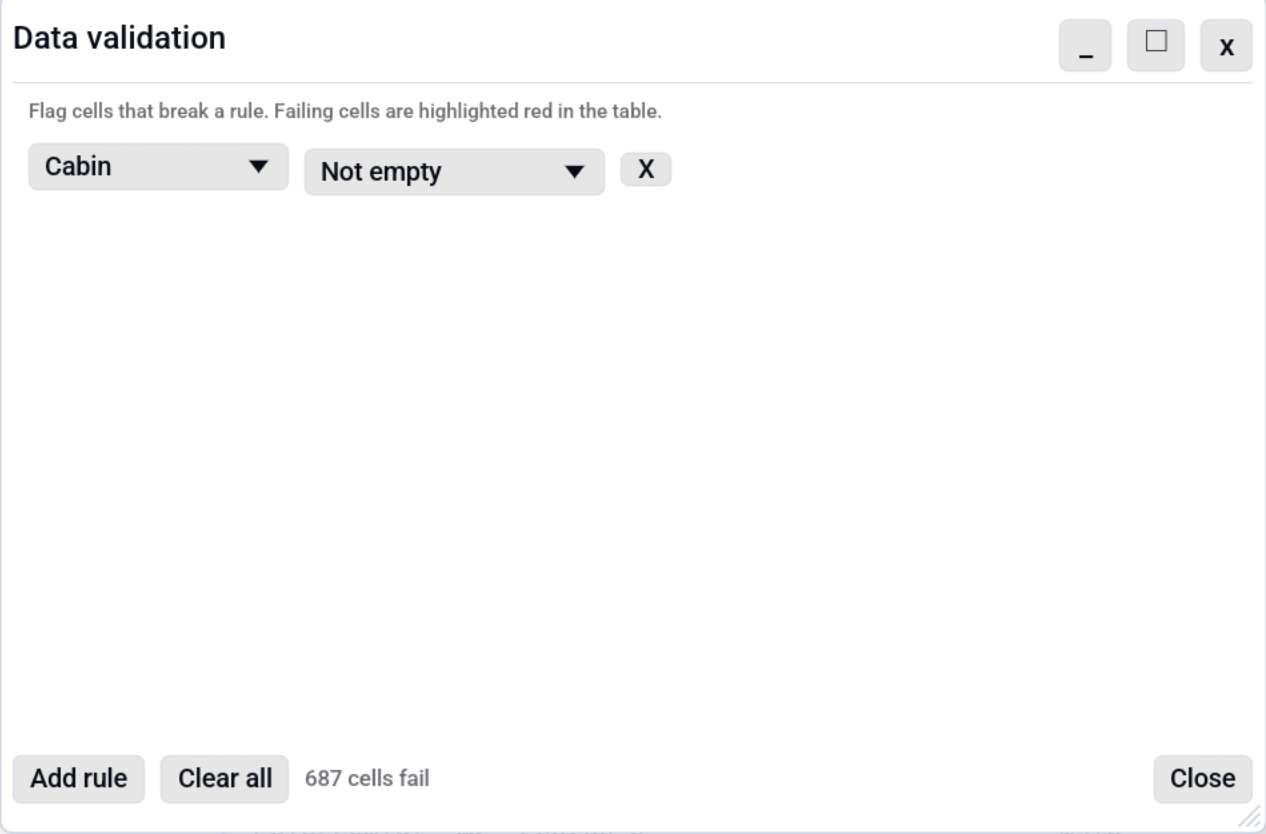
Rules
The dialog holds a list of rules. Each rule has a column (a specific
column, or (any column) to check every cell) and a kind:
| Kind | A cell fails when... |
|---|---|
| Not empty | the cell is empty or blank. |
| In range | the value is not a number, or falls outside the optional min / max (leave a bound blank to leave that side open). |
| Matches pattern | the text does not match the regular expression. |
| Unique | the value is duplicated elsewhere in the column. |
| Max length | the text is longer than the given number of characters. |
The footer shows a live count of how many cells currently fail.
Rules over two columns, and pick-from-values
Two more kinds look beyond a single cell's own text.
Compare with column reads as a sentence: end is at least start.
Pick the column on the left, the comparison (equal, not equal, less than,
at most, greater than, at least) and the other column. A cell fails when
it does not compare as chosen with the other column in the same row. The
failing cell is the one in the rule's own column, so F10 lands
on it. The rule needs a named column; (any column) is not offered.
How two values are compared:
- Two numbers compare as numbers (
9is less than10). - Two dates or times compare by time, and a date counts as midnight.
- Two texts compare as text, and case counts.
- Two values of different kinds fail: a number against a date, or a date
against
n/a. - An empty cell on either side passes. Add Not empty if empty cells should fail.
One of these values allows only the values you choose. Press Values (n)... and the dialog lists the column's distinct values, most common first, each with its count and a tick box. A Find box narrows the list. Add value takes a value that does not occur in the data yet, for example for next month's file. A cell outside the ticked values fails.
- Matching is exact: a different case or a trailing space fails.
- Empty cells pass.
- The list shows at most 1,000 distinct values. A column with more shows only the Add value field and a note saying why.
- On a database tab or a large file that is only partly loaded, the list covers the rows loaded so far, and says so.
- A value already in the rule but missing from the data stays in the list, marked "not in the data", and can be unticked.
Rules point at columns by position while the tab is open. If you delete or move columns afterwards, check that the rules still name the columns you meant. A saved rules file uses column names instead (see below).
Checking IDs: IBAN, card numbers, barcodes, VAT, email
Five more kinds check that a value is a correctly built ID. Pick the column and the kind; every cell that is not correctly built turns red.
| Kind | What is checked |
|---|---|
| IBAN | The country code, the exact length for that country and the two check digits (ISO 13616, mod 97). A country Octa does not list yet gets the check digits only. |
| Card number | 12 to 19 digits and the last digit, which is a check digit (the Luhn formula every card network uses). |
| EAN / ISBN / UPC | EAN-8, EAN-13, UPC-A, GTIN-14, ISBN-13 and ISBN-10: the last digit (the check digit). |
| VAT number (EU) | The country prefix (DE, FR, EL for Greece, XI for Northern Ireland), the shape of the number for that country and, where one is published, the check digit. |
| Email address | How the address is written: one @, a sensible name before it, a domain with a dot after it. |
Spaces, dashes and (in VAT numbers) dots are allowed: de89 3704 0044
0532 0130 00 passes. How a value is written is a question of format, which
Tidy ID format fixes (see below). Empty cells pass; add Not empty
for that.
Valid means correctly built, not that it exists. Every check is arithmetic on the value itself; nothing is looked up and nothing leaves your computer. A correct IBAN can belong to a closed account, and a VAT number can pass its check digit without being registered. Only the EU's online VIES service knows that, and asking it would send your data out. For some countries (Spain, Greece, Ireland and a few more) Octa knows the shape but not a published check digit, so it checks the shape only.
Phone numbers are not checked. Telling a real number from a plausible one needs every country's numbering plan, a large dataset that changes all the time, and a half-right check would paint good numbers red.
A red cell never stops you. It is a flag, not a gate: you can edit,
save, export and share the table as it is. What to do about it is your
call. Only octa --check in a script turns a flag into an exit code,
because that is what it is for.
Keep code columns as text. A barcode such as 036000291452 read as a
number loses its leading zero and then fails its check; right-click the
header and Change column type to text if that happened.
Tidy ID format
Data -> Transform column... -> Tidy ID format writes every valid ID in a column one standard way: IBANs in capitals and groups of four, card numbers in groups, barcodes and VAT numbers without spaces, email domains in lower case. The dialog says how many values it will rewrite and how many are not valid; the invalid ones stay exactly as they are, so nothing that needs a human look is disguised as tidy. Like every transform it is one Ctrl+Z, and it is recorded in the tab's recipe.
samples/features/id_checks.csv in the repository has one row of each
kind of mistake, to try it on.
How it behaves
Rules apply live: failing cells are highlighted the moment you add or edit a rule, and the highlight updates as you change cell values. The validation highlight is per tab and session-only - it is not saved with the file and does not change the data, only how it is shown. A manual colour mark or a conditional-formatting colour takes priority over the red validation highlight.
Add rule appends a new rule, the X button removes one, and Clear all removes them all.
Stepping through violations
Violations are painted in place, which is no help in a table with two
hundred thousand rows. F10 jumps to the next flagged cell and
Shift+F10 to the previous one; both wrap around and
the status bar reports Problem 3 of 27 as you go.
The same keys also step through cells flagged by Detect Outliers, since both are "cells worth looking at". Rows hidden by the current filter are skipped, so the counter always matches what you can actually see.
Saving rules to a file
Rules live with the tab and disappear when it closes, which is fine while you are exploring and useless once the same check has to run every week. Save rules... writes the current list to a TOML file:
[[rule]]
column = "order_id"
kind = "unique"

[[rule]]
column = "amount"
kind = "range"
min = 0

[[rule]]
column = "iban"
kind = "iban"

[[rule]]
column = "end"
kind = "compare"
op = ">="
other_column = "start"

[[rule]]
column = "status"
kind = "one_of"
values = ["open", "closed"]
op is one of =, !=, <, <=, >, >=. A compare rule without
other_column or with an unknown op, and a one_of rule with no
values, is reported as a rule that could not run.
Load rules... reads one back. Rules are stored by column name, not position, because a rules file outlives the table it was written from and an index stops meaning anything the moment a column moves.
If a loaded file names a column this table does not have, the dialog says so and names the columns rather than dropping those rules quietly. A rules file that half applies is worse than one that fails loudly.
The same file runs from the command line:
That exits 1 on any violation and on any rule that could not run,
so a CI step can gate on it. See --check, and
check_rules in the MCP reference for the assistant.
Command line and MCP
The same job without the GUI:
- MCP:
check_rules
See also
- Conditional Formatting colours cells by a rule for emphasis, rather than flagging errors.
- Search & Filter can narrow the table to the rows you want to inspect before validating.