Record view
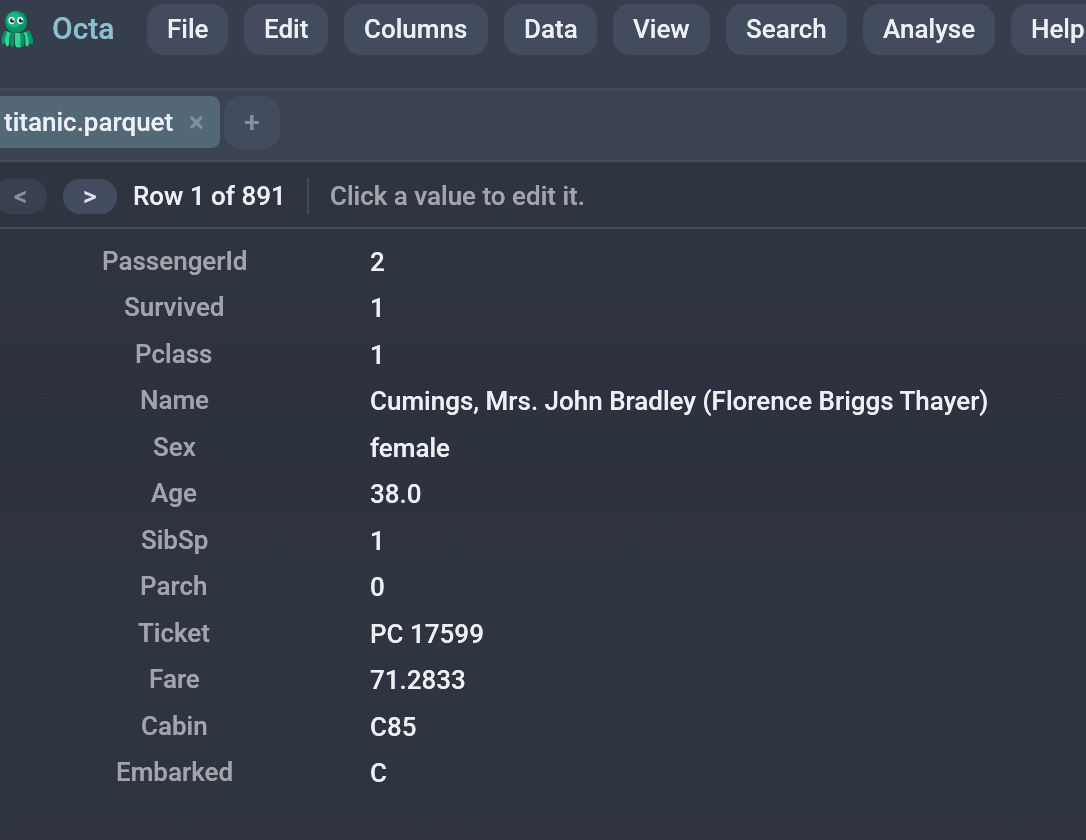
The Record view shows one row at a time, laid out vertically as a list of field name / value pairs. It exists for tables too wide to read in the grid, where following a single row means scrolling sideways past forty columns and losing track of which one you were on.
It is offered for any tab that has columns, so any CSV, Parquet, spreadsheet or database table can use it.
Reaching it
Pick View → Record view, or cycle to it with
F4 (CycleViewMode).
Moving between rows
The strip at the top of the view carries the navigation:
<and>step to the previous and next row. They grey out at the first and last row.- The Up and Down arrow keys do the same thing, as long as no text field has the keyboard.
- The counter reads
Row 3 of 128.
Stepping walks the visible rows, not the raw file order. An active search or column filter narrows what you step through, and the counter reports the filtered set. If you filter away the row you were sitting on, the view lands on the first row still visible rather than going blank.
Search matches are highlighted inside the values, the same as in every other view.
Editing
Click a value to edit it. Press Enter, or click somewhere else, to commit. Edits go into the real row through the same overlay the table view uses, so undo and redo, the modified marker in the tab title, and saving all behave exactly as they do in the grid.
In read-only mode (F8) values are not clickable, and the hint at the top of the view says so.
Shared selection
The Record view and the Table view share one selected cell. Switching to Record shows the row you had selected in the grid, and switching back to Table lands on the row you navigated to in Record. This works in both directions, so it is practical to find a row in the grid, flip to Record to read it in full, edit a field, and flip back.
Excel formulas
A field whose value came from a spreadsheet formula shows that formula beside it, in a lighter monospace. It is there for the same reason the Record view is: the grid shows you what a cell says, and this shows you why. The grid has it too, on hover.
The formula disappears once you edit the field, or once you move, add or
delete rows or columns, because it would then point at the wrong cells.
See saving for writing formulas back
into an .xlsx.
See also
- Table view, the default view for tabular files.
- View modes overview for the full list of modes and how F4 cycles them.
- Editing for how the edit overlay, undo and redo work.