Recipes
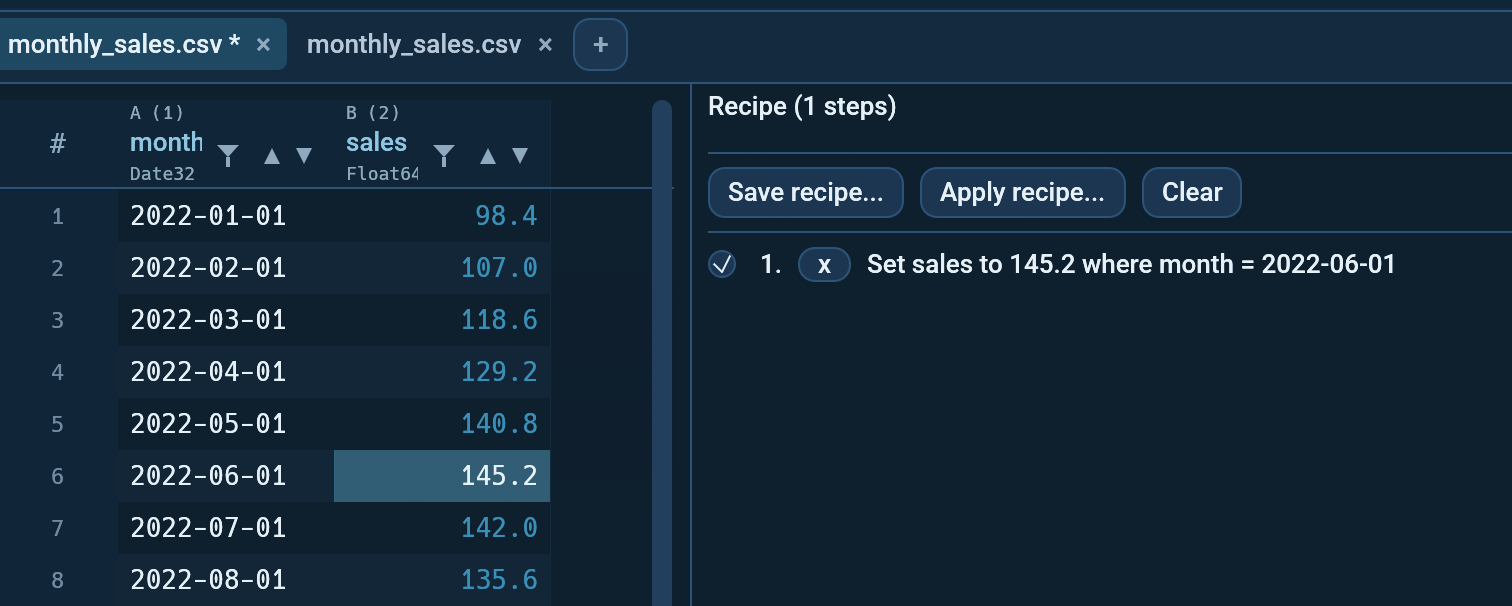
Every month the same export arrives, and every month you rename the same columns, fix the same types and remove the same duplicates. A recipe records those steps once and replays them on the next file.
Recipes are saved as .ocp files, short for Octa reCiPe.
It is plain TOML, so any text editor can open it.
Recording
Octa records what you do to a table while you work. There is nothing to switch on. Edit -> Recipe panel shows the list for the active tab:
- Renaming columns (the Rename columns dialog, a header rename, the clean-up panel's header fix)
- Deleting columns
- Changing a column's type
- Sorting (header, menu, or Sort by columns)
- Removing duplicate rows
- Filling missing values
- Transform column: split, merge, fill down or up, extract, replace, repair broken characters, tidy ID format
- Values you type into cells, paste, cut, or change with find and replace (see below)
Every step is stored by column name, never by position, so it still means the same thing on a file whose columns are in another order.
Not recorded: filters and searches, because they change what you see, not the data.
Typed values and the ID column
A typed value cannot be stored as "row 5": next month's file has different rows in a different order, so row 5 is somebody else. Octa records it as "price = 9.99 in the row where id = 1042" instead, and on replay finds that row by its ID wherever it moved to.
For that it needs the column that tells every row apart. It picks it
itself when one plainly does: a column named like an ID (id,
customer_id, order_no, code, ...) whose values are all present and
all different, or else a first column that is unique.
When no column plainly does, Octa does not guess. The edit is recorded anyway and marked needs an ID column in the panel, and Choose ID column... asks you which column (or which columns together) identify a row, explaining why. Columns whose values are all different are marked unique; if you pick one that is not, the dialog says how many rows share an ID, because on replay an edit to one of them changes all of them. Save recipe... asks the same question first when an edit is still waiting.
On replay, an edit whose row is not in the new file (the customer left) is reported as skipped with its ID; the others are written.
Two things are not recorded as typed values: cells filled by a dialog that also added a row or column (Add column, Duplicate row), since those cells will not exist in next month's file, and the writes of dialogs such as Anonymise, which run as one batch rather than as typing.
Undo takes a step back out of the recipe, and redo puts it back, so the list always matches the table.
In the panel, untick a step to leave it out of the saved recipe, or remove it with the small x. Clear forgets the whole list. None of this changes the table itself.
Saving
Save recipe... in the panel writes the ticked steps to a .ocp
file. By default that is the only way a recipe gets saved.
To have Octa save them for you, tick Save recipes automatically under
Settings -> Files. After every recorded step, the tab's recipe is
written into the recipe folder, named after the data file: working on
sales_march.csv writes sales_march.ocp. Read
Keeping recipes before relying on
it: a file with the same name overwrites its recipe.
The recipe folder is recipes inside Octa's settings folder unless you
choose another one with Choose folder... (for example
~/.config/octa/recipes on Linux, %APPDATA%\Octa\recipes on Windows).
It is created the first time a recipe is saved there. Use default
goes back to it. Save recipe... also opens in that folder.
Keeping recipes: one file per job
Recommended: once a recipe does what you want, save it with Save recipe... into its own file under a lasting name, one recipe per kind of file you receive, and keep it apart from the data.
- One recipe per source.
sales_export.ocpfor the sales export,bank_statement.ocpfor the bank statement. A recipe that mixes the steps for two different files skips half of them on each, and on the command line one skipped step means nothing is written at all. - Name it after the job, not the month. Auto-save names the recipe
after the data file and rewrites it after every step. When next
month's file has the same name, the first thing you do to it
overwrites last month's recipe with a one-step list. A recipe saved
by hand under a name of its own, like
sales_export.ocp, is left alone as long as no data file you open has that name. - Keep it apart from the data. The data files are replaced every month; the recipe stays. The recipe folder is a good place, or a project folder under version control, so a change to a step shows up in the history.
- Small recipes combine. Apply one recipe after another: a shared
tidy_headers.ocpfirst, then the one for this source. Each replay is its own undo step. - Mind what is inside. Typed values are stored with the row's ID and the new value, so a recipe with typed values holds a little of your data. Look at the file before you share it.
Replaying
Open next month's file, then Edit -> Apply recipe... and pick the
.ocp. Opening a .ocp file from File -> Open, the folder sidebar
or the command line does the same.
The dialog lists the steps before anything runs, and warns under any step whose column this table does not have. Apply runs every step on the active tab. A step that cannot run is skipped and reported; the others still run. The whole replay is one undo step: one Ctrl+Z takes it all back.
The replayed steps join the tab's own recipe, so you can add a step or two and save an updated version.
What a recipe file looks like
version = 1

[[steps]]
step = "rename"

[[steps.renames]]
from = "Kunde"
to = "customer"

[[steps]]
step = "change_type"
column = "date"
to = "date"

[[steps]]
step = "drop_duplicates"
columns = ["id"]
keep = "first"

[[steps]]
step = "sort"

[[steps.by]]
column = "customer"
descending = false
A sort step records natural = true when Settings -> Table -> Sort text
was Natural at the time, and replays that way on any machine; without it the
step sorts letter by letter, as older recipes do.
Each [[steps]] block is one step, run from top to bottom. You can
edit the file by hand: change a column name, delete a block, reorder
them. The step names are rename, delete_columns, change_type,
sort, drop_duplicates, fill_missing, split, merge, fill,
extract, replace, repair_encoding, tidy_id, use_header_rows
(first and last, counted from 1, see Header row),
header_is_data and set_cells (typed values:
key names the ID column(s), and each entry in cells gives the row's
ID, the column and the new value).
Command line
Unlike the dialog, the command line is all or nothing: if any step
cannot run, nothing is written and the exit code is 1, so a script never
picks up a half-cleaned file. See --recipe.
MCP and the assistant
The apply_recipe tool replays a recipe and returns the result. See
apply_recipe.
Limits
- A renamed column in the new file breaks every step that names it. The dialog shows which ones before you apply.
- Formula columns, conditional columns, anonymising and the other dialogs are not recorded yet.