Search & Filter
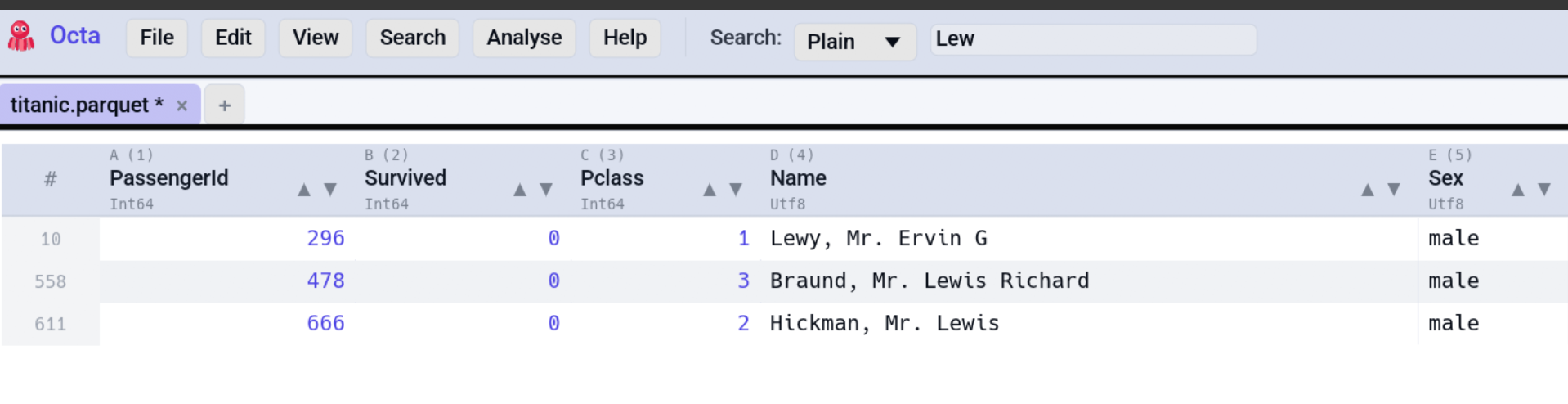
Octa's search filters the table in real time, so only rows containing a match stay visible. The same field doubles as the entry point for Find & Replace.
Quick start
- Press Ctrl+F
(
FocusSearch), or click the search box in the toolbar. - Type. The table re-filters on every keystroke.
- Escape clears the search.
The status bar shows the visible row count vs. the total, which is
handy for "how many rows match error?" without writing SQL.
Search modes
A dropdown next to the search box switches between three modes:
Case-insensitive substring match, the default. foo matches
Foo, bar foo baz, foobar, etc.
Plain mode is the fastest of the three. Use it for everyday "find rows containing this word" queries.
* matches any sequence of characters (including empty), ?
matches exactly one character. Escape with \* and \? for
literal asterisks / question marks.
Examples:
| Pattern | Matches |
|---|---|
user_* |
user_id, user_name, user_2024_01 |
report-????-Q1 |
report-2024-Q1, report-2025-Q1 |
*.log |
anything ending in .log |
Full regex crate syntax. Case-sensitive
unless you prefix with (?i).
Examples:
| Pattern | Matches |
|---|---|
^foo |
rows starting with foo |
\d{4}-\d{2}-\d{2} |
ISO-formatted dates |
(?i)error\|warn |
rows containing error or warn, any case |
Compilation happens once per keystroke; invalid patterns leave the table un-filtered and show a tooltip with the error.
The default mode is set under Settings → Search & Editor → Default search mode.
Case, whole word, and scope
Three controls beside the search box refine how matching works. They apply to both the filter and the in-place highlight.
- Aa toggles case-sensitive matching. When off (the default),
matching ignores capitalisation in every mode; when on,
Foono longer matchesfoo. - W toggles whole-word matching. The query is bounded by word
boundaries, so
catmatches the word "cat" but not "category" or "scatter". - The scope dropdown limits the search to a single column, or All columns (the default). The dropdown's label always shows the current scope, so you can tell at a glance whether you are searching one column or the whole table.
Search history
Recent queries are remembered across sessions. Once you have run a few
searches, a Recent dropdown appears beside the search box; pick an
entry to re-run that query. The number of queries kept is the
Search history size
setting (default 5; 0 disables the history). The list lives in
search_history.json in the
config directory.
Filter or highlight
A toggle button beside the search box controls how matches are shown:
- Filter (the default): rows that do not match are hidden, exactly as Octa has always behaved.
- Highlight: every row stays visible and the matching cells are highlighted in place. Nothing is hidden.
Set the default under Settings → Search & Editor → Search result display; the toggle overrides it for the current session.
The table view honours the toggle. The text and tree views always highlight, regardless of the toggle, because hiding free text or collapsing tree nodes is not meaningful there:
- Jupyter notebooks
- JSON and YAML trees
- Markdown (preview and editor)
- the raw text editor
This means the search box now works in those views too, where previously it had no effect.
Match count and navigation
When matches are highlighted, the search bar shows a count (current / total)
and two buttons to step through them. While the search box is focused:
- Enter jumps to the next match.
- Shift+Enter jumps to the previous match.
The view scrolls the current match into view and emphasises it. In a table the current match cell is selected; in text views the cursor moves to it; in trees and notebooks the relevant node or cell scrolls into view.
What the search matches against
Every column's textual value, joined into one string per row. This means:
- Numeric columns search against their displayed form (
42matches"42"). - Date columns search against the ISO display (
2024-01-15); see Date Inference for how text formats get promoted. - Boolean columns search against
"true"/"false". - Binary columns search against whichever display mode is active (Hex / Binary / UTF-8; configured under Settings → Table View).
Which rows the search covered
Octa does not always hold a whole file. A big file stops at the initial-load row cap, a live database tab holds one page, and a search over those rows is a search over a window, not over the file.
When that is the case the search bar says so in plain numbers, for
example Only 2,000,000 of 20,000,000 rows are loaded., and offers one
button beside it:
- Search whole file for a Parquet, CSV/TSV or JSON file. The count comes from a query against the file where it lies, so nothing extra is loaded, and the matching rows open in their own tab.
- Count on the server for a tab from a live database connection. The count runs on the server, which is the only place that knows it, and the matching rows open in their own tab.
- Load all rows for any other format, which cannot be searched without being read. The file is read again with the row limit lifted; on a big file that costs time and memory, and the button says so.
The scan asks the same question the search box asked: the same mode,
the same Aa and whole-word toggles, the same column scope. A count that
quietly downgraded a regex search to a substring match would be a count
for a different question, reported in the same words.
That is also why the button is sometimes disabled. A regex or whole-word search cannot be handed to a live database, because a regular expression means something different on each engine and some have none at all; the hover says so. Switch to a plain search to count on the server.
The same note appears above any tab computed from a partly loaded table (a Summary, a quality report, a correlation and so on), and saving such a table asks before overwriting the file.
For column-scoped value filtering, see the
Column Filter section below. For typed range or
expression filtering, use the SQL panel:
SELECT * FROM data WHERE col >= 42 is column-aware in a way the
toolbar text filter isn't.
Find & Replace
Ctrl+H
(ToggleFindReplace) opens the
replace bar above the table. Two buttons:
- Next replaces the first match.
- All replaces every match across the currently-visible rows (i.e. the filtered set, if a search is active).
The replace text supports the same modes as the search, including
regex backreferences ($1, $2, …) when the search mode is Regex.
Escape closes the replace bar.
Filtered vs. all rows
Replace All only touches rows visible after filtering. To replace across the whole table, clear the search first.
Find duplicates
Data -> Find duplicates... (Ctrl+Shift+D) finds rows that repeat on the columns you tick, then highlights them, opens them in a new tab, filters the table to them (or to the rows that occur once) or drops them. It is described on the Editing page.
Column Filter
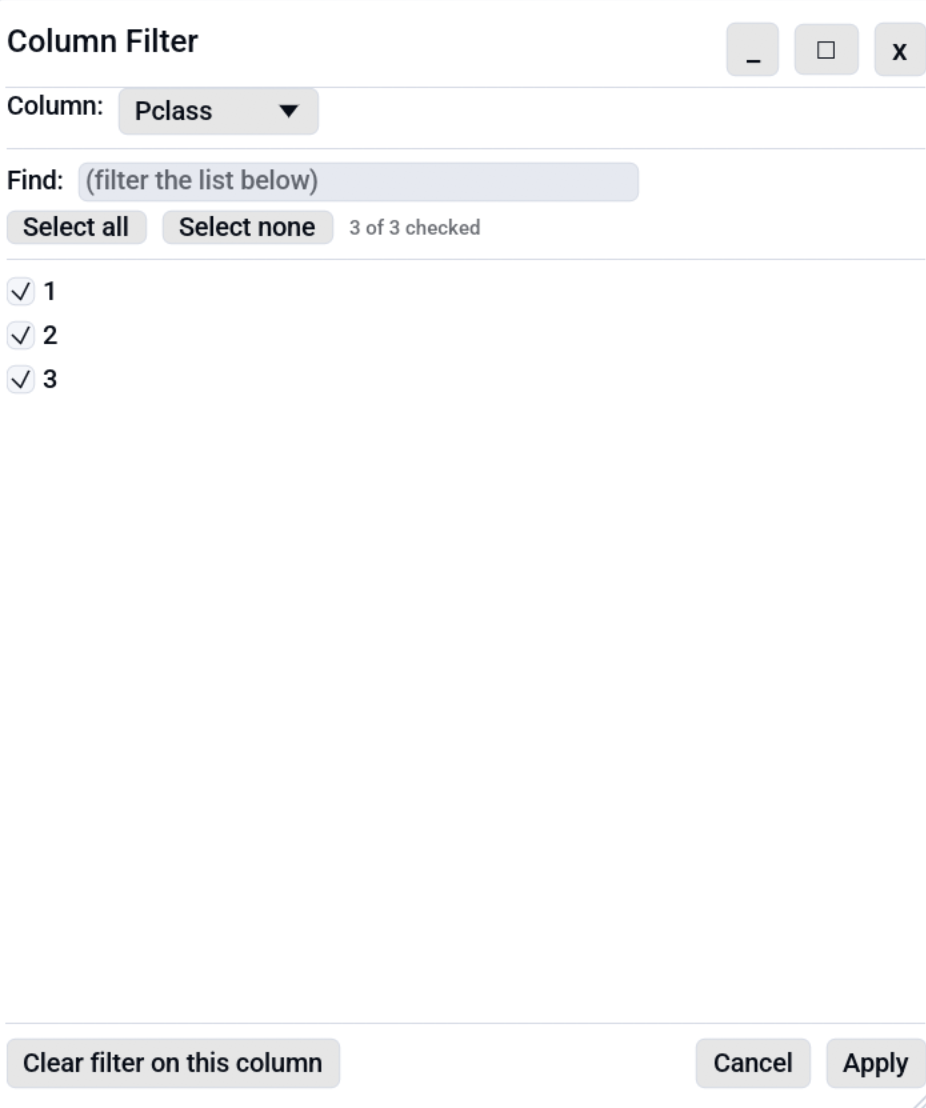
Excel-style per-column value-set filter. Pick any column, see its unique values as checkboxes, uncheck the ones to hide. A Find field narrows a long list. Multiple columns can be filtered at once; column filters AND with each other and with the text search above.
The Values / Shapes switch at the top lists the column's
shapes instead (D-80331 is A-99999): tick the
shapes to keep, and every value with those shapes stays. It is the same
switch as in the header funnel.
Ways to open it
- Columns → Filter by value or shape... in the toolbar.
- The Filter by value or shape... shortcut (default Ctrl+Shift+F, remappable).
For one column you already have in view, the funnel in its header (or right-click the header → Filter values...) opens the value filter popup instead. It writes the same filter, Shapes included; the window adds the column picker and the Find field.
Each filtered column also gets a removable chip above the grid, in the same row as the Ask-mode comparison chips and the duplicate-filter chip: see The filter chip row.
A status-bar Filter chip also appears whenever at least one column has an active filter; clicking it opens the dialog on the first filtered column.
The filter chip row
Everything currently narrowing the view is listed in one wrapped row above the grid, so "why am I only seeing twelve rows?" has a single place to look:
- Comparison filters from the search bar's Ask mode, under the heading From your question: so their origin is obvious.
- The duplicate filter, as Duplicates only or Unique rows only.
- One chip per filtered column. A column keeping a single value
reads as
city: Aachen; a column keeping several reads as a count (year: 2 values), because a chip that lists fifteen values is not a chip any more.
Every chip has an x that removes that one filter. When more than one
chip is present, a Clear all button removes every filter in the row
at once. The chips are ordered by column, so the row does not reshuffle
itself as you work.
Using the dialog
- The top combo picks the column being edited. Switching columns commits the in-progress draft to the previous column automatically, so you can chain edits without re-opening the dialog.
- Find narrows the value list when a column has many unique values. Up to 5000 values render at once; a footer hint tells you how many more are hidden.
- Select all / Select none operate on the currently visible subset (post-search), not the whole list.
- Apply commits the draft. "All checked" and "none checked" are both interpreted as "no filter on this column".
- Clear filter on this column removes the column's filter entirely.
- Cancel discards the in-progress draft.
How filters interact
- Filtered columns get a small accent-colored dot next to the column name in the header.
- Filters live with the tab. Closing the tab discards them; they are not saved to disk.
On a database tab that holds only part of its table, the search box (Plain and Wildcard), the value filters and the comparison filters run on the database over the whole table; see Analyses on live databases. On a large-file tab the search box and the column filters run over the whole file the same way, and the value lists count the whole file.
Select none
Unchecking every value with Select none + Apply hides every row in that column. Use Clear filter on this column to remove the filter entirely.
Saving filtered data
When a filter is active, File → Save as writes only the currently visible rows. The output file is a one-shot snapshot of the view; the in-memory table keeps the full dataset so you can keep working with it. The status bar message confirms the export: "Exported N filtered rows to {file}".
Regular File → Save always writes the full table back to the source path, ignoring active filters. This keeps the source file safe from accidental data loss while you have filters on.
Multi-search
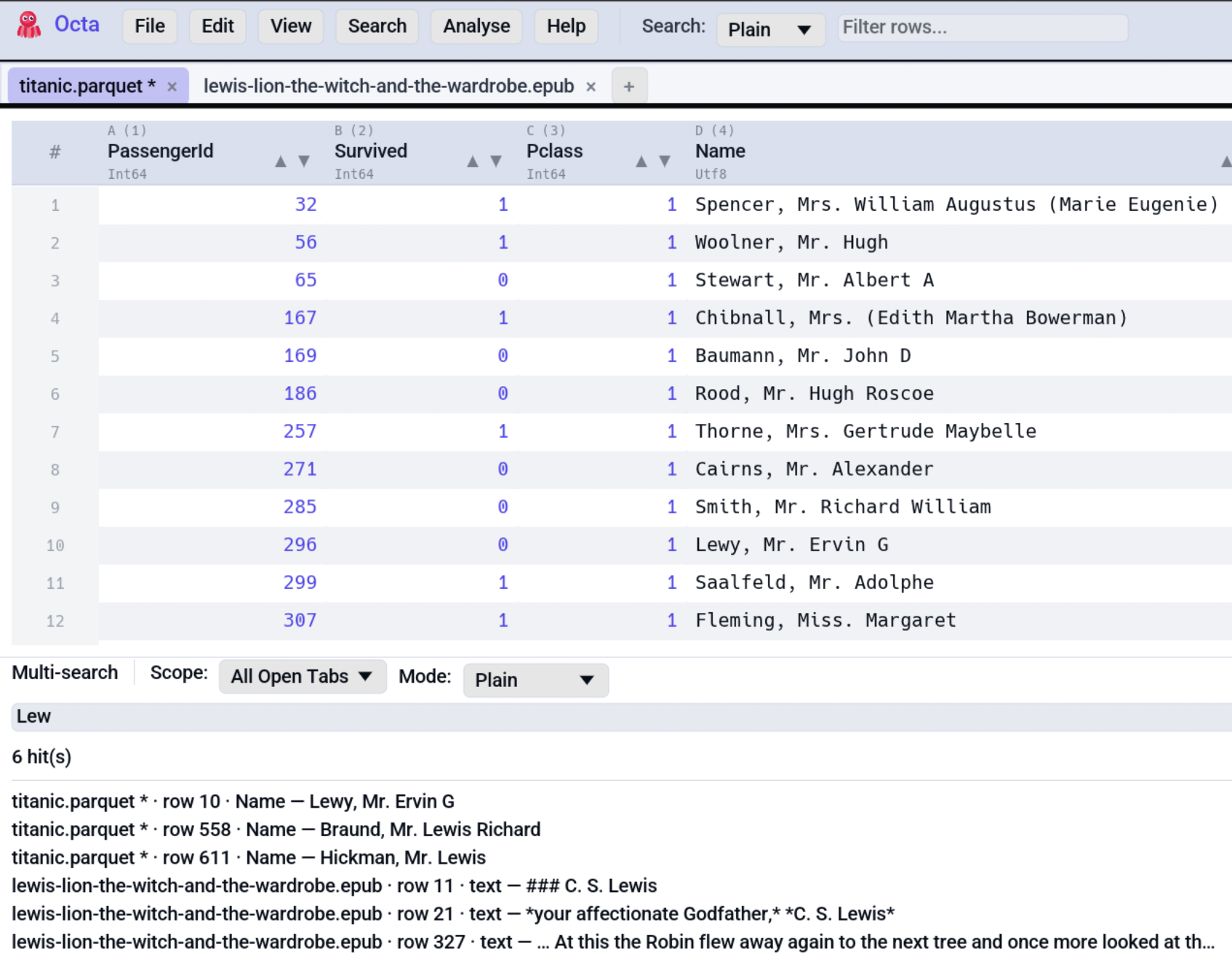
The toolbar Search field is per-tab. Sometimes you want the opposite, to find the same string everywhere at once. Search → Multi-search (default F6, remappable) opens a docked panel at the bottom of the window with its own query box, mode picker, and a scope selector:
| Scope | What gets searched |
|---|---|
| All Open Tabs | Every loaded tab, searched synchronously with no background thread. Cheap and instant. |
| Directory | Every readable file in a picked directory (top level only, not recursive). |
Running a search
- Open the panel (Search → Multi-search or F6).
- Pick a scope. Directory scope also asks for a folder via the Pick directory… button. The path you pick is remembered for subsequent searches in the same session.
- Type a query. Plain / Wildcard / Regex modes are the same as the main search bar.
- Press Enter or click Search.
The result list shows one entry per matching cell, formatted as:
<source> is the tab title for open-tab hits, the file name for
directory hits. Clicking any result jumps straight to that cell. If
a directory result points at a file that isn't open yet, Octa opens
it as a fresh tab first.
Limits and skips
- Per-file size cap. Files larger than
grep_max_file_size_mb(default 50 MB) are skipped during the directory scan and appear in the N file(s) skipped chip with the actual size. Tick Unlimited next to the setting to scan every file whatever its size. - Unparseable files. When a reader fails on a specific file (binary blob, malformed text, encoding mismatch, …) Octa moves on to the next file and adds the failing one to the same skipped chip with the reader's error message. Other files still produce results.
- Result cap. A single scan returns at most 10,000 hits; the
panel surfaces a
(capped at …)chip when that happens. Per file is capped at 1,000 so one runaway file can't crowd out everything else. - Non-recursive. Directory scope walks one level. Hidden files
(leading
.) and subdirectories are skipped. Open the subdirectory in the sidebar (or pick it here) to scope into it. - In-memory rows only. For lazy formats (Parquet, CSV/TSV) the scan covers whatever's currently loaded; rows still streaming in the background aren't searched until they land. For directory scope, each file is loaded via the same readers Octa would use to open it normally, so binary formats (SQLite, DuckDB, Parquet, …) work, they just take longer.
Reviewing skipped files
The N file(s) skipped - click to expand chip appears above the result list whenever any file in the directory scope was skipped. Expanding it lists every skipped file with its reason, either "X MB exceeds Y MB cap" or the parser's error message, and the full absolute path on hover. The list resets on the next search.
The Cancel button stops a running directory scan at the next file boundary. The panel keeps whatever hits were collected before the cancel.
Clearing the search
Three ways:
- Click the × in the search box.
- Press Escape while the search box is focused.
- Clear all text manually.
The full-row count returns to its un-filtered value in the status bar.
Ask: filtering in plain language
The search bar has an Ask toggle. With it on, what you type is not matched against the table; it is sent to a configured assistant, which turns it into filters.
Turning Ask on retargets the search box: it empties, takes focus, and its placeholder changes to Ask a question, then press Enter. The profile that will answer appears beside the toggle.
While Ask is on, typing does not filter as you go, so a half-written question never empties the table. Nothing happens until you press Enter.
Typing revenue over 1000 in Germany and pressing Enter applies a
comparison filter on revenue and a value filter on country, and the
comparison appears as a removable chip above the table:
Two things are deliberate here:
- Which assistant answers is always visible. The dropdown beside the toggle names the profile that will run, and you can pick another. With no profile configured, both controls are greyed out and their tooltip says to set one up in Settings → Chat / Assistant first.
- Nothing is hidden. Categorical conditions land in the ordinary column filters and comparisons land in the chip row, so you can edit or delete any of them by hand. A wrong interpretation is repairable rather than mysterious.
It is a single request with no tools and no follow-up conversation, so typing in the search box can never turn into an autonomous session. If the reply cannot be understood, or names a column that does not exist, nothing is applied and the status bar says why; a half-understood sentence must not half-filter the table.
Only filters and an optional sort come back. The assistant cannot add columns or change data from here; that is what the chat panel is for.
The SQL panel has a sibling Ask box that writes a query instead of a filter, under the same one-request rule. See Ask in the SQL panel.
Command line and MCP
The same job without the GUI:
- MCP:
search,grep_files
See also
- SQL panel offers column- and type-aware filtering via DuckDB.
- Settings reference lets you pick a default search mode that survives across sessions.
- Find duplicates on the Editing page is the full reference for the duplicate finder summarised above.