Table view
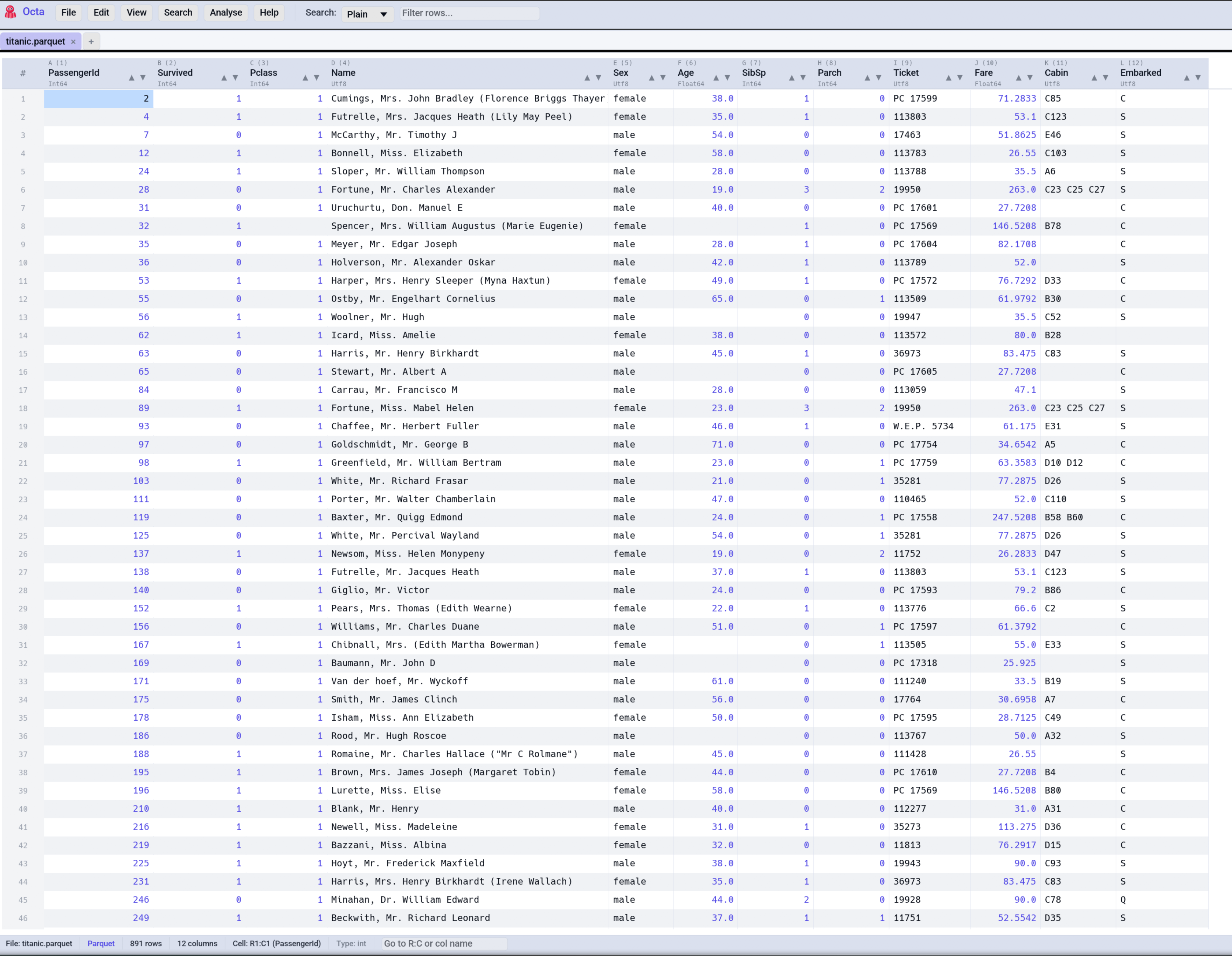
The Table view is Octa's default for almost every format: Parquet, CSV, SQLite, Excel, you name it. It's a spreadsheet-like virtual renderer that streams large files smoothly and supports inline editing, multi-cell selection, sorting, filtering, and clipboard operations.
Navigation
- Arrow keys move the selected cell.
- Scroll wheel scrolls vertically. Shift+Scroll wheel scrolls horizontally.
- Ctrl+Shift+Up / Down jumps the selection to the first / last row of the column.
- Ctrl+Shift+Left / Right jumps to the first / last column.
- Ctrl+G (
GoToCell) focuses the navigation field in the status bar. TypeR5:C3to jump to a cell,R5to jump to a row,C3for a column, or a column name (e.g.created_at) to jump to that column's first cell.
Selection
- Click a cell to select just that cell.
- Ctrl+click a cell to toggle it in a disjoint multi-cell selection. The first toggle promotes whatever cell was already selected into the set, so a single click + a few Ctrl+clicks builds an arbitrary cell selection without dragging.
- Click a row number (grey column on the left) to select the entire row. Ctrl+click adds rows to the selection; Shift+click picks a contiguous range.
- Click a column header to select the entire column. The same Ctrl / Shift modifiers extend / range-select columns.
- Ctrl+A selects all rows (when no text editor is focused).
- Ctrl+Up / Down (and Ctrl+Left / Right) extend the selection by one row/column from the current anchor.
- Ctrl+PgUp / Ctrl+PgDn scroll the table by one viewport and advance the selected cell by the same number of rows (spreadsheet-style page navigation).
The active selection drives clipboard operations: Ctrl+C copies whatever is selected (single cell, multi-row block, multi-column block, or a free multi-cell selection) as tab-separated values.
Copy as Markdown table
To copy the same selection as a GitHub-flavoured Markdown table instead, including the column headers, use Edit -> Copy as Markdown table or the Copy as Markdown table entry in the cell / row right-click menu. Pipe characters and line breaks in cell values are escaped so the table stays well-formed. This is handy for pasting a slice of data straight into a pull request, issue, or Markdown doc.
Copy as IN list
Copy as IN list (in the same right-click menu and under Edit)
copies the selected values as a SQL list, ready to paste after
WHERE id IN in any database tool:
Empty cells are left out and a value that appears twice is listed once.
Text is quoted, with any ' inside it doubled. Numbers stay bare, but
only when every value is a number: one text value quotes them all, so a
code column holding 007 keeps its leading zero. When a whole column is
selected, only the rows the current filter shows are copied.
Invisible characters
View -> Show invisible characters marks the whitespace inside text cells, so a value that looks right but does not match can be explained at a glance:
| Marker | Stands for |
|---|---|
. |
a space |
-> |
a tab |
_ |
an unusual space: non-breaking, narrow, em or en space, ideographic space |
\| |
a character with no width: zero-width space or joiner, byte order mark, word joiner |
CR |
a carriage return |
Spaces at the start or end of a value, and every unusual character, get
a coloured background: those are the usual reasons why Berlin and
Berlin count as two cities. A space between words and a tab are only
marked, so you can tell whether a gap was made with spaces or with a tab.
The switch is remembered between sessions and changes nothing in the data.
Sorting
Click a column header to sort by that column ascending. Click again for descending. Click a third time to clear the sort.
The sort indicator (▲ / ▼) appears next to the column name. Sorting is applied to the filtered view, so searching first and then sorting works as you'd expect.
On a database tab that holds only part of its table, the database sorts the whole table, and the rows are fetched again in that order; see Analyses on live databases.
Sort text: letter by letter or natural
Settings -> Table -> Sort text decides how text sorts. The default,
Letter by letter, compares character by character, so file10 comes
before file2. Natural counts the numbers inside text as numbers:
file2 comes before file10, and v1.9 before v1.10. Numbers and dates
sort the same either way. A database tab sorted on the server and a large
file keep letter order, and the status line says so while Natural is on.
Sort by several columns
For a multi-level sort, open Data -> Sort by columns.... The dialog holds an ordered list of sort keys, each a column and a direction (ascending or descending). The first key is the primary sort; later keys break ties. Use the ^ / v buttons to reorder the keys, Add column for another key, and x to remove one. Apply sorts the table in place.
Sorting from the menu
Edit -> Sort rows -> Sort A -> Z and Sort Z -> A sort the rows by the column of the selected cell. They do the same as clicking that column's header, and they are greyed out until a cell is selected.
Sorting the columns themselves
Columns -> Sort columns A -> Z and Sort columns Z -> A reorder the columns by name and leave the rows as they are. Handy for a wide file whose columns arrived in no particular order. Both need at least two columns.
Resizing columns
- Drag the right edge of a column header to resize it. Minimum width is 60 px; no upper limit.
- Double-click the seam between two column headers to auto-fit the left column to its widest visible value (header included).
- Ctrl+Shift+W (remappable) fits every column to its content.
Best-fit measures up to 5,000 sample rows so it stays snappy on multi-million-row tables.
Resizing rows
Rows resize the same way columns do, in the row-number gutter down the left edge:
- Drag a row's bottom edge in the gutter to give that row its own height. The cursor turns into a vertical resize arrow over the seam.
- Double-click that seam to fit the row to its content, the same gesture as on a column-header seam.
- Edit → Auto-fit all rows fits every row at once, the twin of Auto-fit all columns. Its shortcut is unbound by default; give it a key under Settings → Shortcuts.
- Drag the bottom edge of the
#corner to set the height of every row at once; double-click the corner seam to fit them all, hand-dragged rows included.
Heights are per tab and session-only, like column widths, and the "set every row" corner stores one number rather than an entry per row, so it costs nothing on a table with millions of rows.
Fitting a row means showing its whole value, so any of the fit gestures switches Settings → Table → cell line breaks on if it was off; long values then wrap inside the cell and each row takes the height they need. The status bar says so. A row is measured when it first comes into view and counts as one line until then, so on a long table the scrollbar settles as you scroll. Dragging a row taller by hand leaves that setting alone: with line breaks off the extra space simply stays empty, as a column dragged wider than its content does.
A wrapped cell breaks anywhere, not only at spaces. A minified JSON value has no spaces to break at, so word wrapping alone would run it past the column edge until the first space, which reads as not wrapping at all. A table with a single column also caps that column's width to the window: there is nothing to scroll sideways to, so a wider column would only push its own text off the right edge.
Reordering columns
Drag a column header sideways to reorder. The cursor changes to a hand when you're over a draggable region; a drop indicator shows where the column will land.
To rename a column, double-click its header. Right-click a header for the data-type submenu (Int64 / Float64 / Utf8 / etc.), which re-types the column in place, with values that can't convert becoming nulls.
Editing cells
Double-click a cell to edit it; Tab / Enter confirm and Escape cancels. How values parse per column type, inserting and deleting rows and columns, and undo / redo are on the Editing page.
Zoom
View -> Zoom shows the current zoom level with - and + buttons, plus Reset (100%) once it is not at 100%. The keyboard does the same: Ctrl++ and Ctrl+- step in 5% increments between 25% and 500%, Ctrl+0 goes back to 100%, and Ctrl + mouse wheel zooms too. Zoom scales the whole window, not only the table, and the status bar shows the level.
Number display (separators and rounding)
Numeric columns (Int*, Float*) render with thousand separators
by default, e.g. 1,234,567.89. This is a display-only convenience:
saved and exported files, the CLI, and the MCP server always carry the
raw values. Turn it off, or switch between English (1,234.56) and
European (1.234,56) grouping, under
Settings -> Table View
(Thousand separators and Number style).
For a per-column rounding format, right-click a numeric column header and pick Number format... (also available as Columns -> Number format... for the selected column). The dialog applies changes live as you edit (no Apply step), and is movable and resizable. Choose:
- Decimals - type a number, or leave empty for
Auto(natural precision). A positive count fixes the digits after the decimal point and pads with trailing zeros (so2.5shows as2.50at two decimals). A negative count rounds before the decimal point, e.g.-2rounds to the nearest 100. - Rounding -
Normal(round half away from zero),Up(toward positive infinity), orDown(toward negative infinity). - Apply to columns - a checklist of every numeric column lets one format configuration round several columns at once. Selecting multiple columns before opening the dialog pre-checks them; All / None toggle the whole list. Unchecking a column drops its format. Drag the dialog taller to see more columns at a time.
Number formats are display-only and per tab (session-only). When you Save a tab that has a rounding format, Octa asks whether the file should carry the rounded values or the full-precision originals - see Saving.
Lazy row loading (large files)
For streaming formats (Parquet, CSV, TSV), Octa loads the first 2,000,000 rows at open and keeps loading the rest in the background as you scroll. The status bar shows a busy spinner during background load.
The 2 M default is the initial-load row cap, configurable under Settings → Performance → Initial-load row cap. Raising it improves first-paint completeness on giant files at the cost of more memory; lowering it makes the initial open faster. Tick the Unlimited checkbox next to the input to load every row up front (recommended only when you have RAM to spare).
Parquet files with very many row groups (> 32,767) fall back to a DuckDB-backed reader automatically, so they open without manual recompaction.
Files smaller than the cap load entirely on first open, with no streaming.
Right-click context menu
Right-click a cell, a row number or a column header for the actions that apply there (copy, mark, insert, delete, move, rename, change type, hide, filter, value frequency, number format). The full list is on the Editing page. On a cell that holds raw bytes, View contents... shows what is inside: see Binary cells.
Selection stats
Selecting more than one cell adds a pill to the right side of the status bar summarising the selection:
- For numeric selections: Count, Sum, Avg, Min, Max.
- For mixed or non-numeric selections: just Count.
The selection sources fall through in the same order Ctrl+C uses: multi-cell (Ctrl+Arrow) first, then row selections, then column selections. A single-cell selection keeps the existing Cell / Type info pill instead.
Freeze columns
Right-click a column header and pick Freeze columns up to here to pin that column and every column left of it, exactly like freezing panes in a spreadsheet. The pinned columns stay visible at the left edge while the rest of the table scrolls horizontally underneath, so an ID or name column never scrolls out of sight in a wide table. A thin separator marks the boundary; Unfreeze all columns in the same menu reverts.
The freeze is per tab and session-only, like column widths. If the window gets too narrow to keep the whole frozen band and still scroll, Octa temporarily pins fewer columns and restores the full band when there is room again.
Split view
View → Split view cuts the table into two bands, one above the other, so you can keep row 12 in sight while you read row 900,000.
View → Split side by side does the same the other way round: two bands next to each other, so you can read the first column beside the last one. Freezing columns solves part of the same problem by pinning the leading columns; this frees both bands to sit anywhere in the table.
The two entries are checkboxes and are mutually exclusive: clicking the one that is not showing switches orientation in a single click, and clicking the active one turns the split off.
Every band scrolls on its own, both up and down and left and right. Two bands showing the same cells would be no use, so nothing is locked together: band 1 can sit on the first columns of row 12 while band 2 reads the last columns of row 900,000. Each band has its own scrollbars, and dragging one moves that band alone. Drag a divider to resize the bands either side of it; no band can be squeezed below about 80 pixels.
Hold Alt and the wheel moves every band at once, which is the way to walk several bands down the table in step, and the way to compare the same rows across bands after lining them up. Alt+Shift+wheel does it sideways. Each band still stops at its own end rather than being dragged past it. Alt is the free modifier here: Ctrl+wheel zooms and Shift+wheel scrolls sideways, both of them egui conventions Octa leaves alone.
View → Add pane cuts one more band out of the split, up to 6, and Remove pane takes one away down to two. Both are greyed out until the view is split, and at their limits. Changing the count re-spaces the dividers evenly, since positions dragged for four bands mean nothing for five. The orientation entries keep the count, so four stacked bands become four side-by-side ones in one click.
Every band is the same table: same columns, widths, frozen band, filters, sort, marks and edits, and the selection spans all of them, so a range from row 12 down to row 900,000 is one selection.
The keyboard and the mouse wheel act on the band the pointer was last over, so one arrow press moves one selection and one wheel notch scrolls one band. The split is per tab and session-only, like column widths, and applies to the table view only.
Hide and show columns
Right-click any column header and pick Hide column to drop it from the view. Hidden columns are still part of the underlying table on disk: both Save and Save as write them out unchanged. Pull them back via Columns → Show hidden columns (the menu entry is greyed when nothing is hidden).
Hidden state is per tab and session-only, so closing the tab or reopening the file clears the hidden set. Use it as a viewport-management tool, not a schema modification.
Copy column name(s)
Right-click any column header and pick Copy column name(s) to
copy the header text to the clipboard. If you have multiple
columns selected (Ctrl-click their headers) and right-click one of
them, all selected names are joined with newlines. Useful for
constructing SQL SELECT lists or scripts from the columns Octa
sees.
Clickable links
When a cell holds a web address (http:// or https://), Octa shows it as an
underlined link. Ctrl+click opens it in your browser; a plain click still
selects the cell as usual.
Because Ctrl+click also toggles a cell in a multi-cell selection, on a link cell the Ctrl+click opens the link instead of toggling that one cell. You can turn the whole feature off with Settings > Table View > Clickable web links.
See also
- Search & Filter narrows the table to rows that match a pattern.
- Editing covers structural row/column operations plus undo semantics.
- Colour Marking highlights cells, rows, and columns.
- Saving writes back to disk, with format-specific notes for databases.