First Steps
This is a short tour of Octa for someone who has just launched it for the first time. About five minutes to read; you can skim the rest of the documentation after.
Opening a file
Three ways to get a file open:
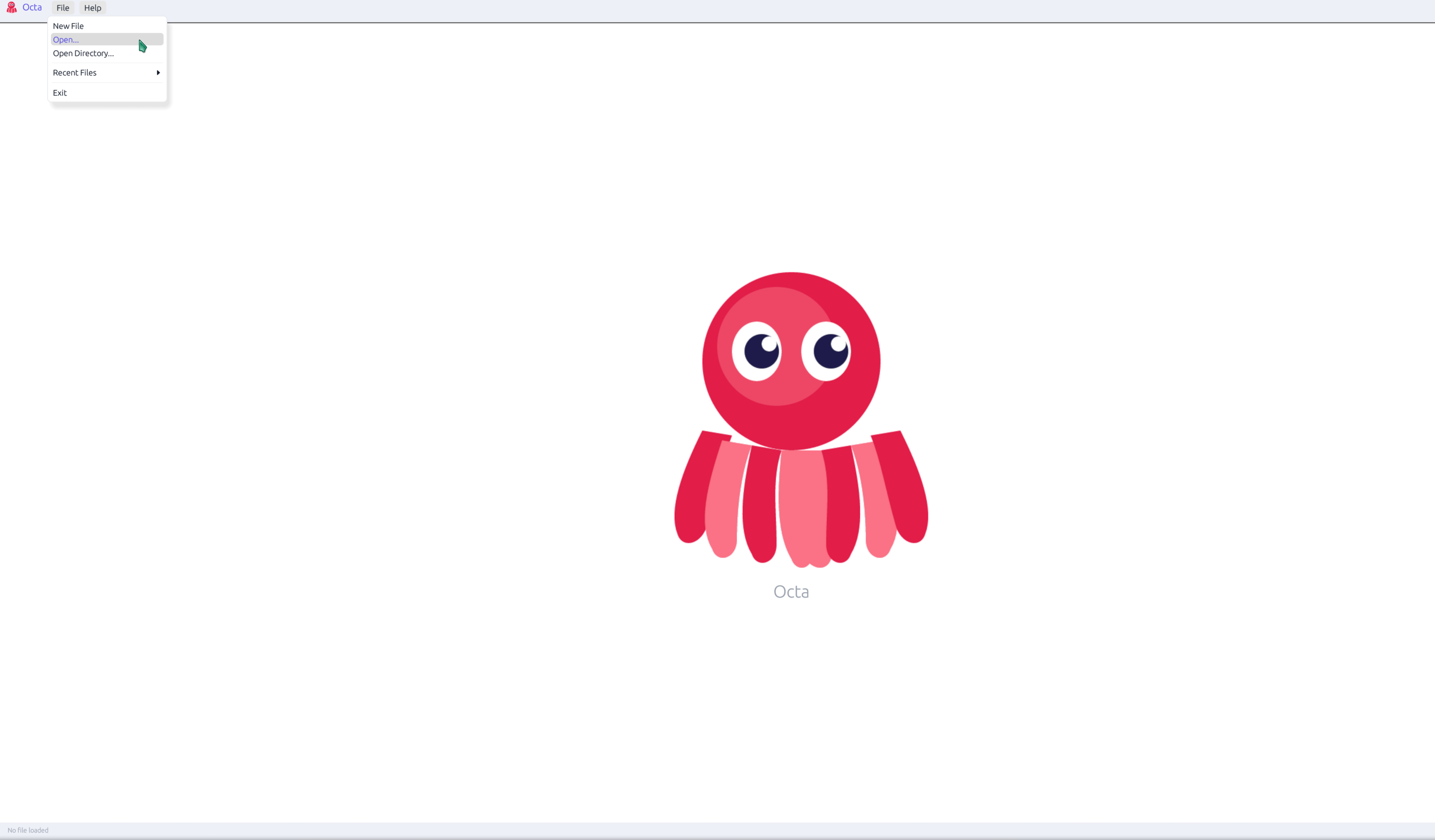
- From the menu, via
File → Open(default shortcut Ctrl+O), which shows a file picker. Multi-select works, and every file you pick opens in its own tab. - From recently-opened, via
File → Recent files, which lists the last files you opened (configurable count under Settings → Files). Right-click an entry for Remove from list, or Clear all to empty the list. The files themselves are not touched. - From the command line, with
octa data.parquet, which opens straight into that file. Pass multiple paths and each lands in a new tab.
Drag-and-drop from the OS file manager is not currently supported
on Linux Wayland sessions. The underlying windowing crate (winit)
has not implemented Wayland drag-and-drop yet. On X11, macOS, and
Windows the OS-level hook would land, but Octa does not subscribe to
those drop events today either; use File → Open instead.
Anatomy of the window
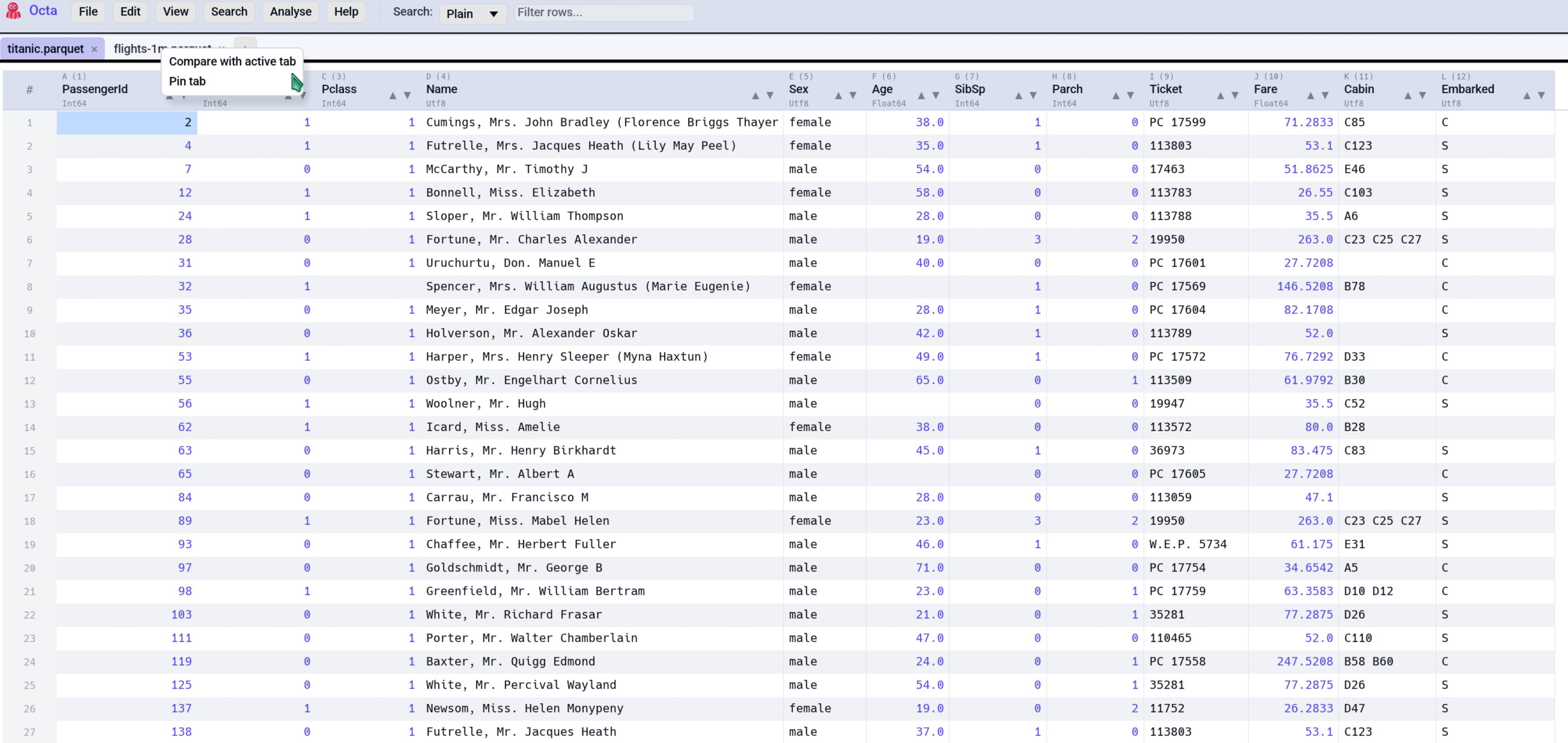
Once a file is open, the layout is:
- Toolbar at the top, with the file menu, edit menu, view menu, search box, view-mode controls, and the app logo on the left. On a narrow window it holds more than fits: scroll it sideways with the mouse wheel (or its slim scrollbar) to reach the rest. The window buttons on the right stay put.
- Tab strip under the toolbar, one tab per open file. Right-click a tab for compare option. Hover for the full path.
- Sidebar
(left-docked by default) appears when you use
File → Open
  Directory…
. Click any file in the tree to open it in a new tab. - Central panel, the actual view of your file. Defaults to the
Table view; switches based on the file
type (Markdown files open in
Markdown view, EPUBs in the
EPUB reader,
.geojsonfiles in the Map view, etc.). - Status bar at the bottom, with row/column counts, selection
info, zoom level, a navigation field (jump to
R5:C3), and a busy spinner during long operations.
Getting around the table
- Arrow keys move the selected cell.
- Scroll wheel scrolls vertically. Shift+Scroll wheel scrolls horizontally.
- Click a cell to select it. Double-click to edit it.
- Click a row number (the grey column on the left) to select the whole row. Ctrl+click adds to the selection; Shift+click picks a range.
- Click a column header to select the whole column.
- Drag a column header to reorder columns.
- Double-click the seam between two column headers to auto-fit the left column's width. Ctrl+Shift+W fits every column.
To jump quickly: type something like R5000 or C3 or
SomeColumnName into the navigation field in the status bar (focus
it with Ctrl+G) and press Enter.
Searching
The search box in the toolbar filters rows in real time, so only rows containing a match are shown. There are three modes (dropdown next to the box):
- Plain, case-insensitive substring (default).
- Wildcard, where
*matches any sequence and?matches one character. - Regex, a full regular expression.
Ctrl+F focuses the search box. Ctrl+H opens find-and-replace.
Editing a cell
Double-click any cell to start editing, and the current text is selected so you can type to replace it. Tab / Enter confirm; Escape cancels. Numbers, dates, and booleans parse automatically based on the column's type. See Editing and Date Inference for the full mechanics.
Need to insert a new row or column? Edit → Insert row and
Columns → Insert column open the right dialog (the column dialog also
accepts a formula like =A1+B1).
Edit → Delete row removes the selected row, Columns → Delete columns...
lets you tick the columns to remove, and right-click → Delete column
removes that column at once.
Ctrl+Z undoes; Ctrl+Y redoes. Both stacks are visible in the Edit menu.
Switching view modes
The View menu lists every mode applicable to the current file. Press F4 to cycle through them. Examples of what triggers what:
| File extension | Default view |
|---|---|
.parquet, .csv, .tsv, .xlsx, .sqlite, … |
Table |
.md |
Markdown |
.ipynb |
Notebook |
.json / .jsonl |
Table (with JSON tree also available) |
.epub |
EPUB reader |
.geojson |
Map |
| Any unrecognised text file | Raw text |
Every file can be inspected as a Table or Raw text regardless. See the View modes overview for the full list.
Saving
- File → Save (Ctrl+S) writes back to the original file in its original format.
- File → Save as lets you save to a different path or different format.
- Closing a tab (or Octa itself) with unsaved changes pops a "Save? Don't Save? Cancel?" confirmation.
For SQLite / DuckDB sources, saves are diff-based: only changed rows are updated, deleted rows are deleted, new rows are inserted. Schema changes (rename / add / drop column) are rejected, so do those in another tool first. See Saving for the per-format mechanics.
Quick reference
| Action | Default shortcut |
|---|---|
| Open file | Ctrl+O |
| Save | Ctrl+S |
| Search | Ctrl+F |
| Find & Replace | Ctrl+H |
| Cycle view mode | F4 |
| Read-only toggle | F8 |
| Settings | F3 |
| Undo / Redo | Ctrl+Z / Ctrl+Y |
| Fit all columns | Ctrl+Shift+W |
| Reopen last closed tab | Ctrl+Shift+T |
Every shortcut is remappable under Settings → Shortcuts. The full table is on the Keyboard shortcuts page.
See also
- Supported formats covers what Octa can open and what it can write back.
- Installation walks through Linux, macOS, and Windows install routes if you haven't done that yet.
- Table view is the default view's full feature set: editing, sorting, selecting.
- View modes overview covers when Octa picks Notebook, Markdown, Map, or Raw automatically.
- Chat assistant lets you ask an LLM questions about your data in plain language (Ctrl+Shift+A).