Cloud Storage
Browse and open files directly from Amazon S3 (and S3-compatible providers such as IONOS, MinIO, and Cloudflare R2), Azure Blob Storage, Google Cloud Storage, and your own SFTP and WebDAV servers (Nextcloud, ownCloud, NAS boxes). Saving back to the cloud is off by default and must be turned on.
Add a connection
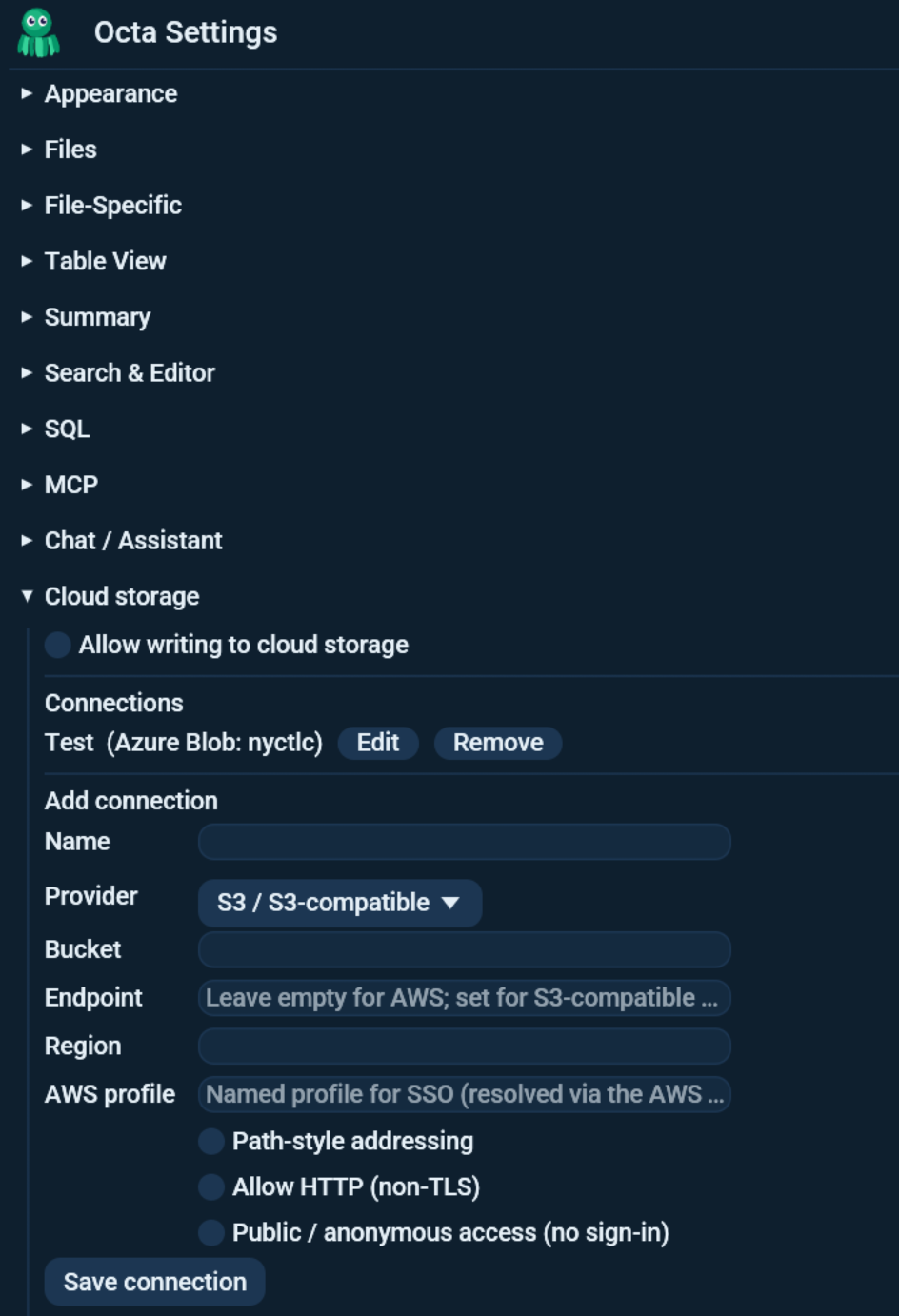
Open Settings → Cloud storage and click Add connection.
You can also start from the sidebar: the Cloud connections header has a + Add button that opens Settings at the Cloud storage section with a blank form. It sits in the header rather than the connection list, so it is there even when you have no connections yet and the list is empty.
The form fields:
| Field | Meaning |
|---|---|
| Name | Label shown in the sidebar. |
| Provider | S3, Azure Blob, GCS, SFTP, or WebDAV / Nextcloud. The last two have their own fields, see SFTP and WebDAV servers. |
| Bucket / Container | The S3 bucket, Azure container, or GCS bucket. |
| S3 endpoint | Leave empty for real AWS. Set it for an S3-compatible provider; those usually also need Path-style addressing on, and a local MinIO may need Allow HTTP. |
| Region | S3 region (real AWS). |
| AWS profile | A named profile for SSO sign-in (resolved through the AWS CLI). Leave empty for ambient credentials. |
| Storage account | Azure only. |
Connection scope
When you add a connection, the Scope field controls what it targets:
- Whole bucket (default) - the connection targets one specific bucket or container. The sidebar roots at that bucket.
- Path prefix - confine the connection to a folder inside the bucket (for
example
team-a/). Useful when you only have read access to part of a bucket; the browser roots at that folder and cannot navigate above it. - Account level - the connection lists every bucket or container in the
account; you pick one to browse. This needs broader permissions (S3
ListAllMyBuckets, Azure container list, GCS bucket list) and the provider CLI installed (aws/az/gcloud). If the CLI cannot enumerate buckets, add a bucket-scoped connection instead.
Because each provider scopes bucket listing differently, an account-level connection sees only one account/project at a time. To cover several, make one connection per scope:
- AWS / S3 - buckets belong to the credential's account. Set the Profile field to a named AWS profile (for example an SSO profile); one connection per account.
- Azure - containers belong to a storage account. Set the Account field to the storage account name; one connection per account.
- Google Cloud - buckets belong to a project. For an account-level GCS
connection, set the GCP project field to the project id (leave empty for
your active
gcloudproject), and optionally the gcloud account email if you have several logged-in accounts. Make one connection per project.
Credentials
Octa resolves credentials in this order:
- A secret you save on the connection.
-
The ambient environment:
AWS_*variables, a cached SSO session, an Azure CLI login, or Google application-default credentials. -
S3 / S3-compatible: save an Access key ID + Secret for static keys, or use a profile /
aws sso loginfor AWS SSO. - Azure: save an account key or a SAS token, or sign in with the Azure CLI.
- GCS: uses application-default credentials
(
gcloud auth application-default login) orGOOGLE_*environment variables. There is no static-key field.
Saved secrets are stored in your operating system keyring when available,
otherwise in settings.toml. Clear secret removes a stored secret.
Public / anonymous buckets
For a public, read-only bucket or container, tick Public / anonymous
access in the connection form. Octa then skips request signing entirely, so
it opens with no credentials and no sign-in. Without it, a public Azure
container would redirect to a login and fail. The sidebar shows the connection
as (public).
SFTP and WebDAV servers
Two more kinds sit in the same list: SFTP and WebDAV / Nextcloud. Once saved they behave like a bucket in the sidebar: browse, open, save back, copy, move, delete, Union and "List contents as table". Writing still needs Allow writes on this connection.
SFTP asks for the host, the port (22 unless told otherwise), your user
name and how to sign in: your SSH agent, a private key file (with its
passphrase if it has one) or a password. Passwords and passphrases go into
the system keyring. Octa checks the server against ~/.ssh/known_hosts: a
server it has never seen is refused unless you tick Accept a new host
key, and a server whose key has changed is always refused. Start
folder is where the sidebar opens, for example /home/anna.
Saving back writes a hidden .octa-part file next to the target first and
swaps it in when the upload is complete, so a dropped connection never
leaves a half-written file under the real name. Copying within one server
moves the bytes through Octa (SFTP has no server-side copy); moving is the
server's own rename.
WebDAV asks for the server address, your user name and an app password.
For Nextcloud and ownCloud the address is
https://host/remote.php/dav/files/USER/, also shown under Files
settings in the Files app; create the app password under Settings >
Security. Synology, QNAP and other NAS boxes show their WebDAV address in
their own settings. Plain http:// is refused unless you tick Allow
HTTP.
Signing in: CLI or browser
Connections that authenticate a user (rather than using static keys, a SAS token, a service-account key, or being public) can sign in two ways.
With the vendor CLI (the default)
A Sign in button appears for connections that use the cloud's official CLI. It shells out to the CLI, which opens your browser, completes the sign-in, and keeps a long-lived session on disk that it refreshes for you:
| Provider | Command |
|---|---|
| S3 | aws sso login (plus --profile if set) |
| Azure | az login |
| GCS | gcloud auth application-default login |
The CLI path needs no setup in Octa and rarely re-prompts (it refreshes automatically), so it is recommended on a workstation you control. Its one requirement is that the CLI is installed and signed in.
When the CLI is missing, the connection shows a "Sign in needs CLI" note instead of the button (hover it for the reason).
Browser sign-in without a CLI (bring your own OAuth client)
For Azure Blob and GCS, you can instead sign in through your browser with no CLI at all, using an OAuth client you register once in your own cloud console. This is the fallback for machines where the CLI is not available, and is set per connection.
- Pros: needs no CLI; works anywhere a browser does.
- Cons: a one-time app registration, and in this first version the browser session lasts about an hour with no background refresh, so you sign in again when it expires. For long unattended sessions, prefer the CLI.
Setup is a one-time registration per provider:
- Google: create an OAuth client of type Desktop app in the Google Cloud console; put its client ID in OAuth client ID and its client secret in the connection's secret field.
- Azure: register an application as a public client in Microsoft Entra
ID with the redirect URI
http://localhostand public-client flows enabled; put its client ID in OAuth client ID and your directory (tenant) ID in Azure tenant.
Once a client ID is set, a Sign in with browser button appears on the connection form. It opens your browser, catches the redirect on a local port, and caches the resulting access token for this session. The connection is then marked Signed in via browser in the connection list.
Windows: no WSL required
All three CLIs ship native Windows installers (the AWS CLI MSI, the Azure CLI MSI, the Google Cloud SDK installer). If your CLI only lives inside WSL, native-Windows Octa will not see it - install it on Windows, or use static keys / a SAS token instead. As an alternative install Octa and the CLI in WSL2 and start Octa from there.
Browse and open
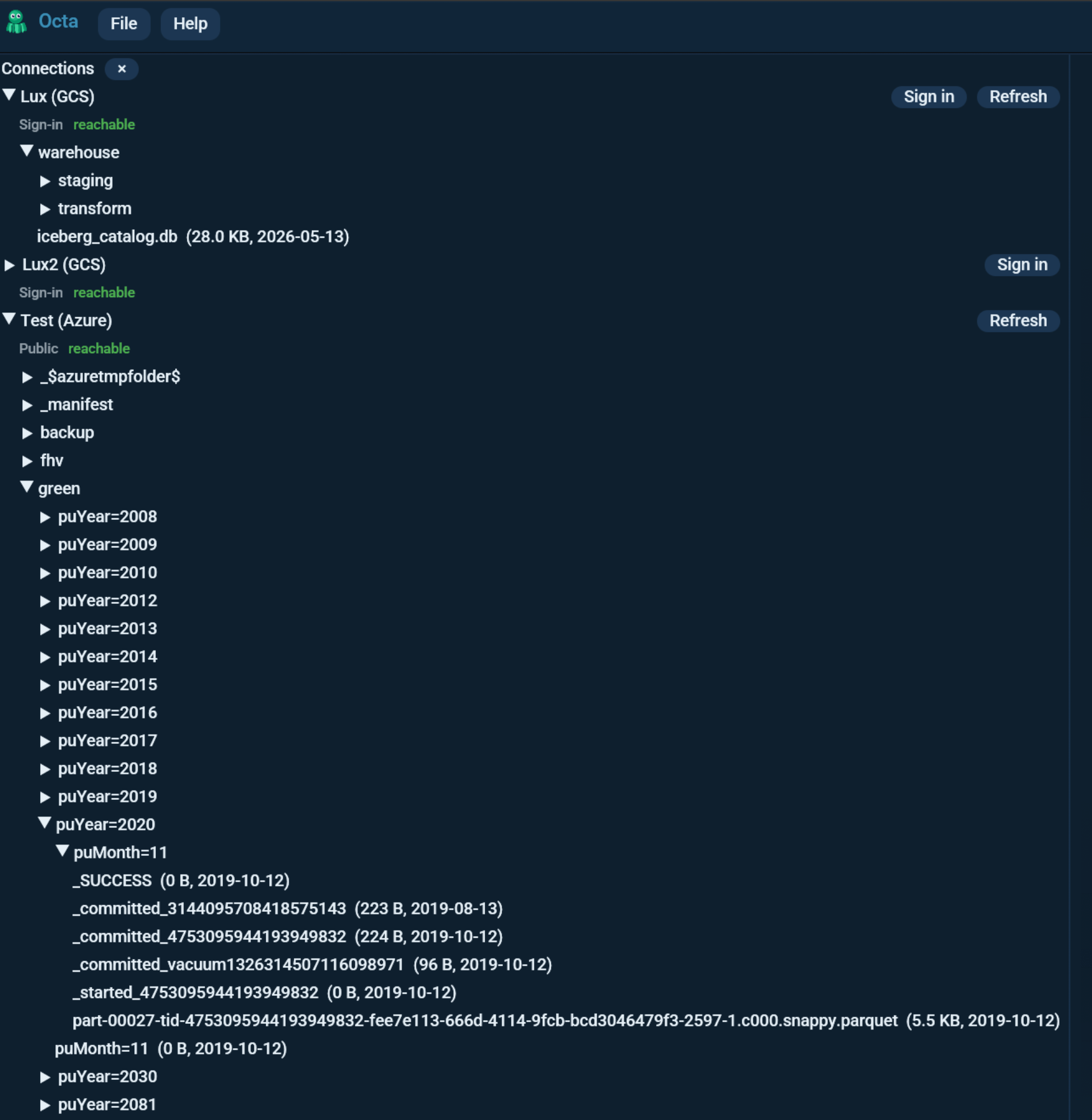
Open the sidebar with File > Cloud connections. Click a connection to list its bucket root, expand folders to drill in, and click a file to open it.
- Listings load on a background thread and are cached, so re-expanding a folder is instant.
- Clicking a file downloads it to a temporary copy and opens it in a new tab, exactly like a local file, so every supported format works.
- Refresh re-lists a connection (for example after signing in, or after the bucket changed underneath you).
- Sort (next to the Connections header) orders the files in every folder by name, last-modified date (newest / oldest), or size (largest / smallest). Folders always sort by name and stay at the top.
- The search box under the header narrows the tree to matching names as you type. Search all (or Enter) looks through every object below the expanded connections, including folders you have not opened. See Sidebar Search.
- To read an opened object again from the bucket, right-click its tab and choose Refresh. See Refresh a Tab.
Union several objects
Ctrl-click objects to select them instead of opening them, or drag across the list to rubber-band a run of them. Dragging to the top or bottom edge scrolls the list, so a selection can reach past the objects currently on screen; hold Ctrl while dragging to add to what is already selected. A plain click without dragging still just opens the object.
A N selected bar appears at the top of the cloud section with a Union... button; right-clicking any selected object offers the same Union in its context menu.
Octa downloads the selected objects in the background and opens the
Union dialog over them, with the same column
reconciliation as any other union. A folder of partitioned part-*.parquet
files becomes one table without opening a tab per object, and the objects
need not share a format.
A plain click still just opens the object, and clears the selection.
To take a whole folder instead, right-click the folder itself and choose Union tables in this folder..., or Union tables in this folder and subfolders... for a recursive sweep. Folder unions stop at the Folder union file cap in Settings > Performance, 500 files by default, and the status bar reports how many were skipped.
Copy, move and delete
Right-click an object or a folder in the cloud tree: Copy to..., Move to... and Delete. All three work on a single object, on a whole folder (every object under it is included), or on everything you have selected: right-click any highlighted object and the menu entries show the count, e.g. Copy to... (7). Right-clicking an object that is not part of the selection still acts on that one object alone.
Copy to... and Move to... open a small dialog with two fields: the target connection (any saved connection, not just the one you started from) and the destination path, with the resolved URL shown underneath so you can see exactly where it lands.
A folder source needs a destination ending in /, and the folder's shape is
recreated underneath it. Several selected objects likewise need a folder
destination, and each keeps its own name side by side in it, whatever folders
they came from. Two selected objects with the same filename will overwrite one
another: Octa does not silently rename.
When the operation has finished, the Cancel button becomes Done - there is nothing left to cancel, and the result line above it says what happened.
Two things happen behind that dialog, and the difference matters for large objects:
- Within one bucket, the provider copies server-side. No bytes travel through Octa, so a 100 GB object costs one API call.
- Across buckets, accounts or providers (S3 to GCS, one account to another), the object is streamed in 8 MiB blocks straight into a multipart upload on the destination. Memory stays flat no matter how big the object is.
A move is a copy followed by deleting the source, because object stores have no rename. The delete only runs after every copy has succeeded, so an interrupted move leaves the source intact (and some already-written destination objects, which is the recoverable direction).
Pressing Delete (Entf on a German keyboard) with objects selected and the
pointer over the cloud list opens the same confirmation as the menu entry.
Backspace does the same, for Mac keyboards without a forward-delete. The key
never deletes on its own: the confirmation always appears first. It is ignored
while anything else has keyboard focus, such as a search box or the SQL editor,
so a Delete meant for something else cannot reach a selection left behind in the
sidebar.
Delete cannot be undone
Unless the bucket has versioning enabled, a deleted object is gone. The dialog says so, and a folder delete says how it differs. There is no trash to recover from.
The connection's own Allow writes applies, exactly as it does for saving. With it off, the dialog refuses before touching anything.
One operation covers at most 10,000 objects. A folder move is not resumable, so Octa stops before starting rather than partway through; split a bigger job, or use the provider's own bulk tooling.
From the command line
The same operations without the GUI, using saved connections when one covers the URL and ambient credentials otherwise:
octa --cloud-ls s3://bucket/prefix/            # one folder level
octa --cloud-ls s3://bucket/ --recursive       # everything under it

octa --cloud-get s3://bucket/data.parquet --out ./data.parquet
octa --cloud-put ./data.parquet --to s3://bucket/data.parquet

octa --cloud-copy s3://a/data/ --to gs://b/backup/     # streamed across clouds
octa --cloud-move s3://a/old.csv --to s3://a/archive/old.csv
octa --cloud-delete s3://a/old.csv
octa --cloud-delete s3://a/scratch/ --recursive

octa --list-connections                        # saved cloud + database connections
--cloud-delete on a folder requires --recursive, so a stray trailing slash
cannot turn a one-object delete into a recursive one.
From the assistant or MCP
The tools copy_object, move_object and delete_object do the same thing,
and list_objects browses. They are write tools: octa --mcp-read-only
drops them, and a chat profile without Allow writes never sees them.
Saving back
By default, cloud-opened files are read-only: pressing Save shows a reminder and does nothing. Save as to a local path always works and detaches the tab from the cloud.
To save back to the object, turn on Allow writes on this connection for the connection it came from, in Settings > Cloud storage. Writing is permitted per connection and nowhere else: there is no second, global switch to also satisfy. Then Save writes the tab back to its original object. Uploads run in the background; the status bar reports success or failure.
Writes are also permitted per connection: each connection has its own Allow writes on this connection checkbox (off by default), checked together with the global switch - both must allow a write. Tick it only on the connections you actually want to write to; the rest stay strictly read-only and the connection list marks them with "writes off". After upgrading, existing connections start read-only too - re-enable the ones you save back to.
Why writing is off by default
The write toggle mirrors Octa's other write-protection switches. Cloud objects are often shared and versioned, so an accidental overwrite is worth a deliberate opt-in.
Writing from the assistant and MCP
The same per-connection Allow writes switch lets the in-app
assistant write to the cloud: ask it to save a result to a cloud
URL (s3://bucket/out.parquet, gs://..., az://...) and tools like
write_table, convert, and run_sql (with write_to) upload it, to buckets
you have saved as a connection.
The headless MCP server (octa --mcp) also writes to cloud
URLs, using ambient credentials (the same chain its reads use). There is no
in-app switch for the MCP server; run it with --mcp-read-only to drop every
write tool entirely.
Connection status and signing out
Each connection's name carries its provider in brackets - (S3), (Azure),
or (GCS) - so you can tell them apart at a glance. Under the name the sidebar
shows how it authenticates - Public, Saved keys, or Sign-in - and,
once you have expanded it at least once, whether the bucket was reachable
(green) or not reachable (red). The status reflects the last listing, not a
live connection.
A connection that uses saved keys has a Sign out button that removes
its stored credentials from this computer (the same as Clear secret in
Settings), after a confirm. That is local only; a browser SSO session lives in
the cloud CLI, so you end that there (for example aws sso logout).
Is it always connected?
No. Object storage is not a persistent session - every list, open, and save is an independent request. A saved connection is just configuration (the bucket plus how to authenticate), like a bookmark; it stays in the list across restarts but nothing is "connected" in between, and nothing drains while idle.
Reading from a web address
Anywhere Octa takes a file it also takes a URL. A plain http:// or https://
address is downloaded to a temporary file and then read like any other file, so
it needs no configuration at all:
The format is taken from the URL's path and any query string is ignored, so a
signed link ending sales.csv?token=... still reads as CSV. A URL with no
extension falls back to content sniffing. Reading is one-way: Octa never writes
back to a web address, and a non-2xx response is an error naming the status
code rather than a file, so a 404 page is never parsed as a one-column table.
Cloud object URLs (s3://, az://, gs://) are different: they resolve
through your saved cloud connections and their credentials.
Why agents cannot fetch internal addresses
When the URL comes from an agent (the MCP server or the assistant) rather than from you, Octa resolves the host and refuses anything that is not globally routable: loopback, private ranges, link-local, and unique-local IPv6. It does not follow redirects on that path either.
The reason is specific. An assistant reads documents, and a document can
contain a URL. Without this rule, a spreadsheet holding
http://169.254.169.254/latest/meta-data/iam/security-credentials/ could talk
the assistant into fetching your cloud credentials and putting them in a tab,
and a profile confined to open tabs could reach any service on your network.
Addresses you type yourself are not restricted.
Opening a file from a web address
File > Open URL... takes an http:// or https:// address, downloads the
file and opens it in a new tab. The download runs in the background, so the
window stays usable while it happens.
When the link sends you somewhere else
A link can bounce you on to a different address, and the file you end up with is the one at the end of that chain, not the one you typed. Octa follows the chain itself, and if it ended somewhere other than the address you gave, it shows you both and asks before opening anything. The file is already downloaded at that point but nothing has been opened, so declining costs you nothing.
That question is on by default and lives under Settings > Files > Ask about redirects. Turning it off asks you to confirm, because the confirmation is the only place a changed destination is visible: with it off, Octa opens whatever the link finally points at without mentioning that it changed.
One case is refused outright rather than offered as a choice: an address on the public internet that redirects inward, to your own machine or your own network. You asked for a public host, so being sent inside is not a preference to confirm.
Command line and MCP
The same job without the GUI:
- Command line: Cloud storage from the CLI
- MCP:
list_objects,copy_object,move_object,delete_object