Archive Viewer
Open .zip, .tar, and .tgz archives to see their contents as a
plain octa table. The view is read-only, so you extract one entry at a time into a
new tab for actual viewing.
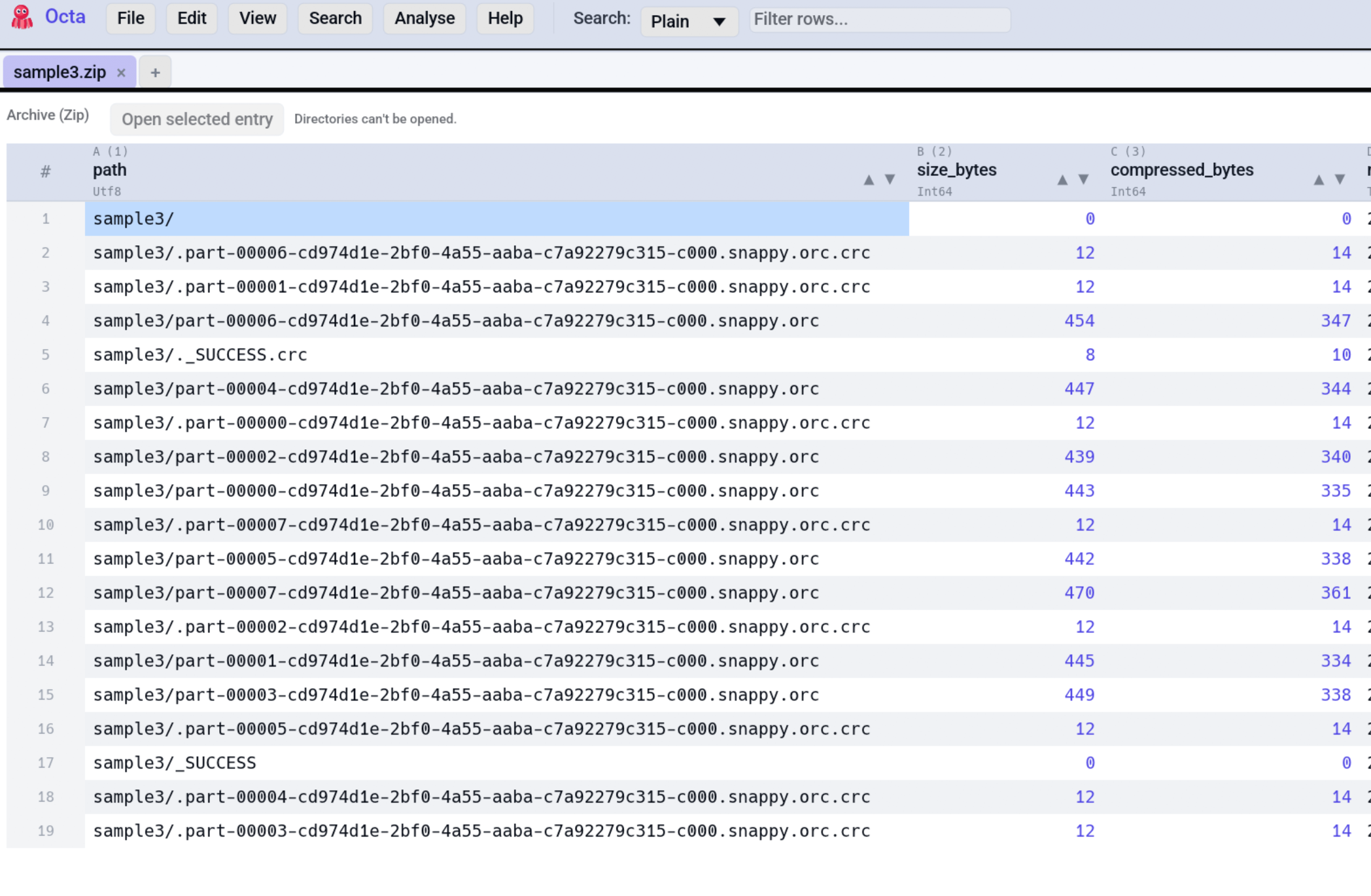
What gets shown
Open the archive the usual way (File → Open or CLI arg) and the table renders one row per entry:
| Column | Meaning |
|---|---|
path |
The entry's path inside the archive. |
size_bytes |
Uncompressed size. |
compressed_bytes |
Compressed size, null for plain tar (no per-entry compression). |
mtime |
Last-modified timestamp from the entry header. |
is_dir |
Whether the entry is a directory. |
type |
Coarse type hint: the entry's file extension (csv, json, …) or dir. |
You can sort, filter, search this table like any other.
Opening an entry
A small action bar appears above the table when the current tab is an archive:
- Click any row to select it.
- Press Open selected entry.
- The entry is extracted into a tempfile and opened as a new tab via the normal file-open pipeline. Every format reader Octa knows about works.
The tempfile lives until the OS cleans /tmp. The new tab's source
path is cleared so a Save prompts for a real location.
Directory rows are skipped; the button is greyed for them.
If an entry can't be extracted or its format reader rejects the
payload, an orange warning banner appears above the archive
action bar describing the failure (Failed to open '<entry>': …).
Click the × on the banner to dismiss it, or just pick a
different entry, since the banner clears automatically on the next
successful open. The archive table itself stays interactive
throughout, so no reload is needed.
Supported formats
| Extension | Notes |
|---|---|
.zip |
Reads the central directory; cheap for large archives. |
.tar |
Streams the entry headers. Linear in archive size. |
.tgz |
Same as .tar but with gzip on top. Use this extension; see below. |
.tar.gz is not auto-routed today. Octa's format-registry
matches on a single-component extension and can't tell data.tar.gz
apart from data.csv.gz. Rename to .tgz (mv foo.tar.gz foo.tgz)
or open via File → Open → All files. .tar.bz2 and .7z aren't
supported yet.
Limitations
- Read-only. There is no "add to archive" gesture.
- Tar reads scan headers sequentially; very large tars take a moment to list.
- The extracted entry is read entirely into memory before being written to the tempfile. For archives containing a single multi-gigabyte entry, prefer the OS's own tooling.
See also
- Supported Formats: full list of file types Octa reads.
- Tabs & Folder Sidebar: every extracted entry opens in its own tab.