Tabs & Folder Sidebar
Octa is multi-tab from the ground up. Every file you open lives in its own tab; the same file opened twice gets two independent tabs with independent edit overlays.
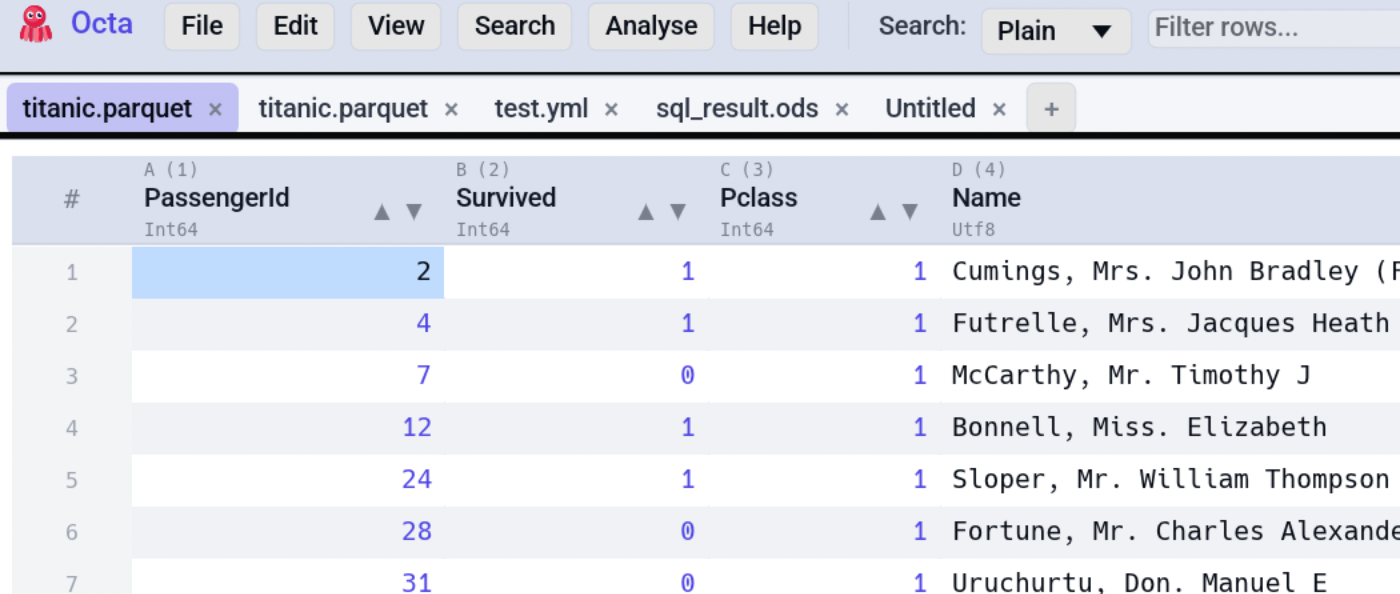
The tab strip
A row of tabs sits under the toolbar and is rendered every frame,
even when only one tab is open. Each tab shows the filename and an
* suffix when there are unsaved changes.
Tab controls
- Left-click a tab to activate it.
- Hover a tab to see its full file path in a tooltip, useful when several tabs share a filename.
- Right-click a tab for the context menu:
- Refresh reads the tab's file, database table, cloud object or endpoint again. See Refresh a Tab.
- Pin tab
- Compare with active tab
- Rename tab... (or Ctrl+Alt+T) sets a display-only label; the file path and name on disk are unchanged, and hovering still shows the full path. Clear the name to revert to the file name.
- Ctrl-click a non-active tab to add it to a multi-selection set (visualised as a soft accent tint). Currently used by the Compare view's "Compare selected tabs" shortcut.
- Scroll sideways when there are more tabs than fit the window. The mouse wheel over the tab strip scrolls it horizontally (no modifier needed), and a scrollbar appears beneath the tabs. Tabs are never clipped out of reach.
Reopening a closed tab
Ctrl+Shift+T
(ReopenLastClosedTab) re-opens the most recently closed tab. Octa
remembers the last 10 closed tabs, so pressing the shortcut
repeatedly walks back through them in reverse close order.
Tabs backed by a file on disk re-load from the file (so any external changes are picked up). Scratch tabs (no source path, e.g. "parsed in new tab" results or raw edits) re-create the visible state verbatim from the snapshot Octa kept.
The Edit menu surfaces Reopen last closed tab with the binding shown when at least one closed-tab snapshot exists.
Multi-file open
Two ways to open multiple files at once:
- From the file picker: File → Open uses
rfd::FileDialog::pick_files()(plural), so Ctrl-click or Shift-click in the dialog to select several. Each opens in a new tab. - From the command line:
octa file1.csv
   file2.parquet file3.json
has the same effect.
The first file replaces an empty welcome tab if one is active; subsequent files open in fresh tabs. The active tab follows the most-recently-loaded file.
If a file has a multi-table source (SQLite, DuckDB, GeoPackage), the table picker dialog appears before the file loads. The multi-file open queue pauses while the picker is up; pick a table, and the next queued file proceeds.
Files opened from outside Octa
While Octa is open, double-clicking a file in Explorer, Finder or your file
manager, or running octa sales.csv in a terminal, adds a tab to that Octa
and brings its window forward. If the system will not let a window jump in
front of what you are doing (Windows and Wayland sometimes refuse), its
taskbar entry flashes instead. Starting Octa without a file still opens a
second window. Settings > Window > Open files in the running Octa turns
this off; it takes effect at the next start.
Pinned tabs
Right-click any file-backed tab in the tab strip and pick Pin tab. Pinned tabs:
- Show a 📌 prefix in the tab label.
- Hide the small × close button.
- Refuse to close on Ctrl+W or the unsaved-changes prompt. You have to unpin them first (same right-click menu).
Persistence across restarts
Pinned tab paths are saved to
settings.toml's pinned_tabs
field and reopened on next launch. Files that no longer exist on
disk are silently dropped from the list. Scratch tabs (no source
path) cannot be pinned; the menu entry is greyed out for them.
Unsaved changes in pinned tabs are NOT auto-saved
Pinning does not change save semantics. Closing the application or closing the tab with unsaved changes still runs the standard Save / Don't Save / Cancel dialog. The pinned tab reopens on next launch with whatever is on disk. Any unsaved edits from the previous session are lost if you didn't save them. Save with Ctrl+S (or Save as) before quitting.
Reopen last session
Settings -> Files -> Reopen last session (off by default) opens the files again that were open when you closed Octa, the way a browser restores its tabs. A file that has been moved or deleted is skipped. Result tabs, charts and other tabs without a file behind them are not reopened, and like pinned tabs, unsaved changes are not kept: what reopens is what is on disk.
Two kinds of tab stay closed unless you switch them on separately, because reopening them does more than read a file:
- Also reopen cloud objects downloads every cloud object again at each start, which takes time and can cost money for data transfer.
- Also reopen database and API tabs sends each table's query to its server again at each start. On a warehouse (Snowflake, BigQuery, Databricks) that can wake it up and cost money, and an expired sign-in asks you to log in before the tab opens.
The list of tabs is written to session.toml in the
config directory when Octa closes. Turning
the setting off deletes that file.
The folder sidebar
File → Open directory… opens a directory picker and installs a sidebar showing the folder's tree. It's a resizable panel docked on the left by default; dock it on the right, top or bottom under Settings → Directory Tree → Sidebar position (the cloud and database connections browsers have their own positions under Settings → Panels, left by default; browsers on the same edge share one panel).
Left/right docks resize by width, top/bottom by height. The sidebar takes up part of the window on first open; drag the splitter to resize it, including all the way down narrow so the table gets the full width.
Sidebar behaviour
- Click a directory row to expand / collapse it.
- Click a file row to open the file in a new tab (or replace the empty welcome tab).
- Directories sort before files, case-insensitive.
- Hidden entries (
.git,.DS_Store, etc.) are skipped. - Long filenames are truncated with an ellipsis, so the row never exceeds the panel width.
- Right-click a file row for the context menu:
- Copy name (basename only)
- Union selected files... (see below)
Git marks
When the folder, or a folder beneath it, is a git repository, the sidebar colours what git knows about:
- Uncommitted changes in the theme's warning colour, with a letter after
the name:
Mmodified,Aadded,Ddeleted,Rrenamed,Uuntracked. Files listed in.gitignoreare never marked. - Changes on this branch in the accent colour, with a
*after the name: files committed on the current branch since it forked from the base branch (git diff base...HEAD). Uncommitted edits are the other mark, so the two never mean the same thing; a file with both keeps the warning colour and shows both signs,M*.
A folder takes the colour of anything beneath it and shows no letter. Hover any marked row and the state is spelled out in words.
The base branch is master unless you change it under
Settings → Directory Tree; a
repository that has no branch of that name is compared against main
instead, and if that is missing too the branch mark is simply absent and
the root folder's hover says so. Either mark can be switched off on its own.
Marks refresh when the folder is opened, when Octa saves a file, when the
window regains focus, and every ten seconds while the sidebar is visible;
the interval is a setting, and 0 leaves only open and save. Git runs on a
worker thread and never on the drawing path, so a slow repository costs
nothing but a later update. Each repository is handled on its own, so a
folder holding several projects marks each one as you expand into it.
Selecting several files (Union)
Ctrl-click file rows to select them instead of opening them; Shift-click takes a whole run between the last click and this one. Selected rows stay highlighted and an N selected bar appears at the top of the sidebar with a Union... button. Right-clicking a selected file offers the same action.
That stacks the selected files into one table, reconciling their columns, which is the quick way to combine a folder of partitioned exports without opening a tab per file. See Union tables. A plain click still just opens the file, and clears the selection.
Closing the sidebar
File → Close directory hides the sidebar without touching any of the tabs you've already opened from it. Re-opening a folder shows it again.
Cloud connections
The same sidebar also hosts your cloud connections. File → Cloud connections shows a browser for saved S3 / Azure / GCS buckets above the folder tree; expand a connection to list its objects and click a file to open it. + Add in that header jumps to Settings to create a new connection, and Ctrl-clicking objects selects them for a Union... just as in the folder tree. See Cloud storage.
Database connections
File → Databases lists saved live connections as connection → (catalog →) schema → table; clicking a table opens its first rows. See Database connections.
Any combination can be open at once, and each section shares the panel height with the others.
Multi-table databases (table picker)
When you open a .sqlite / .duckdb / .gpkg file with more than
one user table, Octa shows a modal table picker before the data
loads:
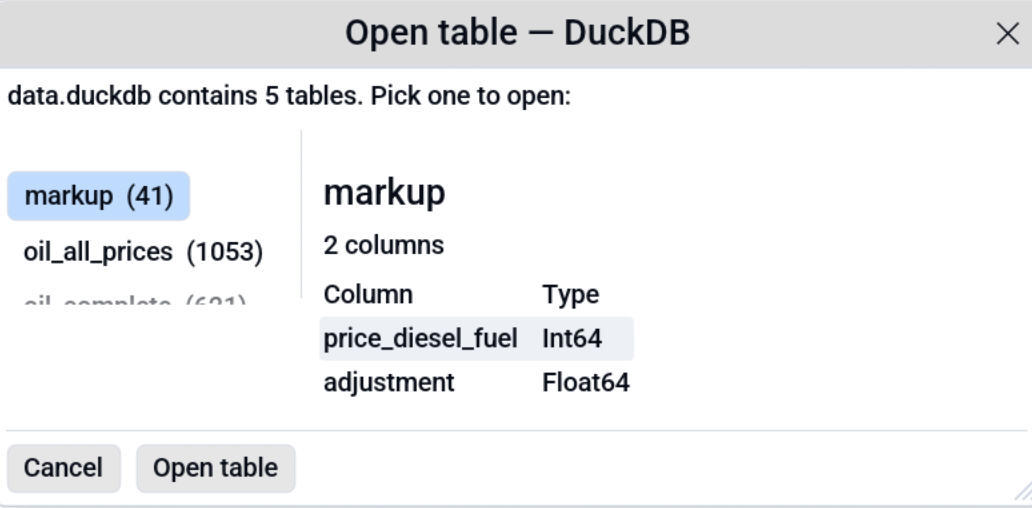
- Click a table to select it; the right pane previews the schema.
- Click Open to load it in a new tab.
- Click Cancel to back out of the file open.
The dialog opens at a fit-to-content height: with a handful of tables it stays compact, with many it caps at a configurable number of visible rows and the list scrolls. Drag the bottom-right corner to grow it whenever you want to see more tables at once. The cap lives in Settings → Performance → Tables visible in picker (default 10).
Single-table databases auto-load without the picker. Empty databases fall through to the standard reader (which returns a clear "empty file" error).
To re-show the picker for a database that's already open, close the tab and reopen the file.
See also
- Compare view uses tab multi-selection (Ctrl+click) to pick the right-side file.
- Cloud storage browses S3 / Azure / GCS buckets in the same sidebar.
- Settings → Directory Tree changes the sidebar dock side.
- Settings → Files changes the number of recent files remembered.