Merge Versions
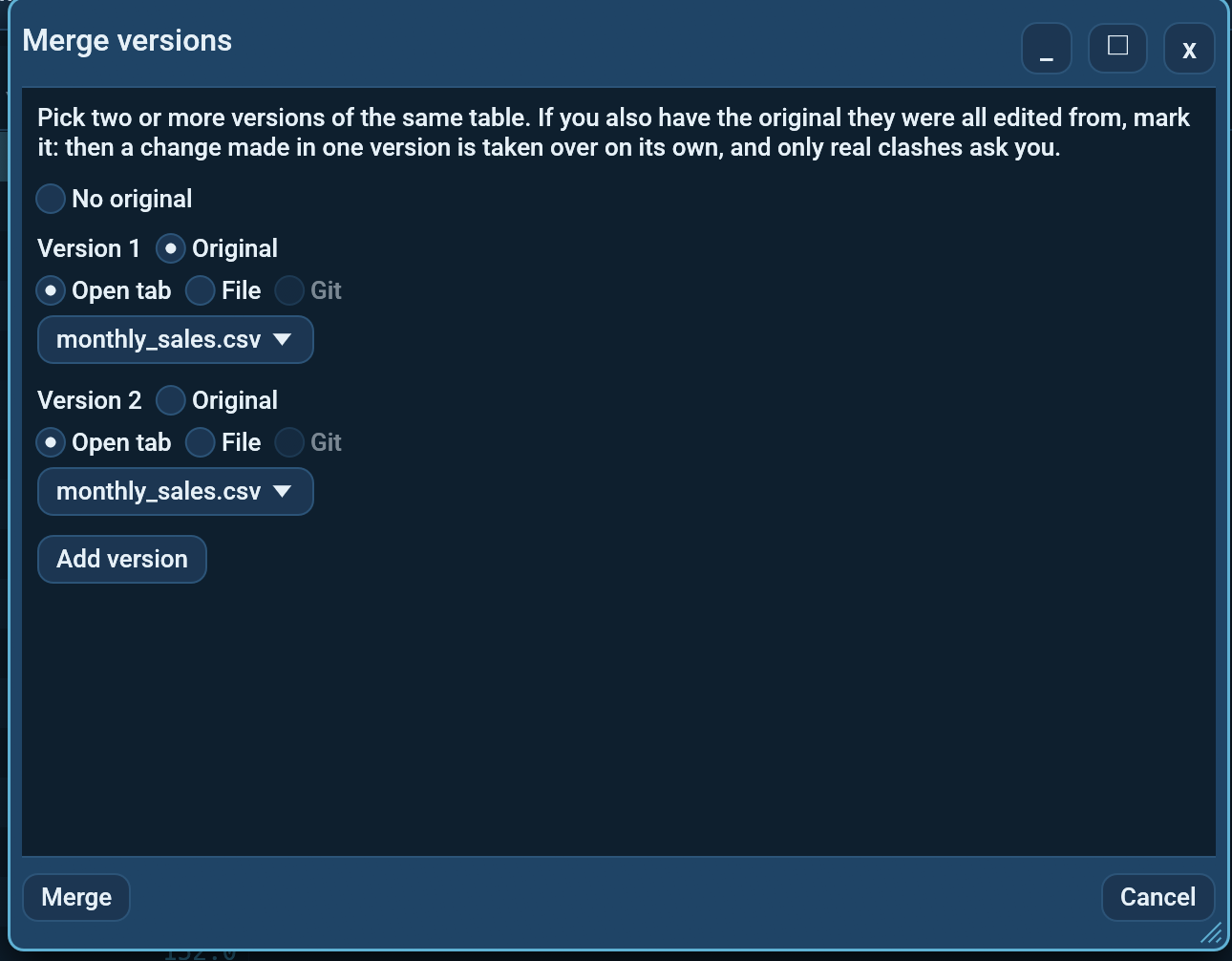
Several people edited copies of the same table. File -> Merge versions... puts their changes back together, per row and per cell. Two versions, three, ten: any number from two up.
With or without the original
If you still have the original the versions were all edited from, mark it. It is what lets Octa tell who changed what:
- A change made in one version only is taken over.
- The same change in several versions is taken once.
- Different changes to the same cell are a conflict: you pick the value.
- A row added in any version is kept.
- A row deleted in some versions and left alone in the rest is deleted. Deleted in some and edited in another, it is a conflict: you decide whether the deletion or the edit wins.
- A column added in a version is kept; a column the original had and any version removed is removed.
Without an original there is nothing to compare against, so Octa cannot tell a change from the value that was there before. Every cell where the versions disagree becomes a conflict, and a row that any version has is kept (an added row and a deleted row look the same). That works, but it asks more questions, so mark the original when you have one.
Cells are compared by their displayed value, so a CSV version and a Parquet version of the same data merge cleanly.
Matching rows
Octa has to know which row in one version is which row in another. It uses key columns for that, usually an ID, and ticks the most likely one itself (the same scoring as the Join Key Finder). Tick a different one, or several, and the merge is redone at once without reading the files again.
With no column ticked, rows are matched by position: row 1 with row 1. That only works when nobody inserted, deleted or sorted rows. A key value that appears twice is matched in order.
Using it
- File -> Merge versions...
- Each row is one version: an Open tab or a File. The active tab starts out as version 1. Add version adds more; the small x removes one.
- Mark the Original radio on the version they were all edited from, or leave No original selected.
- Merge reads them. Nothing is saved yet.
- Check the Match rows by columns. The summary says how many rows are unchanged, changed, added and in conflict.
- Settle each conflict by clicking one of its Choices. Every choice
shows the version numbers that hold it, like
9.99 [1, 3]; hover it for the names. Take all from settles every conflict with one version's values. - Open merged table opens the result in a new tab. It stays greyed out while a conflict is open.
The result tab marks every row by what happened to it:
| Colour | Meaning |
|---|---|
| Green | Changed |
| Blue | Added |
| Orange | A conflict you settled |
The colours are ordinary row marks. The xlsx writer keeps marks as cell colours, so clear them before saving to xlsx if you do not want them in the file.
Resolving a git merge conflict
When the active tab's file is in a git merge conflict, the dialog fills in all three versions from git by itself (the original, your branch and the branch being merged in) and marks the first as the original. You only check the key and settle the conflicts.
The result tab then points at the conflicted file itself, without row
colours, so Save writes the resolution where git expects it. Run
git add on the file afterwards.
Merge automatically on every git merge
Octa can be git's merge driver for data files, so a merge where the
branches touched different rows or cells needs no conflict at all. Add
this to the repository's .gitattributes:
and tell git what octa means:
git config merge.octa.driver "octa --merge %A %B --merge-original %O --merge-key id --merge-out %A --merge-format %P"
Replace id with your key column. --merge-format %P is needed
because git hands the driver temporary files without an extension. On
a real conflict the driver writes nothing and exits 1, git marks the
file as conflicted, and File -> Merge versions... picks it up from
there.
Command line
octa --merge march_anna.csv march_ben.csv march_carla.csv \
     --merge-original march.csv --merge-key id --merge-out march_merged.csv
See --merge for every flag and the exit codes.
MCP and the assistant
The merge_tables tool does the same merge and returns the merged rows
or the open conflicts. See merge_tables.
Limits
- Columns are matched by name. A renamed column reads as one removed and one added.
- With an original, a column one version removed is removed, even if another version edited values in it.
- Files are read under the usual row cap, so very large files are merged on the rows that were loaded.